
Microsoft Office is an incredibly popular suite of productivity applications designed to enable a wide range of aspects of traditional office work. When you get a new computer, you obviously need to reinstall all of your software from your previous device.
Related Reading:
- Office: This Action Could Not Be Performed
- Fix: Office Doesn’t Recognize the Command It Was Given
- Microsoft Office: How to Scan and Edit a File on Android
- How to Get Microsoft Office Free for Students and Teachers
- MS Office: Fix “Windows cannot find… integratedoffice.exe” Error
When it comes to reinstalling Microsoft Office, you can save yourself the cost of buying a new licence by transferring your old one. And today, we’ll show you how to do that.
Tip: With Microsoft Office, you can use up to five devices at any given time with a personal subscription. If you were switching to a new computer, this isn’t such a huge deal. but if you’re planning to keep your old one as well, you should keep this in mind.
Logging Out of Office on Your Old Computer
If you still have your old computer, you can log out of Microsoft Office. The process is simple; first, open a Microsoft Office application (e.g. Word or PowerPoint).
If you have a Windows computer, you will first need to go to File. Select Account next, before clicking on Sign Out.

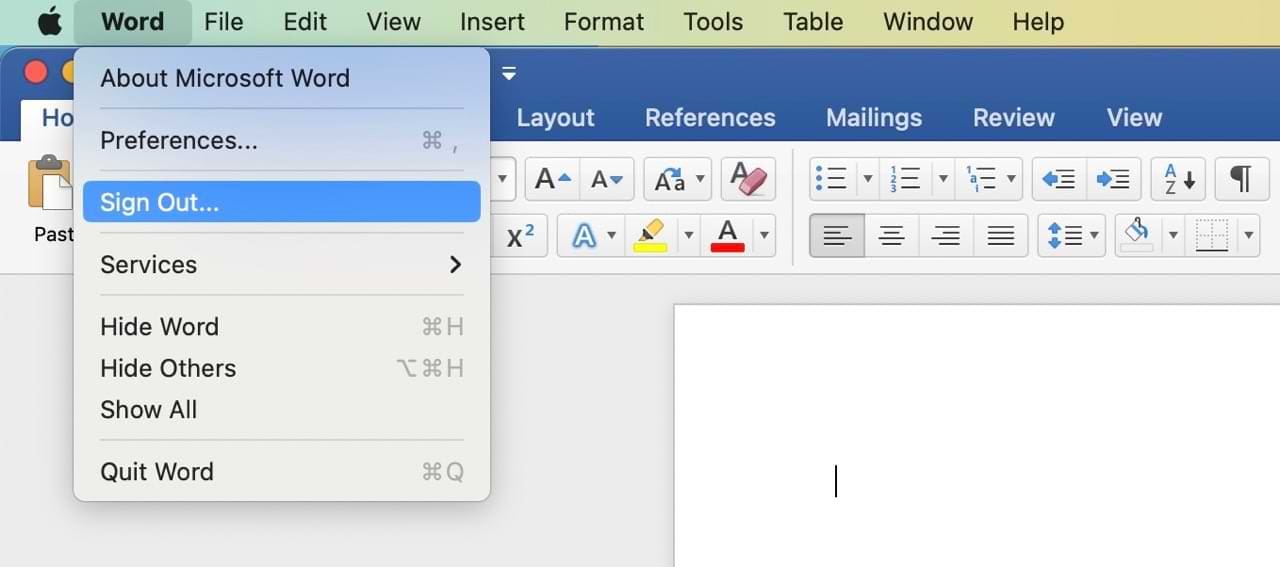
If you have a Mac, click on [Application Name] > Sign Out to log out of Microsoft Office on your device. In the example below, we’re signing out of Microsoft Word.
Signing Out of Office on Your Old Device (Without Access to Computer)
If you don’t have access to your old device anymore, don’t worry — you can still log out of Office. To do so, you first need to sign into your Microsoft account and access devices here.
After doing the above, select the device that you want to remove.
Activating Office on a New Computer
Activating Microsoft Office on your new computer is straightforward. First, you’ll need to download at least one Microsoft App. Some computers already have these downloaded when you use them, but they’re available on various app stores if you don’t have instant access to them.
After installing whichever app you’ve chosen, open it. Then, you’ll be asked to log into your Microsoft account. Once you’vee signed in, your copy of office will be automatically activated if you have an available licence associated with your account.
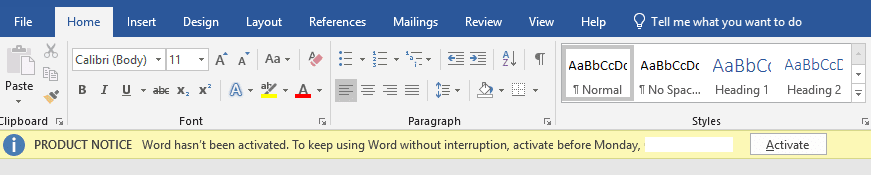
If you didn’t have an available licence when you installed Office, an alert will show at the top of the Office apps, click Activate and then sign in with your Microsoft account to activate your Office installation. You should then have no issues using the apps included in your subscription.
Transferring Microsoft Office to a New Computer Is Easier Than You Think
If you’re worried that having to transfer Microsoft Office to a new computer takes a lot of time, we’ve got some good news: There’s no need to! The process is pretty straightforward, and logging out of your account from your old device is also easy. Considering that you’re allowed up to five devices on personal Microsoft 365 plans, you might want to make the most of this if you plan to keep your old computer for whatever reason.
Whenever you need to move Microsoft Office to a new computer, you can always refer back to this guide.

