There are many things you can do with e Office 365 app. You can easily access Excel, Word, PowerPoint, PDF, and Forms. You can also quickly create a note, make a voice note, and scan a document. It’s great when you don’t always get your file on a PDF and then have to turn them into one, so you always have a digital copy. Just in case anything should happen to the paper one.
How to Scan a File Using the Office 365 Android App
If you don’t have the Office 365 app installed on your Android device, you can install it from the Google Play app. Once the app is installed and it’s up and running, you will see a Create button at the bottom right. When you tap on the button, you’ll see various options, but at the top will be the option to scan a paper document.

Once you’ve captured the document, the app will show you a preview. You’ll also see previews of files you already have a picture of, and you can choose from those as well. At the bottom right, you’ll see a camera icon. Tap on it if you want to switch from the front-facing camera and vice versa.
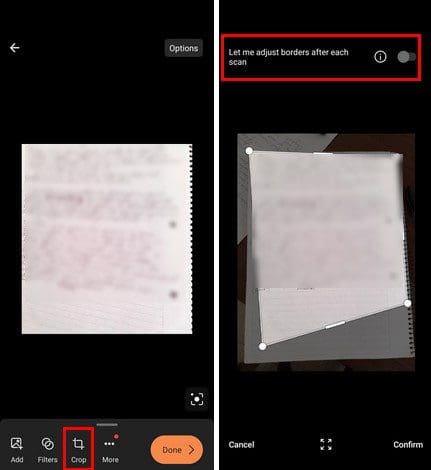
If you’re not happy with what you see and want to crop it, you can tap on the Crop option at the bottom. Move the edges until the app has what you want to include. You’ll also see an option at the top to allow yourself to adjust the borders after each scan. Once you’re done, don’t forget to tap on the Confirm button at the bottom right.
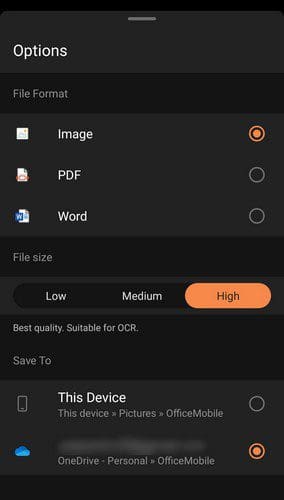
Once you’re done cropping the image, there are other changes you make to the image. You can change the file format by tapping on the option button at the top right. You can choose from options such as:
- Image
- Word
By tapping on the icon above the Done button, you can have the app isolate the content and then copy, share, save, and search it. You can also choose the file size. You can select the file size and set it as low, medium, or high. At the bottom, you’ll also see two options for saving your file. You can save it on your device or your OneDrive account.
When you leave Options at the bottom, you’ll see more options to choose from. You can do things such as add another picture and add filters. By tapping on the dots, you have access to other options such as:

- Add more images
- Filters
- Crop
- Rotate
- Delete
- Ink
- Text
- Reorder
Once you’re done scanning, you can find your creations by tapping on the Scans options at the top. If you don’t see it, you’ll need to swipe left where you see the options for PDF, Excel, etc. When you tap on Scans, you’ll see all the documents you’ve scanned along with the time and date of the scan. Tap on the dots next to it, and you can share the file as a PDF or remove it from the list.

Conclusion
Thanks to being able to scan your documents, you can easily create a digital copy. By doing so, even if you lose the paper copy, you can always print out another one. How many files do you need to scan? Let me know in the comments below, and don’t forget to share the article with others on social media.