Skip to content
LogoTechnipages
technipages logo
  • Topics
        • Android
        • Browsers
        • Gaming
        • Hardware
        • Internet
        • iPhone
        • Linux
        • macOS
        • Office
        • Reviews
        • Software
        • Windows
        • Definitions
  • Product Reviews
  • Downloads
  • About

How to Enable or Disable Outlook Mail Notification Box

Mitch BartlettNovember 8, 2022 Comments (1)
Outlook Logo Header

We show you how to enable or disable the email notification box that appears in the Windows Taskbar whenever you receive a new message in Microsoft Outlook.

Note: This post is to enable or disable the notification box. For the sound notification, see our post Turn Mail Notification Sound On/Off in Outlook


Fix 1: Outlook Setting

  1. In Outlook, select the “File” menu.
  2. Select “Options“.
  3. Choose the “Mail” option in the left pane.
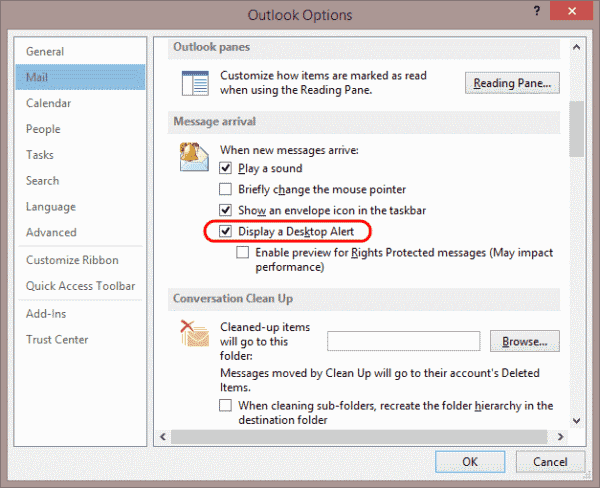
  4. Scroll down to the “Message arrival” section. Check the “Display a Desktop Alert” box if you want a notification box to appear when you receive an email. Uncheck it if you don’t want a notification box to appear. You can also choose “Show an envelope icon in the taskbar” if you wish.
    Outlook 2013 Desktop Alert setting

Fix 2 – Windows Notification Settings

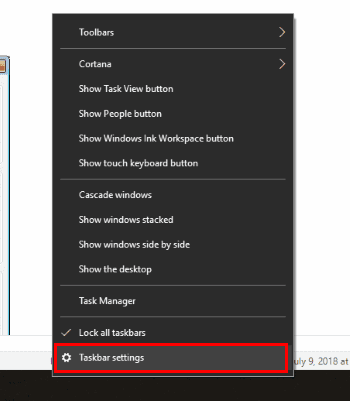
  1. Right-click a blank area on the taskbar, then select “Taskbar settings“.
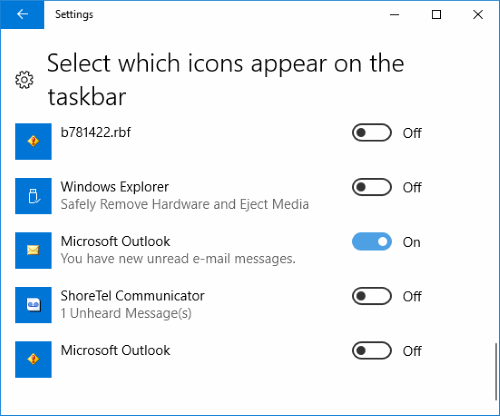
  2. Scroll down to the area that says, “Notification area” and choose the “Select which icons appear on the taskbar“.
  3. Look for “Microsoft Outlook” entry. There may be several but look for the one that says “Microsoft Outlook – You have new unread e-mail messages.” and toggle it to the “On” position to enable it. Turn it “Off” to disable it.
Fix 3 – Check Notifications & Action Settings

  1. Select the Start button then type “notification“.
  2. Select Notifications & Action Settings.
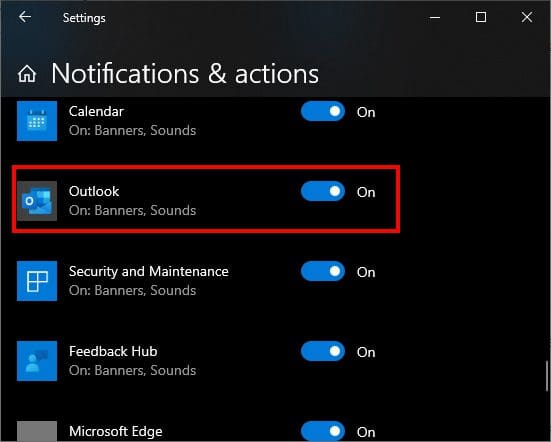
  3. In the Notifications & actions section, ensure that Outlook is turned On or Off as desired.
    Windows Outlook Notification Setting

Fix 4 – Disable Focus Assist

At certain times, the Windows Focus Assist feature may suppress certain notifications.

  1. Select the Start button and type “focus assist“.
  2. Select Focus Assist to open the settings.
  3. If you wish to have notifications displayed at all times, turn everything Off on this screen. Otherwise, you can leave the settings alone.

I hope one of the above fixes has helped you figure out your problems with Outlook notifications. Let me know if something worked for you in the comments section below.

Categories: Office

Author Mitch Bartlett

My name is Mitch Bartlett. I've been working in technology for over 20 years in a wide range of tech jobs from Tech Support to Software Testing. I started this site as a technical guide for myself and it has grown into what I hope is a useful reference for all. Mitch's Favorite Gear ATX Graphics Card CanaKit Raspberry Pi 3

You Might Also Like

  • Excel Header

    Excel: Permanently Disable Compatibility Checker Dialog

    Mitch BartlettOffice
  • Excel

    Microsoft Excel: How to Import Data from a PDF File

    Judy SanhzOffice
  • How to Add Holidays to Outlook Calendar on Windows and Web App

    How to Add Holidays to Outlook Calendar on Windows and Web App

    Susan SheffieldOffice
  • How to Print Labels From Excel Using MS Word Mail Merge

    How to Print Labels from Excel Using MS Word Mail Merge

    Susan SheffieldmacOS

Comments

  1. Anil says:
    December 21, 2022 at 10:38 pm

    Helpful

Leave a Reply

Your email address will not be published. Required fields are marked *

This site uses Akismet to reduce spam. Learn how your comment data is processed.

300x600
Turning on Triple Touch Zoom on Android

Turning on Triple Touch Zoom on Android

How to Connect Outlook 2023 to Gmail

How to Connect Outlook 2023 to Gmail

Netflix: Change Password

Netflix: Change Password

Everything You Need to Know About WhatsApp Delete for Me

Step-by-Step Guide: How to Use WhatsApp on Your Computer

Android: Enable or Disable Background Data

Android: Enable or Disable Background Data

300x250
profile pic

The Experts Behind Technipages

My name is Mitch Bartlett. I've been working in technology for over 20 years in a wide range of tech jobs from Tech Support to Software Testing. I started this site as a technical guide for myself and it has grown into what I hope is a useful reference for all.

Learn More

300x250 2
technipages logo white
linkedin icon

Technipages is part of Guiding Tech Media, a leading digital media publisher focused on helping people figure out technology. Visit guidingtechmedia.com to learn more about our mission and team.

© 2026 Guiding Tech Media All Rights Reserved

  • About Us
  • Contact
  • Legal & Privacy

© 2026 Guiding Tech Media All Rights Reserved

Information from your device can be used to personalize your ad experience.
Do not sell my personal information.