
Skip to content
LogoTechnipages
technipages logo
  • Topics
        • Android
        • Browsers
        • Gaming
        • Hardware
        • Internet
        • iPhone
        • Linux
        • macOS
        • Office
        • Reviews
        • Software
        • Windows
        • Definitions
  • Product Reviews
  • Downloads
  • About

Microsoft Excel: How to Import Data from a PDF File

Judy SanhzAugust 31, 2022 Comments (0)
Excel

Sooner or later, you’ll get a PDF file you’ll need to view in Microsoft Excel. The good news is that Excel has an integrated feature that allows you to do this. It’s a handy feature available for Office 365 subscribers and saves you from having to use a third-party app. Even if you’re in a hurry, it’ll be something you can do since you can do this in less than a minute.

Quickly Import Data from a PDF File to Excel

Once the Excel file is open, click on the Data tab at the top. When the options appear, click on the Get Data dropdown menu.

Datab Tab Excel

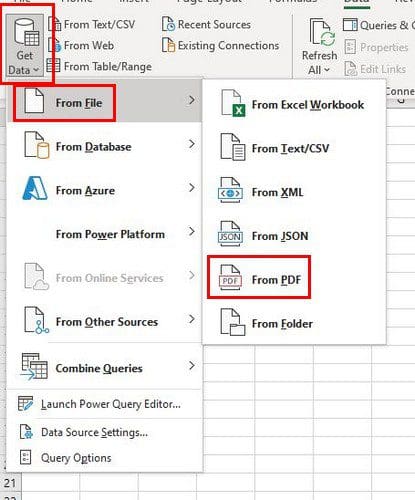
The Get Data option will give you various options but click on the From File, followed by the PDF option.
PDF Excel

Look for and select the PDF file you want to import, and click on the Import button at the bottom right. On the Navigator pane, you’ll see a list of all the pages your PDF has. When you click on a page, you can preview the content on the right side.

Navigation pane Excel

When you want to open the file on Excel and not only see a preview but also make sure to click on the Load button (Bottom right). But, if you click on the dropdown menu for the Load button, you can modify the load settings. You can do this by clicking on the Load To option.

Excel Load Settings

In the import data window, you can choose from different options such as:

  • Table
  • PivotTable Report
  • PivotChart
  • Only Create Connection

Import Data Windows Excel

You’ll see the Transform Data button to the right of the Load option. Here you can do various things such as add or remove columns, format the data, and more!

Transform Data Excel

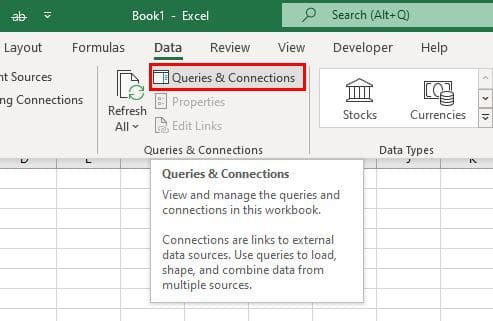
To modify the data you imported to Excel, you can also access it from the Queries and Connections sidebar. You’ll need to click on the Data tab, followed by the Queries and Connections option.
Queries and Connections

Under Queries and Connections, you should see the page from your PDF. Place the cursor over it, and a window will appear to the side. Here, you can also do all sorts of things such as:

Excel Queries side window

  • Merge
  • Duplicate
  • Edit
  • Delete
  • Reference

Conclusion

Just because a file is in a PDF doesn’t mean you can make a few changes using Excel. You can choose from different ways of viewing your file to read it more manageable. How often do you have to view PDFs in Excel? Share your thoughts in the comments below, and don’t forget to share the article with others on social media.

Categories: Office

Author Judy Sanhz

You Might Also Like

  • Word 365: Enable or Disable AutoRecover Save

    Mitch BartlettOffice
  • Outlook Logo Header

    Turn Mail Notification Sound On/Off in Outlook 2016

    Mitch BartlettOffice
  • Outlook Won’t Work in MacOS High Sierra – Fix

    Mitch BartlettOffice
  • Integrating MyScript Math into MS Word

    MonaOffice

Leave a Reply

Your email address will not be published. Required fields are marked *

This site uses Akismet to reduce spam. Learn how your comment data is processed.

300x600
Turning on Triple Touch Zoom on Android

Turning on Triple Touch Zoom on Android

How to Connect Outlook 2023 to Gmail

How to Connect Outlook 2023 to Gmail

Netflix: Change Password

Netflix: Change Password

Everything You Need to Know About WhatsApp Delete for Me

Step-by-Step Guide: How to Use WhatsApp on Your Computer

Android: Enable or Disable Background Data

Android: Enable or Disable Background Data

300x250
profile pic

The Experts Behind Technipages

My name is Mitch Bartlett. I've been working in technology for over 20 years in a wide range of tech jobs from Tech Support to Software Testing. I started this site as a technical guide for myself and it has grown into what I hope is a useful reference for all.

Learn More

300x250 2
technipages logo white
linkedin icon

Technipages is part of Guiding Tech Media, a leading digital media publisher focused on helping people figure out technology. Visit guidingtechmedia.com to learn more about our mission and team.

© 2026 Guiding Tech Media All Rights Reserved

  • About Us
  • Contact
  • Legal & Privacy

© 2026 Guiding Tech Media All Rights Reserved

Information from your device can be used to personalize your ad experience.
Do not sell my personal information.