Skip to content
LogoTechnipages
technipages logo
  • Topics
        • Android
        • Browsers
        • Gaming
        • Hardware
        • Internet
        • iPhone
        • Linux
        • macOS
        • Office
        • Reviews
        • Software
        • Windows
        • Definitions
  • Product Reviews
  • Downloads
  • About

Office: This Action Could Not Be Performed

Madalina DinitaFebruary 27, 2023 Comments (0)
Office-This-Action-Could-Not-Be-Performed-Error

Microsoft Office may sometimes fail to open your SharePoint or OneDrive documents. One of the most common errors that pop up on the screen when this issue occurs is this one “This action could not be performed because Office encountered an error“. Unfortunately, the error message doesn’t offer more details about the root cause of the problem. Follow the troubleshooting steps below to fix Office and get rid of this error message.

This Action Could Not Be Performed Because Office Encountered an Error

Create a New File

Maybe the file you’re trying to open got corrupted or it’s saved in a format that Office doesn’t support. To bypass this problem, copy the contents of the problematic file to a new file. Save the new file using a format you’re 100 percent sure that Office supports. Then check if you can open that file. If the error persists, go to the next step.

Update Office

Make sure you’re running the latest Office version on your computer. Launch any Office app and go to File. Then click on Account and go to Update Options. Hit the Update Now button and check for updates. Check if installing the latest Office updates fixed the problem.

update microsoft office

Repair Your Office Suite

If some of the files from the Office Suite got corrupted, use the built-in repair tool to fix the problem.

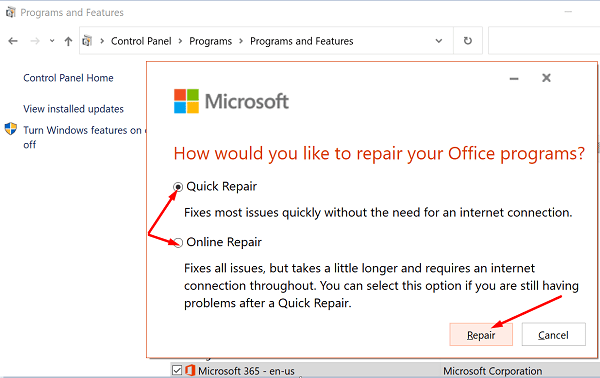
  1. Go to Control Panel and select Programs.
  2. Then click on Programs and Features and select your Office installation package.
  3. Hit the Change button and run the Quick Repair tool.repair-microsoft-office
  4. If the problem persists, run the Online Repair tool as well.
  5. Restart your computer and check the results.
Reinstall Office

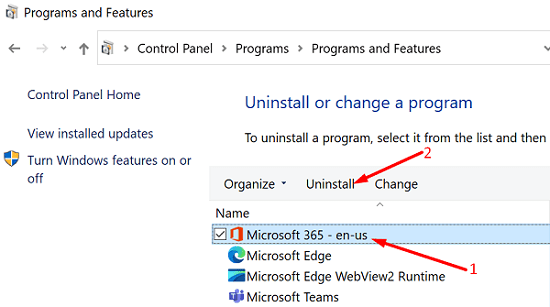
If none of the solutions above fixed the problem, uninstall Office. Go to Control Panel, select Uninstall a program, select Office, and hit the Uninstall option. Then restart your machine and install a fresh copy of Office.
uninstall-office-windows-10

Conclusion

If Office says it failed to perform the action you required, copy the contents of the problematic file to a new file. If the issue persists, check if Office is the culprit. First, update and repair your Office Suite, and then uninstall and reinstall Office. Did these troubleshooting tips help you fix the problem? Let us know in the comment below.

Categories: Office

Author Madalina Dinita

You Might Also Like

  • Track Changes Mode in Word 2016 featured image

    How to Enable Track Changes Mode in Word: 4 Best Methods

    Mitch BartlettOffice
  • Outlook Logo Header

    Outlook: “Can’t Create File” Error When Opening Attachment

    Mitch BartlettOffice
  • Outlook Logo Header

    How to Remove McAfee Anti-Spam From Outlook

    Mitch BartlettOffice
  • Outlook: Enable/Disable Add-ins

    Mitch BartlettOffice

Leave a Reply

Your email address will not be published. Required fields are marked *

This site uses Akismet to reduce spam. Learn how your comment data is processed.

300x600
Turning on Triple Touch Zoom on Android

Turning on Triple Touch Zoom on Android

How to Connect Outlook 2023 to Gmail

How to Connect Outlook 2023 to Gmail

Netflix: Change Password

Netflix: Change Password

Everything You Need to Know About WhatsApp Delete for Me

Step-by-Step Guide: How to Use WhatsApp on Your Computer

Android: Enable or Disable Background Data

Android: Enable or Disable Background Data

300x250
profile pic

The Experts Behind Technipages

My name is Mitch Bartlett. I've been working in technology for over 20 years in a wide range of tech jobs from Tech Support to Software Testing. I started this site as a technical guide for myself and it has grown into what I hope is a useful reference for all.

Learn More

300x250 2
technipages logo white
linkedin icon

Technipages is part of Guiding Tech Media, a leading digital media publisher focused on helping people figure out technology. Visit guidingtechmedia.com to learn more about our mission and team.

© 2026 Guiding Tech Media All Rights Reserved

  • About Us
  • Contact
  • Legal & Privacy

© 2026 Guiding Tech Media All Rights Reserved

Information from your device can be used to personalize your ad experience.
Do not sell my personal information.