
Dropbox is an excellent cloud storage and file hosting service that can help you free up a lot of storage space on your computer. You can upload your files to the cloud and then work on them with your entire team. Sometimes, you may need to download some of these files on your computer. But the download option may not always be available. Keep on reading this guide to learn what you can do if the download option is not showing up in Dropbox.
How to Fix Download Option Missing in Dropbox
Check the File Size
If you’re trying to download a really large file, check the folder size and make sure it’s less than 20 GB. Dropbox will only download files under 20 GB that contain fewer than 10,000 files. To walk around this limitation, use smaller file batches.
Open the File
Normally, if you click More options (the ellipsis), the Download option should be the first on the list.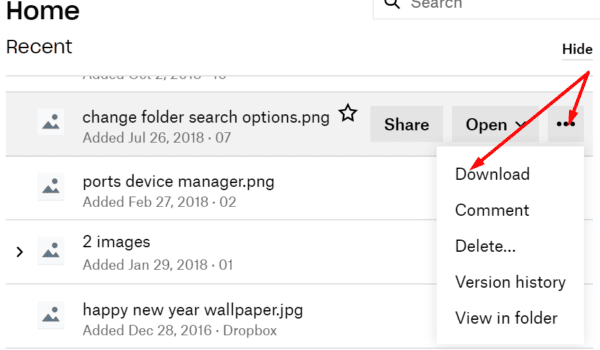
However, if your computer syncs the files locally, the Download button is often replaced with the Open button. This is because the file already exists locally on your machine. Instead, you can use the Open button to open the file locally. All the changes that you make after opening the file will automatically be synced to Dropbox.
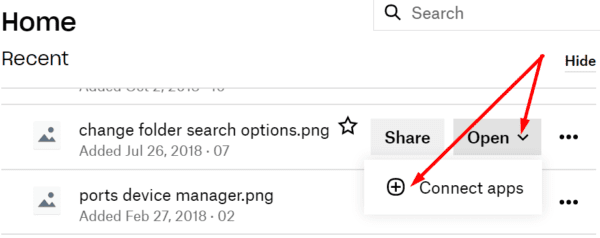
Go to the file you want to open and select the Open option. Select the app you want to open the file in and then you can use the Save As option to download a new copy of the file on your machine. Manually select the destination folder and check if your computer successfully downloaded the file.
Check Your Browser
Check if you can download the problematic file using incognito mode or private browsing mode. Maybe certain cookies or browser extensions are preventing you from downloading files from Dropbox.
Alternatively, use a different browser than your default browser. Maybe your current browser is affected by some temporary glitches blocking file downloads. Don’t forget to check for updates and ensure you’re running the latest browser version available, irrespective of the browser you’re using.
Additionally, clearing your browser’s cache could help as well. For more information on the steps to follow, see How to Clear the Cache in Google Chrome.
Conclusion
If you can’t download files from Dropbox, make sure the download folder is under 20 GB and has fewer than 10,000 files. Alternatively, use the Open option and open the file with a third-party program. You can then use the Save As option and manually select the destination folder on your machine. Did you manage to fix this download problem? If you found other solutions to resolve it, list the steps to follow in the comments below.


Drop box is a garbage piece of software. Wont let you down load photos from the photo folder. Its whole purpose in like it to store and distribute files and it can even do that.