

When Google Chrome adds a suggestion as soon as you type the first few letters, it intends to be helpful. But, some users might find this annoying since it might add the wrong information. The suggested information might make you lose sight of what you were typing, and you would rather turn it off. Keep reading to see how easy it is to turn it off.
How to Turn off Autocomplete searches and URLs on Chrome
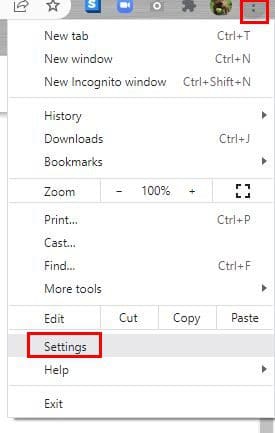
To stop Chrome from auto-filling the URL, you’ll need to click on the three dots at the top right. Go to Settings
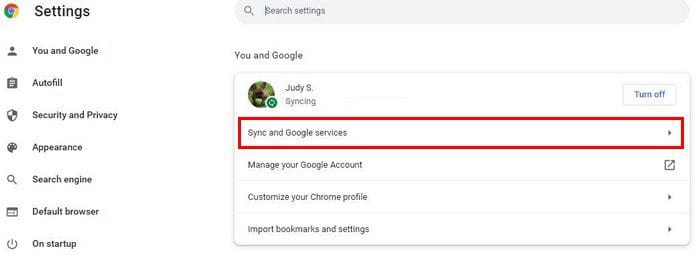
On the next page, click on the Sync and Google services.
Scroll down a bit until you come across the Autocomplete searches and URLs option. Toggle off the option to the right.

Android
Disabling the autocomplete searches and URLs on Android is also an easy task on your Android device. Open Chrome and tap on the three dots at the top right. Go to Settings and tap on the Google Services option. Swipe down a bit and simply toggle off the autocomplete searches and URL s option. That’s all there is to it.

If you’re an Apple fan, you can also turn this feature off by tapping on the three dots and going to Settings. Once you’re in, tap don’t Google Services and toggle off the feature.
More Tips for Bar Search Suggestions
While we’re on the subject of search suggestions, when you search for something, you sometimes get images with your results. Some find that useful, while others might not. If you want to remove those result images, here are the steps to follow.
How to Remove Search Suggestion Pictures
If you don’t feel like seeing those thumbnails images in the results, you can get rid of them by changing the default search engine. You can do this by clicking on the dots and going to Settings > Manage Search Engines and go to the list of search engines. Choose the one you want to use as your default, and click on the dots to the right.

Once you’ve chosen the new search engine, try searching for something you’ve always seen an image for. You’ll see that they are no longer there. If you ever change your mind, simply repeat the process and choose Google again to see the images with the results.
Conclusion
You can look for what you need without unwanted suggestions by turning off the suggested search results. You’ll only see what you type without anything distracting you. Regardless of whether you’re on your computer or Android device, you’ll be able to turn it off easily. Even if you want to get rid of the images in the search results, it can also be done. Did you turn off the autocomplete on your computer and Android device? Share your thoughts in the comments below, and don’t forget to share the article with others on social media.


I agree ; this is outdated, as well as repeated often throughout the web. These procedures no longer turn off search suggestions completely, even after clearing browser history as well.
“When Google Chrome adds a suggestion as soon as you type the first few letters, it intends to be helpful. But, some users might find this annoying since it might add the wrong information. The suggested information might make you lose sight of what you were typing, and you would rather turn it off. Keep reading to see how easy it is to turn it off.” is unnecessary information that is not needed in order to do this, and anyone who is reading this article most likely already knows that information; just letting you know for future reference when making a help page is all.
Also, this information is all outdated, so it might be of some benefit to take this article off on the online web and maybe make a new article that is up to date.