

When you save a Facebook post to read later, you don’t miss out on what interests you. There is so much content to read on Facebook that it’s impossible to read in all in one login. In that case, you save it for later and decide when it’s a good time to read it.
Even if you’re in a hurry, you’ll still be able to save content on Facebook for later. It only takes a few clicks here and there to save what you want to read. You can save as many posts as you want for your nighttime reading.
How to Bookmark Facebook Content for Later
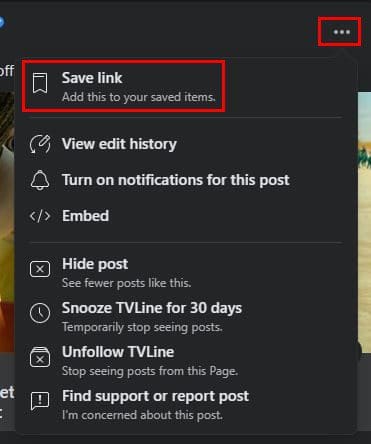
You may be surprised how easy it is to save a Facebook post to read later. Once you’ve found the post, you want to keep, click on the three dots at the top right of the post.
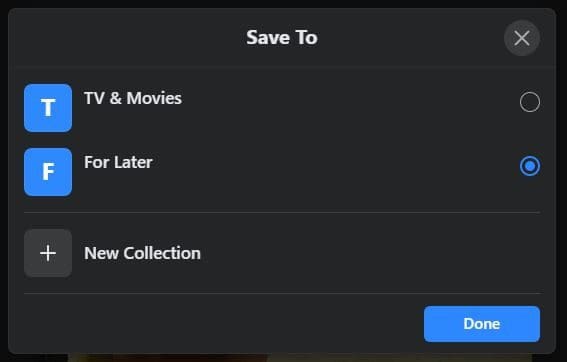
In the next window, you’ll need to decide where you want to save your post. You can choose from options such as For Later, Tv, and Movies. There’s also an option to create a new location for your saved posts.
Android
To save Facebook posts for later on Android is just as easy. Once you’ve located the post you want to save, tap on the dots and the Save Post option. You’ll need to choose where you want to save your post. There will also be an option to create a new collection list.
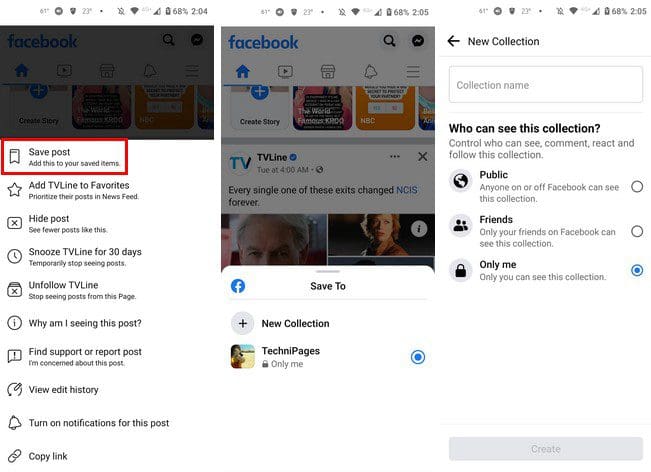
You can add your post to an already existing collection, or you can add a new one. If you create a new collection, make sure to choose the Only Me option if you want to keep it private.
How to Find Saved Facebook Posts to Read Later
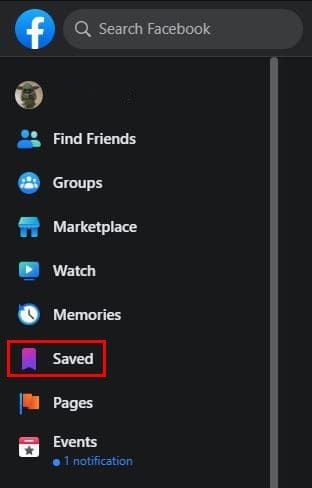
There’s no point in saving posts to read them later if you can’t find them. If you’re on your computer, click on the Saved option on the left side of your screen.
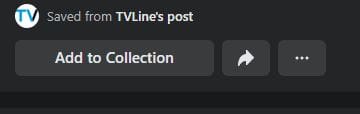
Everything you ever saved will be to your right. You’ll also see additional options such as adding them to another collection, unsaving them, and creating a post with it.
There will also be a cogwheel (Reminder Settings) near the top left where you’ll find options such as:

- Notifications – To get notifications about the posts you saved
- News Feed Reminders – To get a reminder on your saved item in your News Feed
- Saved items in your News Feed – This option is if you want to have your saved item show up while you’re looking through the News Feed.
Android
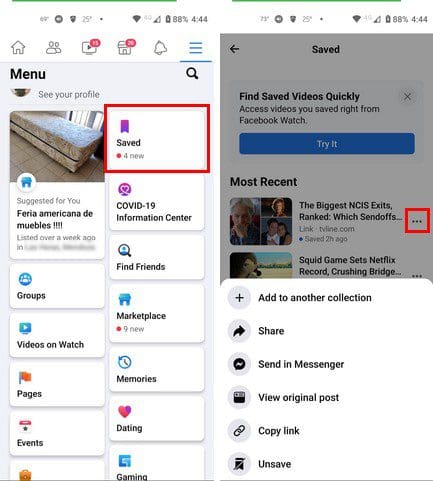
To find your saved posts on your Android device, tap on the three menu lines at the top. Tap on the Saved option near the top. Your most recent saves will be at the top. Tap on the dots to the right of the post to access options such as Share, Send in Messenger, View original post, Copy Link, and Unsave.
Conclusion
Just because you don’t have the time to read everything you want, that doesn’t mean you can’t save it for later. Thanks to the saved option, you can save all the posts you want and read them as you have time for them. Do you think you’ll be saving a lot of posts? Let me know in the comments below, and don’t forget to share the article with others on social media.


