Skip to content
LogoTechnipages
technipages logo
  • Topics
        • Android
        • Browsers
        • Gaming
        • Hardware
        • Internet
        • iPhone
        • Linux
        • macOS
        • Office
        • Reviews
        • Software
        • Windows
        • Definitions
  • Product Reviews
  • Downloads
  • About

Twitch.tv: How to Restrict Chat to Followers-Only Mode

Mel HawthorneDecember 23, 2020 Comments (1)

Twitch chat is a key part of building a community on Twitch, it allows interactions between yourself and your viewers as well as between your viewers. This level of interaction is a key part of the success of many channels, as it helps to make people feel more involved. In some cases, though Twitch chat can be less fun.

For example, if you’ve got a large viewer base it can be really hard for moderators to keep up with chat and make sure that everyone is following the rules, even with the help of some of the automated tools. This effect can be exacerbated during a “Raid” where another streamer sends their viewers to you. Raids can sometimes also result in much higher levels of comments that need to be deleted by moderators, making things even more difficult for them.

One way you can reduce this issue is to enable “Followers-only mode” in your chat. This setting prevents users that have not been following your for the configured time from being able to send messages in the chat. Overall, this has the effect of reducing the number of people sending messages and therefore the overall number of messages, especially during a raid. It also tends to increase the percentage of long-term fans chatting and reduce the number of trolls, as they generally won’t stick around long enough to bother you.

To enable followers-only mode you need to go into the creator dashboard. To open the dashboard, click on your profile picture in the top-right corner, then click on “Creator Dashboard”.
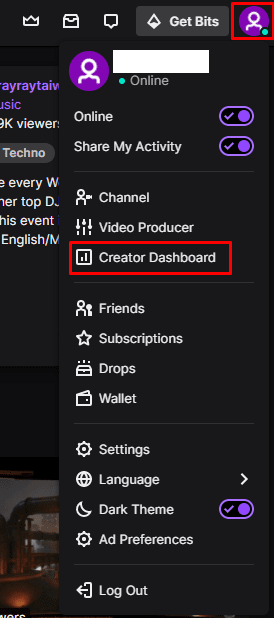
Click on your profile picture, then “Creator Dashboard”.

Once in the creator dashboard, expand the “Preferences” category in the left column, then click on “Moderation”. Scroll down to the bottom of the moderation preferences, then click on the dropdown box that is third from the bottom, labelled “Followers-only mode”. You can configure it so that users have to follow you for ten minutes, thirty minutes, one hour, one day, one week, one month, or three months. You can also choose to allow any user that has followed your account, or to disable the feature entirely, allowing anyone to send messages in the chat.

You can require users to follow you for between ten minutes and three months before they can send messages in the chat.

Categories: Internet

Author Mel Hawthorne

You Might Also Like

  • 7 Chrome Extensions to Make Gmail More Productive

    Judy SanhzInternet
  • Google Forms Header

    How to Use Data Validation in Google Forms

    Mel HawthorneInternet
  • Bitwarden: How to Unlock the Browser Extension with a PIN or Biometrics

    Mel HawthorneInternet
  • 6 Free Online Sites to Remove the Background of an Image

    Judy SanhzInternet

Comments

  1. Zaxyfanpage says:
    February 28, 2022 at 8:11 am

    I need help with doing so followers can only comment

Leave a Reply

Your email address will not be published. Required fields are marked *

This site uses Akismet to reduce spam. Learn how your comment data is processed.

300x600
Turning on Triple Touch Zoom on Android

Turning on Triple Touch Zoom on Android

How to Connect Outlook 2023 to Gmail

How to Connect Outlook 2023 to Gmail

Netflix: Change Password

Netflix: Change Password

Everything You Need to Know About WhatsApp Delete for Me

Step-by-Step Guide: How to Use WhatsApp on Your Computer

Android: Enable or Disable Background Data

Android: Enable or Disable Background Data

300x250
profile pic

The Experts Behind Technipages

My name is Mitch Bartlett. I've been working in technology for over 20 years in a wide range of tech jobs from Tech Support to Software Testing. I started this site as a technical guide for myself and it has grown into what I hope is a useful reference for all.

Learn More

300x250 2
technipages logo white
linkedin icon

Technipages is part of Guiding Tech Media, a leading digital media publisher focused on helping people figure out technology. Visit guidingtechmedia.com to learn more about our mission and team.

© 2026 Guiding Tech Media All Rights Reserved

  • About Us
  • Contact
  • Legal & Privacy

© 2026 Guiding Tech Media All Rights Reserved

Information from your device can be used to personalize your ad experience.
Do not sell my personal information.