Skip to content
LogoTechnipages
technipages logo
  • Topics
        • Android
        • Browsers
        • Gaming
        • Hardware
        • Internet
        • iPhone
        • Linux
        • macOS
        • Office
        • Reviews
        • Software
        • Windows
        • Definitions
  • Product Reviews
  • Downloads
  • About

Google Maps: How to Find Traffic Jams in Your Area

Judy SanhzJanuary 11, 2022 Comments (0)
google-maps-location

When you know where the traffic jams are, you can save yourself a lot of time; by knowing where they are, you know what streets to avoid and get home in time for movie night. Sure, you could use various apps that warn you about traffic jams, but why install another app when Google Maps gets the job done?

Thanks to this Google Maps feature, you can see where the traffic jams are. You can also see what streets have the least amount of traffic just in case it’s one of the alternative streets you wanted to take. Let’s see how you can locate those traffic jams.

How to Find and Avoid Traffic Jams Using Google Maps

The option to locate traffic jams is not plainly visible. You’ll have to tap here and there to finally see it. Once you have Google Maps, open tap on the Overlay icon at the top right. When you see the popup, tap on the Traffic option.
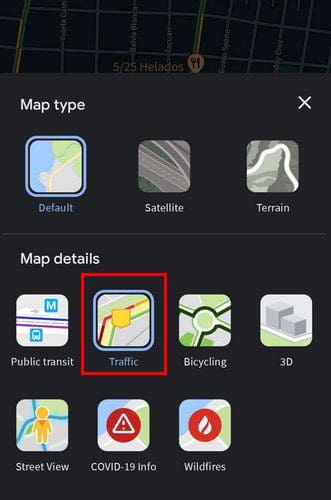
Traffic layer Google Maps

If traffic info is available for that area, you’ll see the roads in green, yellow, orange, and red. If you don’t see any of these colors, traffic information for that area is not available. This is what you need to do to check for any traffic jams if you’re using your Android device, but let’s see how you can do the same using your computer. That way, you can calmly plan what route you’re going to take. There is also the option of changing the language if it’s ever necessary.

Check Traffic on Google Maps on Your Browser

Once Google Maps on your browser open, place your cursor on the layers box at the bottom left. This is their new location; they’ve moved from the sidebar. As soon as you place the cursor on it, you should see the traffic layer.

Google Maps Traffic layer

Like the Android app, you’ll see the streets light up if traffic information is available. As you can see, it’s that easy. Whether you want to use your computer or your Android device, you can see what the traffic is like. Remember that you can also use Google Maps to find your parked car.

Conclusion

When you plan ahead and see where the traffic is, you can get to your destination a lot faster. If you have time, you can always check on your computer, but even if it’s last-minute, you can check the traffic from your Android device. How often do you check the traffic? Share your thoughts in the comments below, and don’t forget to share the article with others on other social eçmedia platforms.


Categories: Internet

Author Judy Sanhz

You Might Also Like

  • thunderbird not receiving sending emails

    Fix Thunderbird Not Receiving or Sending Emails

    Madalina DinitaInternet
  • Zoom: How to Hide Call Participants Who Aren’t Using a Webcam

    Mel HawthorneInternet
  • Zoom: How to Show All Message Threads in Chronological Order

    Mel HawthorneInternet
  • Google Duo: How To Prevent Other People From Seeing Your Video Before They Pick up Your Call

    Mel HawthorneInternet

Leave a Reply

Your email address will not be published. Required fields are marked *

This site uses Akismet to reduce spam. Learn how your comment data is processed.

300x600
Turning on Triple Touch Zoom on Android

Turning on Triple Touch Zoom on Android

How to Connect Outlook 2023 to Gmail

How to Connect Outlook 2023 to Gmail

Netflix: Change Password

Netflix: Change Password

Everything You Need to Know About WhatsApp Delete for Me

Step-by-Step Guide: How to Use WhatsApp on Your Computer

Android: Enable or Disable Background Data

Android: Enable or Disable Background Data

300x250
profile pic

The Experts Behind Technipages

My name is Mitch Bartlett. I've been working in technology for over 20 years in a wide range of tech jobs from Tech Support to Software Testing. I started this site as a technical guide for myself and it has grown into what I hope is a useful reference for all.

Learn More

300x250 2
technipages logo white
linkedin icon

Technipages is part of Guiding Tech Media, a leading digital media publisher focused on helping people figure out technology. Visit guidingtechmedia.com to learn more about our mission and team.

© 2026 Guiding Tech Media All Rights Reserved

  • About Us
  • Contact
  • Legal & Privacy

© 2026 Guiding Tech Media All Rights Reserved

Information from your device can be used to personalize your ad experience.
Do not sell my personal information.