
Skip to content
LogoTechnipages
technipages logo
  • Topics
        • Android
        • Browsers
        • Gaming
        • Hardware
        • Internet
        • iPhone
        • Linux
        • macOS
        • Office
        • Reviews
        • Software
        • Windows
        • Definitions
  • Product Reviews
  • Downloads
  • About

Zoom: How to Show All Message Threads in Chronological Order

Mel HawthorneJanuary 12, 2021 Comments (0)

With a communication platform like Zoom that has a text-based chat element, messages are generally shown in the order in which they were received. This is the most obvious order in which to display messages as it keeps the message thread easy to follow and understand. Zoom offers two settings that change the order in which messages are displayed which could lead to confusion as to when something was said.

The first option is “Keep all unread messages on top”. This option keeps chats that have one or more unread messages at the top of the right-hand chats list column in the “Chat” tab of the main Zoom window. This option can be useful if you have a huge list of chats and want to keep one at the top and easily accessible by keeping a message as unread.

For most people, however, who aren’t overwhelmed by a huge number of constant messages, this is simply unnecessary. If a chat with an unread message notification is sorted in chronological order, it is still easy to find as it will be highlighted with the unread message icon.

The second option is “Move message with new replies to the bottom of the chat”. This option moves messages which have new replies to the bottom of the chat history. Unfortunately, this comes with two issues, firstly, this can break the chronological order of a conversation, and secondly, this can result in the same chat having a different order for different users.

Showing a message with a new reply at the bottom does make it easier to see, however, it also means that responses that didn’t use the reply functionality can appear above the message they were in response to. Additionally, if some users have this feature enabled and some have it disabled, then they will see the chat history in a different order which could result in miscommunications and confusion.

To configure your Zoom chat settings, to always display messages in chronological order, you need to open Zoom’s settings. To access the settings, click on your user icon in the top-right corner, then click on “Settings”.
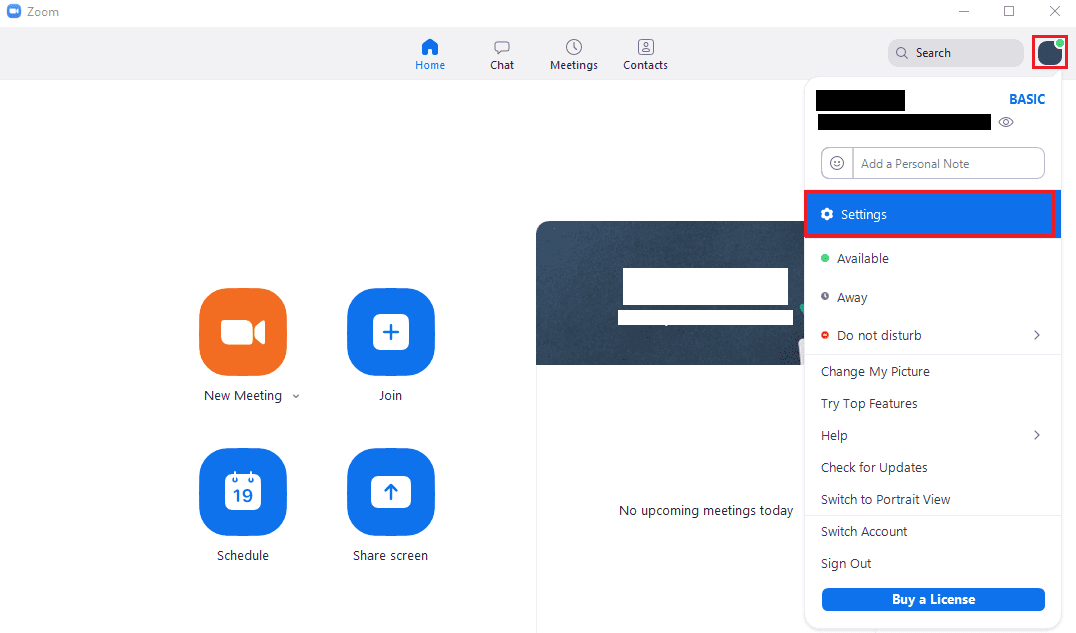
To access Zoom’s settings, click on your user icon, then on “Settings” in the dropdown menu.

Once in the settings, switch to the “Chat” tab. In the “Unread Messages” section, untick the checkboxes labelled “Keep all unread messages on top” and “Move messages with new replies to the bottom of the chat”. Having both of these options disabled will ensure that all messages will be displayed in chronological order.
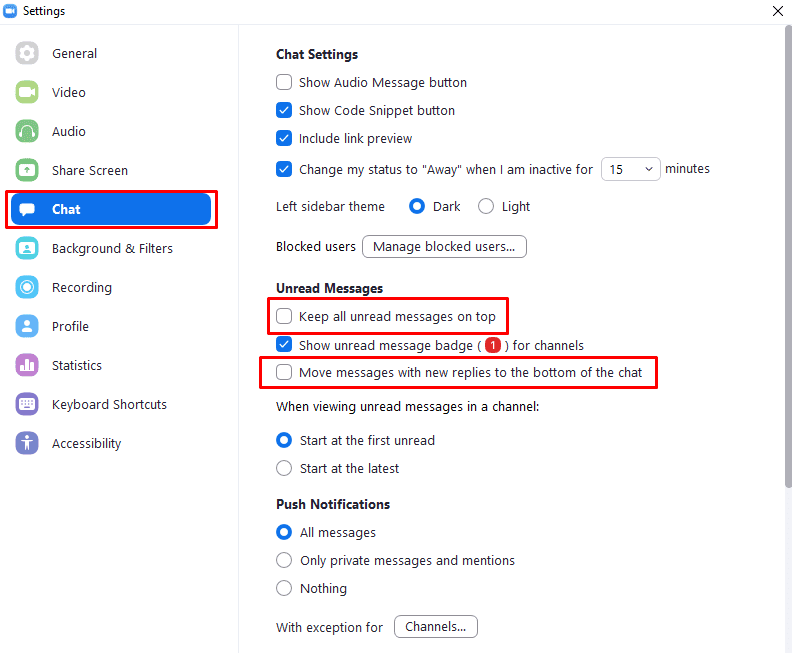
Ensure that the checkboxes for both “Keep all unread messages on top” and “Move messages with new replies to the bottom of the chat” are unticked to display messages in chronological order.

Categories: Internet

Author Mel Hawthorne

You Might Also Like

  • thunderbird not receiving sending emails

    Fix Thunderbird Not Receiving or Sending Emails

    Madalina DinitaInternet
  • Zoom: How to Hide Call Participants Who Aren’t Using a Webcam

    Mel HawthorneInternet
  • Zoom: How to Show the Unread Message Icon

    Mel HawthorneInternet
  • fix google maps not updating location

    Google Photos: How to Eliminate or Edit Your Location

    Judy SanhzInternet

Leave a Reply

Your email address will not be published. Required fields are marked *

This site uses Akismet to reduce spam. Learn how your comment data is processed.

300x600
Turning on Triple Touch Zoom on Android

Turning on Triple Touch Zoom on Android

How to Connect Outlook 2023 to Gmail

How to Connect Outlook 2023 to Gmail

Netflix: Change Password

Netflix: Change Password

Everything You Need to Know About WhatsApp Delete for Me

Step-by-Step Guide: How to Use WhatsApp on Your Computer

Android: Enable or Disable Background Data

Android: Enable or Disable Background Data

300x250
profile pic

The Experts Behind Technipages

My name is Mitch Bartlett. I've been working in technology for over 20 years in a wide range of tech jobs from Tech Support to Software Testing. I started this site as a technical guide for myself and it has grown into what I hope is a useful reference for all.

Learn More

300x250 2
technipages logo white
linkedin icon

Technipages is part of Guiding Tech Media, a leading digital media publisher focused on helping people figure out technology. Visit guidingtechmedia.com to learn more about our mission and team.

© 2026 Guiding Tech Media All Rights Reserved

  • About Us
  • Contact
  • Legal & Privacy

© 2026 Guiding Tech Media All Rights Reserved

Information from your device can be used to personalize your ad experience.
Do not sell my personal information.