Skip to content
LogoTechnipages
technipages logo
  • Topics
        • Android
        • Browsers
        • Gaming
        • Hardware
        • Internet
        • iPhone
        • Linux
        • macOS
        • Office
        • Reviews
        • Software
        • Windows
        • Definitions
  • Product Reviews
  • Downloads
  • About

Twitch.tv: How to Change Your Username if You Rebrand

Mel HawthorneDecember 21, 2020 Comments (0)

If you’re trying to make it as a streamer on Twitch and get to the point where you can make a living off of it and stream full time, you should really sort out some sort of branding for yourself. Part of branding is finding the right name. It generally helps brand recognition and word of mouth if your channel name is relatively easy to remember and say. It’s also critical that your brand name at least somewhat unique, primarily because you don’t want your username to be taken everywhere, but also because it makes it less likely that people will find other accounts when searching for yours.

If you created a Twitch account a while ago, but now aren’t really feeling your account name and have a better idea, you could create a new account. Twitch, however, allows you to not only change your display name but your account username too, allowing you to completely rebrand without necessarily starting again and losing any viewers you already have.

There are some rules for changing your username, however. Usernames still need to be unique, so you can’t take someone else’s. Once you have changed your username, you will be unable to do so again for sixty days. Additionally, your old username will be held for at least six months before being recycled, allowing other users to pick it. During this six-month period, you are unable to switch back to your old username, you can only do so once it has been recycled.

How to change your username

To change your username, you need to go into your account settings. To do so, click on your profile picture in the top-right corner, then click “Settings”.
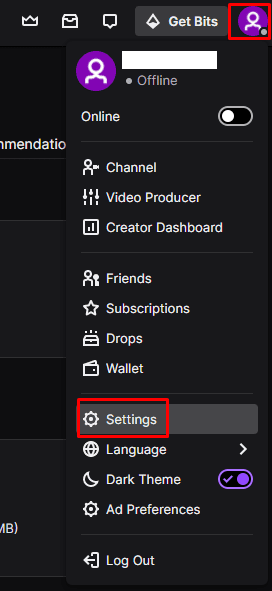
To open your account settings, click on your profile picture, in the top-right corner, then on “Settings”.

In the default “Profile” tab of the settings, click on the pencil icon on the right of the “Username” box to be able to change your username. A popup box will appear allowing you to enter your new username. Your username must be between four and twenty-five characters and must be unique. At the bottom of the popup, you can see what your new channel URL will be. Once you’re happy with your username and URL, click “Update” to immediately apply the change.

Click on the pencil icon at the end of the “Username” box, to open the popup window to change your username.

Your display name is the name shown in chat and at the top of your channel page, here you can configure the capitalisation of your username if you want. You can also change the display name to be completely different from your username if you want, which could be ideal if your established brand name is already taken as a username.

To change your display name, simply type the display name you want in the “Display Name” text box, then click “Save changes”.

You can change your display name to anything you want.

Categories: Internet

Author Mel Hawthorne

You Might Also Like

  • Auto-Refresh-Chrome-Tab-Without-Extension

    Chrome for Android: How to Bookmark a Site for Later

    Judy SanhzInternet
  • Deactivate-Facebook-Keep-Messenger

    Can I Deactivate Facebook and Keep Messenger?

    Madalina DinitaInternet
  • Auto-Refresh-Chrome-Tab-Without-Extension

    Chrome: How to Refresh Various Tabs Simultaneously

    Judy SanhzInternet
  • delete-photos-from-phone-after-backup-to-google-photos

    Google Photos: How to Create an Album Based on Someone’s Face

    Judy SanhzInternet

Leave a Reply

Your email address will not be published. Required fields are marked *

This site uses Akismet to reduce spam. Learn how your comment data is processed.

300x600
Turning on Triple Touch Zoom on Android

Turning on Triple Touch Zoom on Android

How to Connect Outlook 2023 to Gmail

How to Connect Outlook 2023 to Gmail

Netflix: Change Password

Netflix: Change Password

Everything You Need to Know About WhatsApp Delete for Me

Step-by-Step Guide: How to Use WhatsApp on Your Computer

Android: Enable or Disable Background Data

Android: Enable or Disable Background Data

300x250
profile pic

The Experts Behind Technipages

My name is Mitch Bartlett. I've been working in technology for over 20 years in a wide range of tech jobs from Tech Support to Software Testing. I started this site as a technical guide for myself and it has grown into what I hope is a useful reference for all.

Learn More

300x250 2
technipages logo white
linkedin icon

Technipages is part of Guiding Tech Media, a leading digital media publisher focused on helping people figure out technology. Visit guidingtechmedia.com to learn more about our mission and team.

© 2026 Guiding Tech Media All Rights Reserved

  • About Us
  • Contact
  • Legal & Privacy

© 2026 Guiding Tech Media All Rights Reserved

Information from your device can be used to personalize your ad experience.
Do not sell my personal information.