Skip to content
LogoTechnipages
technipages logo
  • Topics
        • Android
        • Browsers
        • Gaming
        • Hardware
        • Internet
        • iPhone
        • Linux
        • macOS
        • Office
        • Reviews
        • Software
        • Windows
        • Definitions
  • Product Reviews
  • Downloads
  • About

Chrome: How to Refresh Various Tabs Simultaneously

Judy SanhzDecember 26, 2022 Comments (0)
Auto-Refresh-Chrome-Tab-Without-Extension

Even if you try not to, you may always open too many Chrome tabs. Most of the time, you may not have any issues with them, but if for some reason you need to refresh all of them, that might be a little annoying. Until now, you might have refreshed them one by one, and if you have various open, the process took some time to do.

There are two ways you can refresh all the Chrome tabs. You can refresh them with or without an extension. If you already have too many extensions installed, the keyboard combination will work great for you. But, if you’re an extension fan, keep reading to see which one you can try.

How to Refresh All Chrome Tabs At the Same Time

If you want to try the Keyboard key method first, you can refresh all of them by doing the following. Click on the first tab and then press the Shift key. Choose the rest of the tabs. Once that’s done, press the Ctrl + R keys, and all the tabs should refresh. This is an excellent option if you already have too many extensions installed, but there is a faster way.
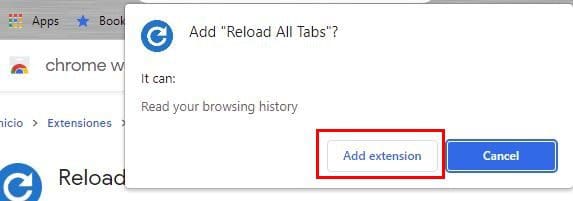
Reload All Chrome tabs

If you are willing to use a Chrome extension, go ahead and install the Reload all tabs extension. Once the extension is installed, make sure you pin it, so it’s easier to access. Click on the icon that looks like a puzzle piece. You should see a list of installed extensions. Click on the pin to the right of the extension to pin it in an area where it’s easier to access.

Chrome extension pin

Once the extension is pinned, click on the extension, and you’ll see how all the Chrome tabs will refresh simultaneously. That’s all there is to it.

Conclusion

There are times when you need to refresh your Chrome tabs. Instead of wasting time and refreshing them one by one, there’s a faster way. You can use the keyboard combination, or you can install an extension. Maybe the browser went crazy for some reason, and you’re forced to refresh everything. Now you can choose whichever way is easier for you.

Categories: Internet

Author Judy Sanhz

You Might Also Like

  • Firefox for Android: How to Force Enable Zooming

    Mel HawthorneAndroid
  • Troubleshooting Google Chrome Invalid URL Error

    Madalina DinitaInternet
  • What Is a Pentest?

    Mel HawthorneInternet
  • How to View Pending Friend Requests On Facebook in 2023

    How to View Pending Friend Requests on Facebook

    Susan SheffieldInternet

Leave a Reply

Your email address will not be published. Required fields are marked *

This site uses Akismet to reduce spam. Learn how your comment data is processed.

300x600
Turning on Triple Touch Zoom on Android

Turning on Triple Touch Zoom on Android

How to Connect Outlook 2023 to Gmail

How to Connect Outlook 2023 to Gmail

Netflix: Change Password

Netflix: Change Password

Everything You Need to Know About WhatsApp Delete for Me

Step-by-Step Guide: How to Use WhatsApp on Your Computer

Android: Enable or Disable Background Data

Android: Enable or Disable Background Data

300x250
profile pic

The Experts Behind Technipages

My name is Mitch Bartlett. I've been working in technology for over 20 years in a wide range of tech jobs from Tech Support to Software Testing. I started this site as a technical guide for myself and it has grown into what I hope is a useful reference for all.

Learn More

300x250 2
technipages logo white
linkedin icon

Technipages is part of Guiding Tech Media, a leading digital media publisher focused on helping people figure out technology. Visit guidingtechmedia.com to learn more about our mission and team.

© 2026 Guiding Tech Media All Rights Reserved

  • About Us
  • Contact
  • Legal & Privacy

© 2026 Guiding Tech Media All Rights Reserved

Information from your device can be used to personalize your ad experience.
Do not sell my personal information.