Skip to content
LogoTechnipages
technipages logo
  • Topics
        • Android
        • Browsers
        • Gaming
        • Hardware
        • Internet
        • iPhone
        • Linux
        • macOS
        • Office
        • Reviews
        • Software
        • Windows
        • Definitions
  • Product Reviews
  • Downloads
  • About

Firefox for Android: How to Force Enable Zooming

Mel HawthorneAugust 27, 2020 Comments (0)

Most websites offer two different views of the site, one designed for desktop users and the other designed for mobile users. These separate design schemes have their advantages, allowing for different screen layouts and sizes help to make websites much more usable on mobile devices that they otherwise would be.

If you’ve ever requested the desktop layout of a website on mobile, you’ll generally see that the website ends up way too small to read. To be able to use the desktop site on mobile, you’ll probably have to zoom in. Even in some mobile sites you have to or want to zoom in to see the content properly.

Unfortunately, some websites disable your ability to zoom in, in the name of design. The problem is that users should be able to zoom in if they want to be able to see better. This ability is especially important for users with visual impairments.

Thankfully, some mobile browsers, such as Firefox on Android, have a feature that you can enable that forces websites to enable zooming.

The “Always enable zoom” setting can be found in the in-app settings. To be able to access the settings, you need to first tap the triple-dot icon in the top-right corner of the app.

Tap the triple-dot icon to be able to access the settings.

Next, to open the settings you need to tap “Settings”, which will be the second to last option in the drop-down list.

Tap “Settings” at the bottom of the drop-down list to open the in-app settings.

To get to the setting to be able to force enable the ability to zoom, tap “Accessibility”.
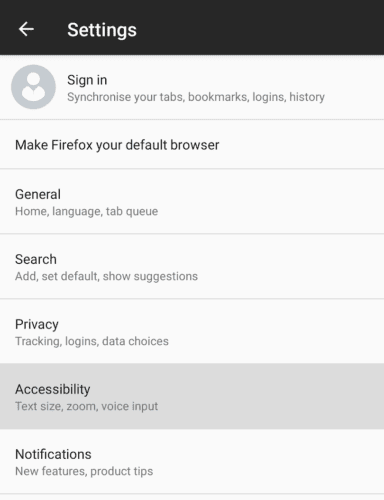
Tap “Accessibility” to get to the force enable zoom setting.

Simply tap the middle accessibility option “Always enable zoom” to the “On” position, to force override any websites that attempt to disable the zooming functionality.

Tip: After enabling this setting, you may have to reload websites for it to take effect.

Tap “Always enable zoom” to force websites to allow you to zoom in and out.

Categories: Android | Internet

Author Mel Hawthorne

You Might Also Like

  • How to Set Up a VPN on Android

    Mel HawthorneAndroid
  • Ecosia for Android: How to Disable Search Prediction

    Mel HawthorneAndroid
  • automatically-delete-emails-gmail

    Enable Dark Mode in Gmail with These Simple Steps

    Judy SanhzAndroid
  • Google Docs Header

    How to Use Pageless Format in Google Docs

    Judy SanhzAndroid

Leave a Reply

Your email address will not be published. Required fields are marked *

This site uses Akismet to reduce spam. Learn how your comment data is processed.

300x600
Turning on Triple Touch Zoom on Android

Turning on Triple Touch Zoom on Android

How to Connect Outlook 2023 to Gmail

How to Connect Outlook 2023 to Gmail

Netflix: Change Password

Netflix: Change Password

Everything You Need to Know About WhatsApp Delete for Me

Step-by-Step Guide: How to Use WhatsApp on Your Computer

Android: Enable or Disable Background Data

Android: Enable or Disable Background Data

300x250
profile pic

The Experts Behind Technipages

My name is Mitch Bartlett. I've been working in technology for over 20 years in a wide range of tech jobs from Tech Support to Software Testing. I started this site as a technical guide for myself and it has grown into what I hope is a useful reference for all.

Learn More

300x250 2
technipages logo white
linkedin icon

Technipages is part of Guiding Tech Media, a leading digital media publisher focused on helping people figure out technology. Visit guidingtechmedia.com to learn more about our mission and team.

© 2026 Guiding Tech Media All Rights Reserved

  • About Us
  • Contact
  • Legal & Privacy

© 2026 Guiding Tech Media All Rights Reserved

Information from your device can be used to personalize your ad experience.
Do not sell my personal information.