Have you ever tried creating a document to only see that everything doesn’t fit on the first page? You thought that maybe it was just enough for it to fit on one page but ended up needing more space. If you don’t need to print this file out and need more space, the Pageless format in Google Docs may have what you’re looking for.
With the Pageless Format, you have a page that never ends. It never breaks, so you’re always on page 1. Thanks to this feature, you don’t have to worry about an image not fitting on one page. This format is perfect for adding things such as images and tables.
Some things to keep in mind before using this format is that you won’t see things such as watermarks, footers, headers, columns, footnotes, and page numbers. If these are things that your file needs to have, you can always go back to the Pages format. Some things will still be there, such as emoji reactions and comments. Are you ready to try the Pageless Format and see if it’s what you need?
How to Apply the Pageless Format to Google Docs
Once your file is open, click on the File tab at the top and click on the Page Setup option.

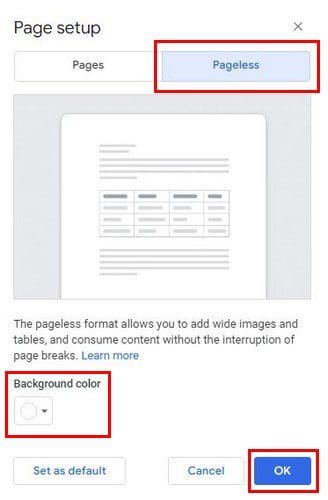
On the next page, you’ll see two tabs at the top. The Pageless option will be on the right with a description of what it is near the bottom. You’ll also see an option to change the background color as well. Click on the dropdown menu and choose from a large variety of colors. If you always want to work with pageless, you can also set it as default. Make sure to select the option at the bottom left.
Depending on how you want the file to look, you also have the option of adjusting how narrow or not the text is. To change this, you can go to View > Text width. Here you can choose from narrow, medium, and wide options.

If you’re unsure what option to choose, it’s a good idea to go with Wide if you have the document window maximized. But, if you have the browser window by their side, you can always use the medium or narrow option.
Other Things to Keep in Mind
Don’t be surprised if you encounter minor inconveniences when using small tables. This doesn’t mean you shouldn’t use them; it simply means that you have to make some additional adjustments.
How to Use the Pageless Format in Google Docs – Android
It’s also possible to apply this format using your Android device. If it’s an already existing document, you’ll apply this to tap on the pencil icon at the bottom right to begin editing. Tap on the three dots at the top right and choose the Page Setup option from the list. Toggle on the Pageless option on the next page, and you’re good to go. You can also apply page color as long as you’re there.

Conclusion
Using the Pageless option on Android may not change things too much as if you were using it only on your computer. But, it’s still useful. Do you think you will try it on your computer or your Android device? Share your thoughts in the comments below, and don’t forget to share the article with others on social media.