Skip to content
LogoTechnipages
technipages logo
  • Topics
        • Android
        • Browsers
        • Gaming
        • Hardware
        • Internet
        • iPhone
        • Linux
        • macOS
        • Office
        • Reviews
        • Software
        • Windows
        • Definitions
  • Product Reviews
  • Downloads
  • About

Ecosia for Android: How to Disable Search Prediction

Mel HawthorneAugust 26, 2020 Comments (1)

Most modern browsers use the URL bar as a dual-purpose search bar. This allows you to skip the process of browsing to your preferred search engine before you can type your search query. Instead, you can type whatever you want directly in the URL bar, URLs and search queries are both fine.

One of the things that search engines do is suggest potential searches as you type your search query. These suggested searches are based on your search/internet history and off of what other users searched for when typing similar queries.

Browsers often suggest URLs that you may want to browse to again based off of your internet history. They also include search suggestions. You may not want your browser to suggest searches or websites, however. If you don’t, you can disable the feature via the in-app settings.

To be able to access the in-app settings, you first need to tap the triple-dot icon in the top-right corner of the app.

Tap the triple-dot icon to be able to access the settings.

Next, tap “Settings”, which will be second from the bottom of the drop-down menu, to open the in-app settings.

Tap “Settings”, which can be found second from the bottom of the drop-down menu, to open the in-app settings.

Once in the settings, tap “Privacy” to access the privacy settings.

Tap “Privacy” to access the privacy settings.

You can disable search and site predictions by unticking the checkbox for “Search and site suggestions”, which will disable both features. Unfortunately, there is no way to enable one but not the other. If you only want one, you will have to decide if you prefer having both or neither enabled.
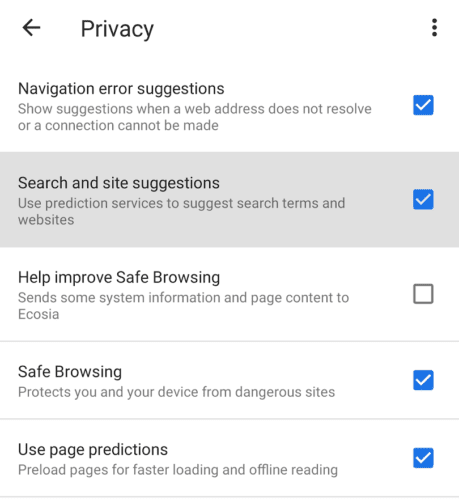
Untick the checkbox for “Search and site suggestions” to disable search suggestions.

Tip: You may also want to disable “Use page predictions”. This setting preloads certain webpages that the browser predicts you would click on. Disabling this setting would be helpful if you’re on a particularly tight monthly data cap.

Categories: Android | Internet

Author Mel Hawthorne

You Might Also Like

  • Opera for Android: How to Configure Autofill

    Mel HawthorneAndroid
  • Samsung Android Browser: Enable the QR Code Scanner

    Mel HawthorneAndroid
  • Google Play header

    Quick Tip: How to View Your Google Play Purchase History

    Judy SanhzAndroid
  • Google Duo on Android: How To Add Automatic Captions To Video and Audio Messages

    Mel HawthorneAndroid

Comments

  1. Xavier says:
    April 14, 2022 at 9:48 am

    Not very updated. It doesn’t even letting me turn off this safe search

Leave a Reply

Your email address will not be published. Required fields are marked *

This site uses Akismet to reduce spam. Learn how your comment data is processed.

300x600
Turning on Triple Touch Zoom on Android

Turning on Triple Touch Zoom on Android

How to Connect Outlook 2023 to Gmail

How to Connect Outlook 2023 to Gmail

Netflix: Change Password

Netflix: Change Password

Everything You Need to Know About WhatsApp Delete for Me

Step-by-Step Guide: How to Use WhatsApp on Your Computer

Android: Enable or Disable Background Data

Android: Enable or Disable Background Data

300x250
profile pic

The Experts Behind Technipages

My name is Mitch Bartlett. I've been working in technology for over 20 years in a wide range of tech jobs from Tech Support to Software Testing. I started this site as a technical guide for myself and it has grown into what I hope is a useful reference for all.

Learn More

300x250 2
technipages logo white
linkedin icon

Technipages is part of Guiding Tech Media, a leading digital media publisher focused on helping people figure out technology. Visit guidingtechmedia.com to learn more about our mission and team.

© 2026 Guiding Tech Media All Rights Reserved

  • About Us
  • Contact
  • Legal & Privacy

© 2026 Guiding Tech Media All Rights Reserved

Information from your device can be used to personalize your ad experience.
Do not sell my personal information.