Have you ever come across a site you don’t usually visit but has something you want to read later? Who hasn’t, right? If you don’t want to leave the tab open, worrying that you’ll close it accidentally, you can always bookmark it.
Since you’re not always on your computer, keep reading to see how you can bookmark sites whether you’re on your Android device or computer. You’ll see how easy it is, and you’ll never have to worry about losing another site again.
How to Bookmark Any Site on Chrome for Android
To save a site while browsing on your Android device, make sure you have Chrome open. Open the site you want to bookmark and tap on the three dots at the top right. Tap on the Star icon, and Chrome will bookmark the site.
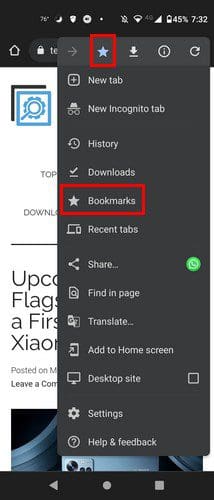
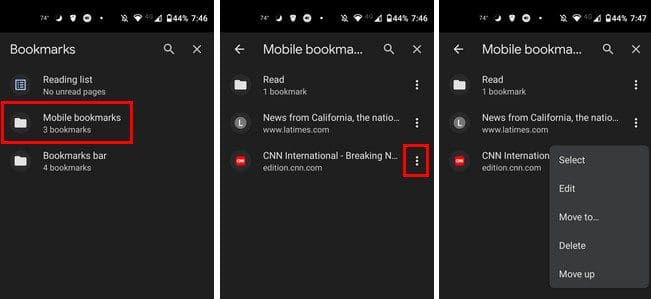
To access all the sites you’ve saved, you can follow this path as well. Tap on the dots, but this time choose the Bookmarks option. Once you’re in Bookmarks, go to Mobile Bookmarks. There you’ll see a list of all the sites you saved. To the right of each bookmark, you’ll see dots that’ll give you different options such as:
- Select
- Edit
- Move to
- Delete
- Move up
Manage Your Chrome Bookmarks
You can also move the bookmarks around. By long-pressing on a bookmark, you can do things such as change the name/URL, Move to another folder, Erase it, Open in a new tab or in an incognito tab.
How to Bookmark Sites on Chrome Web
If you’re on your computer, you can save any tab by having that tab open and clicking on the dots at the top right. Place the cursor on the Bookmarks option, and a side menu will appear. Click on the option that says bookmark this page and click save.
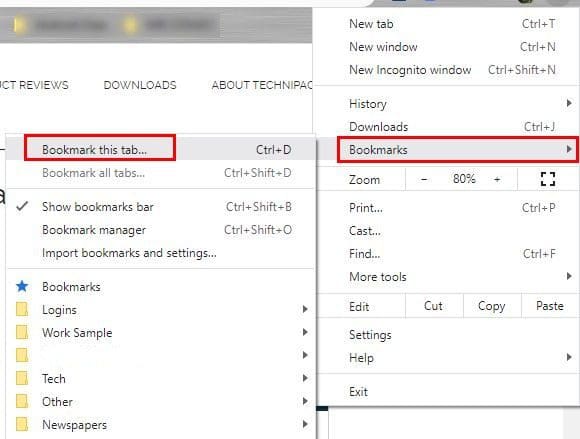
If you don’t like the folder, the tab will be saved. Click on the Folder dropdown menu and choose another folder. Follow these same steps to access all your bookmarks, but this time, choose the Bookmarks option without the dropdown menu.
You’ll see all your folders and everything you’ve saved in it on the next page. By clicking on the dots to the side of each folder, you can choose from options such as:

- Rename
- Delete
- Cut
- Copy
- Open all tabs
- Open all in a new window or in incognito mode
Even if you access a folder, you’ll still get the same option for each tab you have saved. That’s all there is to it. As you can see, saving a site on Chrome for Android and web is easy to do.
Conclusion
Now that you know how to save your favorite sites, you don’t have to worry about losing something you want to read later. Whether you’re on your Android device or computer, saving any tab is easy. Do you usually save a lot of tabs to read later on your device? Let me know in the comments below, and don’t forget to share the article with others on social media.