
Skip to content
LogoTechnipages
technipages logo
  • Topics
        • Android
        • Browsers
        • Gaming
        • Hardware
        • Internet
        • iPhone
        • Linux
        • macOS
        • Office
        • Reviews
        • Software
        • Windows
        • Definitions
  • Product Reviews
  • Downloads
  • About

Zoom: How to Prevent Someone From Remotely Controlling Applications via Screen Sharing

Mel HawthorneJanuary 7, 2021 Comments (0)

One of the things that you may have to occasionally do in a Zoom meeting is to share your screen. The most common reasons you might want to share your screen is for presentations, demonstrations, or for tech support. In presentations and demonstrations, you’ll typically be leading the interaction, using your shared screen to provide visual context to what you are saying.

Tech support is a bit more complicated, however. While you can simply share your screen to demonstrate either the correct way to do something, or to demonstrate an issue that you’re facing, this may not be enough to quickly resolve issues. It is always faster to find and fix an issue if you do it yourself rather than providing instructions to the person that needs the support. To support this, Zoom offers the ability to be able to remotely control the computer that is sharing its screen.

Crucially, there are a number of security protections in place. For someone to be able to remotely control your computer, you have to either offer them control or accept their request to take control. There are also a number of other actions for which you will be asked to confirm permission before they are performed, such as restarting your computer. These protections, combined with the fact that you can always take back control of your computer, mean you don’t need to worry about someone assuming control and then not being able to do anything about it.

One of the options that you can completely disable is the ability to remotely control all other applications running on your computer rather than just the specifically shared applications. This option can be found and disabled in Zoom’s settings. To access the settings, click on your user icon in the top-right corner, then click on “Settings”.
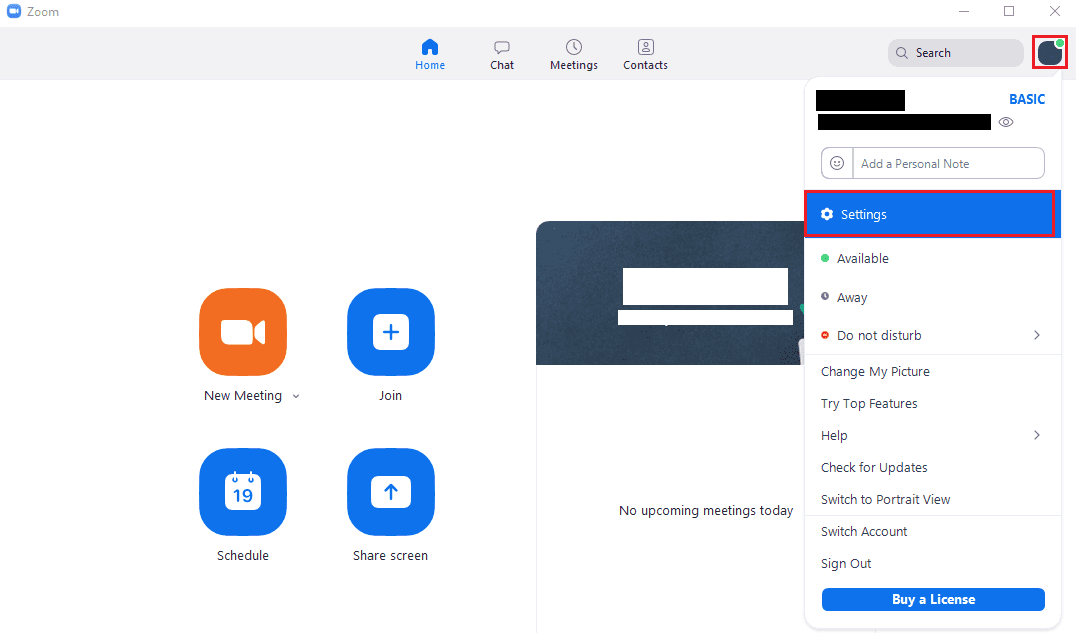
To access Zoom’s settings, click on your user icon, then on “Settings” in the dropdown menu.

Once in the settings, switch to the “Share Screen” tab. Once in the “Share Screen” tab, untick the “Enable the remote control of all applications” checkbox. Users that you’ve granted control to will still be able to control specified windows, disabling this option will prevent them from being able to control any other windows.
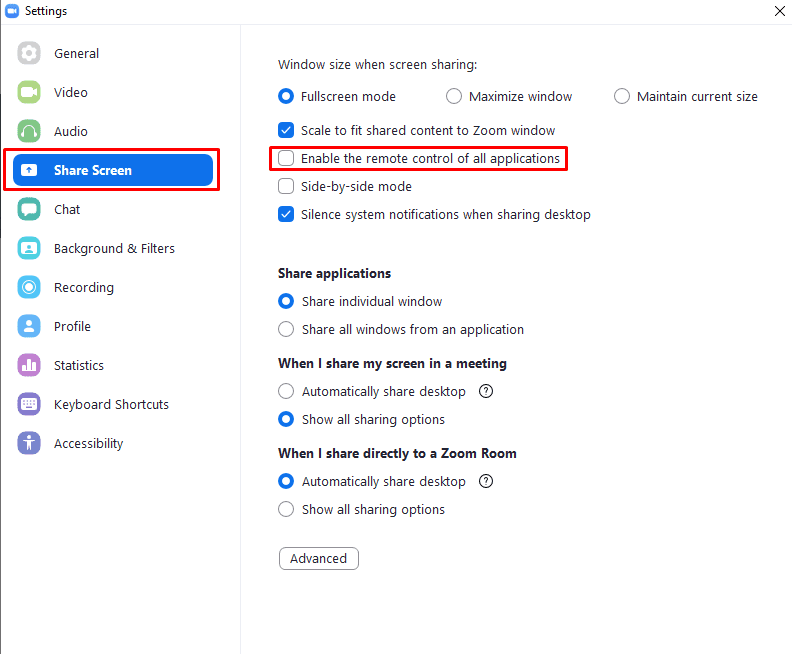
In the “Screen Sharing” settings tab, untick the checkbox labelled “Enable the remote control of all applications”.

Categories: Internet

Author Mel Hawthorne

You Might Also Like

  • Fix Netflix DRM Error N8156-6013

    Mitch BartlettInternet
  • How to Enable and Disable Vertical Tabs in Microsoft Edge

    Judy SanhzInternet
  • Bitwarden: How to Create a New Folder

    Mel HawthorneInternet
  • fix-youtube-cant-go-live

    Why Can’t I Go Live on YouTube? 3 Possible Fixes

    Madalina DinitaInternet

Leave a Reply

Your email address will not be published. Required fields are marked *

This site uses Akismet to reduce spam. Learn how your comment data is processed.

300x600
Turning on Triple Touch Zoom on Android

Turning on Triple Touch Zoom on Android

How to Connect Outlook 2023 to Gmail

How to Connect Outlook 2023 to Gmail

Netflix: Change Password

Netflix: Change Password

Everything You Need to Know About WhatsApp Delete for Me

Step-by-Step Guide: How to Use WhatsApp on Your Computer

Android: Enable or Disable Background Data

Android: Enable or Disable Background Data

300x250
profile pic

The Experts Behind Technipages

My name is Mitch Bartlett. I've been working in technology for over 20 years in a wide range of tech jobs from Tech Support to Software Testing. I started this site as a technical guide for myself and it has grown into what I hope is a useful reference for all.

Learn More

300x250 2
technipages logo white
linkedin icon

Technipages is part of Guiding Tech Media, a leading digital media publisher focused on helping people figure out technology. Visit guidingtechmedia.com to learn more about our mission and team.

© 2026 Guiding Tech Media All Rights Reserved

  • About Us
  • Contact
  • Legal & Privacy

© 2026 Guiding Tech Media All Rights Reserved

Information from your device can be used to personalize your ad experience.
Do not sell my personal information.