Skip to content
LogoTechnipages
technipages logo
  • Topics
        • Android
        • Browsers
        • Gaming
        • Hardware
        • Internet
        • iPhone
        • Linux
        • macOS
        • Office
        • Reviews
        • Software
        • Windows
        • Definitions
  • Product Reviews
  • Downloads
  • About

Bitwarden: How to Create a New Folder

Mel HawthorneMay 6, 2021 Comments (0)

You can choose to just enter all of your account credentials and card details in your password manager and never sort them beyond their individual names. This is a perfectly legitimate way to use a password manager and can be perfectly functional given the search functions that are generally included.

However, it can be a good idea to sort your entries into some sort of folder structure. This way, you can keep your work accounts and personal accounts separated. You can also use this to keep entries related to each other together, such as all of your social media logins.

How to Create a New Folder in the Bitwarden Browser Extension

To create a new folder in the Bitwarden browser extension, open the extension pane by clicking on the Bitwarden icon, then switch to the “Settings” tab, and click “Folders.”
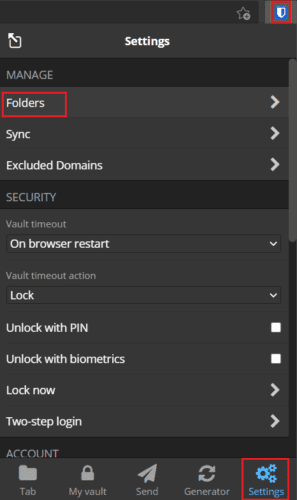
Click on “Folders” in the “Settings” tab of the extension pane.

In the top-right corner of the folders list, click the “Add” icon to create a new folder. Then enter the name you want to use and click “Save.”
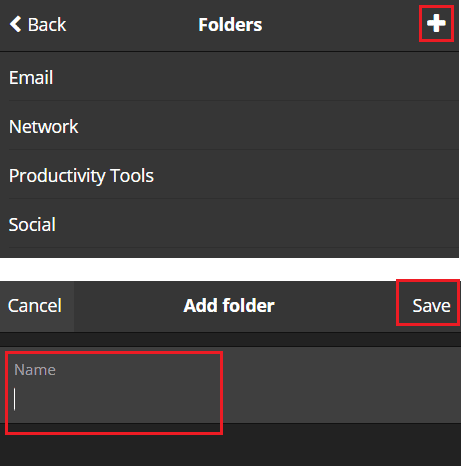
Click the “Add” icon in the top-right, then type the name you want to give the new folder and click “Save.”

Tip: The folders you create on one platform will be available across all platforms. The change may take a short while to change. However, changes to your vault are not pushed and will instead be automatically synced occasionally.

How to Create a New Folder on the Bitwarden Website

To create a new folder on the website, click on the “Add” icon next to the “Folders.” Then, head into the “Filters” bar on the left of the default “My vault” tab. Next, in the popup, type the name of the folder you want to create, then click “Save.”

Click on the “Add” icon next to “Folders” in the “Filters” list on the “My vault” tab, then enter the name of the folder you want to create and click “Save.”

Creating folders can help you organize your password manager and verify that you don’t have any duplicate entries causing issues. By following the steps in this guide, you can create a new folder in Bitwarden.

Categories: Internet

Author Mel Hawthorne

You Might Also Like

  • Firefox for Android: How to Force Enable Zooming

    Mel HawthorneAndroid
  • Troubleshooting Google Chrome Invalid URL Error

    Madalina DinitaInternet
  • automatically-admit-participants-google-meet

    How to Fix Google Meet Can’t Access Camera

    Judy SanhzInternet
  • What Is a Pentest?

    Mel HawthorneInternet

Leave a Reply

Your email address will not be published. Required fields are marked *

This site uses Akismet to reduce spam. Learn how your comment data is processed.

300x600
Turning on Triple Touch Zoom on Android

Turning on Triple Touch Zoom on Android

How to Connect Outlook 2023 to Gmail

How to Connect Outlook 2023 to Gmail

Netflix: Change Password

Netflix: Change Password

Everything You Need to Know About WhatsApp Delete for Me

Step-by-Step Guide: How to Use WhatsApp on Your Computer

Android: Enable or Disable Background Data

Android: Enable or Disable Background Data

300x250
profile pic

The Experts Behind Technipages

My name is Mitch Bartlett. I've been working in technology for over 20 years in a wide range of tech jobs from Tech Support to Software Testing. I started this site as a technical guide for myself and it has grown into what I hope is a useful reference for all.

Learn More

300x250 2
technipages logo white
linkedin icon

Technipages is part of Guiding Tech Media, a leading digital media publisher focused on helping people figure out technology. Visit guidingtechmedia.com to learn more about our mission and team.

© 2026 Guiding Tech Media All Rights Reserved

  • About Us
  • Contact
  • Legal & Privacy

© 2026 Guiding Tech Media All Rights Reserved

Information from your device can be used to personalize your ad experience.
Do not sell my personal information.