

Going live on YouTube is an excellent way to interact with your community in real-time and increase your online reach. You can stream events, host Q&A sessions, or share your thoughts on a topic of interest for your community.
But there are times when you can’t start your live stream. Either nothing happens when you hit the Go live option, or you get a bizarre error message saying you can’t go live. Let’s see what you can do to troubleshoot this problem.
What to Do If You Can’t Go Live on YouTube
Check the List of Live Stream Restrictions
Google has implemented a series of restrictions on live streaming that could block your channel’s ability to host live events.
- Your channel needs at least 1,000 subscribers if you want to go live on a mobile device. This restriction does not apply to PCs.
- Maybe your channel violated the Community Guidelines and Google has issued a strike against it. Check your email and notifications to see if a strike has indeed been issued against your channel.
- Someone submitted a copyright-based takedown request proving you used copyright-protected content in your live stream or archived live streams.
Get a New Stream Key
If you’re using a third-party encoder, you may need a new stream key to go live.
- Navigate to YouTube Studio, and go to the Live Control Room.
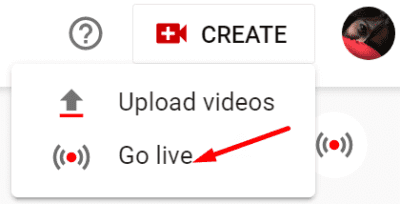
- Select the Create button and then Go Live.

- Click the Stream tab, and then hit the Create stream option.
- Copy the new stream key, and paste it into your encoder.
- Start your encoder and check if you can go live.
Check Your Encoder
Make sure your live stream encoder is working properly. If multiple viewers are reporting an error, check your encoder’s settings.
First of all, check for updates and make sure your encoder is updated. Then check the quality of your stream in the encoder. If the video or audio quality is bad, make sure your webcam and microphone work as intended.
Additionally, close any unnecessary programs running in the background.
They might be interfering with your encoder and YouTube. Some background programs may also trigger high RAM and CPU usage. As a result, there might not be enough memory and CPU power left for your live stream.
Check Your Connection
Live streams require a stable Internet connection and a large amount of bandwidth. Make sure your ISP is not throttling your bandwidth. Restart your router and disconnect the other devices using the connection to free up more bandwidth for your live stream. Ideally, use a cable connection instead of a wireless connection.
If the problem persists, contact YouTube Support for further help.
Conclusion
If you can’t go live on YouTube, generate a new stream key and make sure your encoder is updated. Then, close any unnecessary background programs and restart your computer. Check your Internet connection, restart your router, and switch to a cable connection to enjoy a faster and more stable connection. Did these solutions help you troubleshoot the problem? Let us know in the comments below.



NEXT STEP: “Check Your Encoder”
It will be very nice if you would take the time to explain how to do this. Not all of us are 100% savvy.
Thank you
yup it helped:)