

From time to time, you’ll run into apps asking you for access to your Google account. Maybe it’s for faster access and to avoid going through the process of signing up. You accept the app having access to your account because you need to use it, but after a while, you forget about it.
If you want to keep your Google account safe, it’s best to revoke access to any apps that you don’t need anymore. You might even be surprised that apps you forgot about continue to access your account. Here’s how to can stop the apps from accessing your information.
How to Stop Apps from Having Access to Your Google Account
Before you get started, keep in mind that this is something that can’t be done through the app. You’ll need to use your computer for this one or a desktop-class browser. You’ll need to access the Google Permissions Account page. You’ll see a list of all the apps that have access to your Google account.
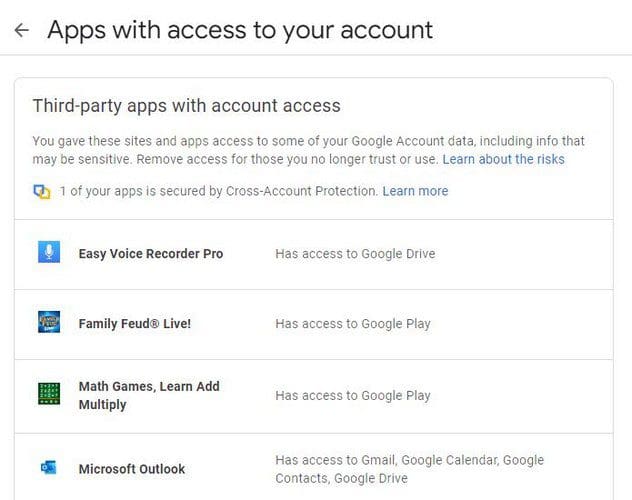
There’s no option to revoke access to various apps simultaneously. You’ll need to repeat the process for each app you want to remove. Click on the first one, and you should see the Remove Access button. Simply click on it, and the app will be gone.

In that area, you’ll also see the option to turn off or on Signing in with Google. With this option, you can have faster access by using your Google account. The app, with this option, will not have access to your account. They can only see basic information such as profile picture, name, and email address.
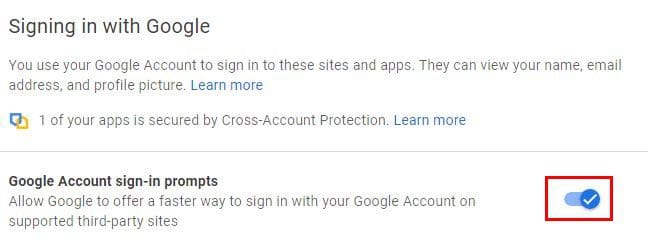
If you want to remove an app from this list, simply click on it and choose the Remove button. If you have given full access to an app, there’s no need to worry that the app can erase your account. It can’t also send or receive money, modify your password or use Google Play.
How to Disconnect Apps from Your Google Drive Account
Disconnecting apps from your Google Drive account is also easy and quick. Once you’ve accessed your Drive account, click on the cogwheel and go to Settings. On the next page, click on the Manage Apps option on the left.

You’ll also find an option to use those apps by default. Some apps will already be marked as your default apps, but you can uncheck that can choose another one. When you click on the Options dropdown menu, you can disconnect the app from your Google Drive account and view the product page. If you can’t remember an app’s permissions, this is the option to use. You’ll also see the option to uninstall the app if that’s what you want.
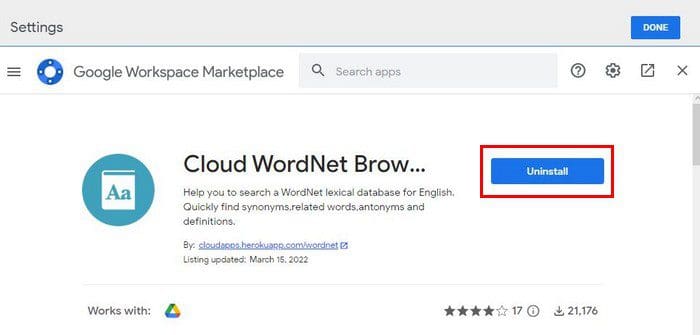
If you’ve removed it but still see it on the list, that doesn’t mean the process failed. You’ll need to reinstall it to use it again.
Conclusion
It’s a good idea to review what apps have access to your Google account from time to time. Even if you don’t remember installing any apps. Maybe you completely forgot, and when you check, you might see an app you don’t recall even installing. If you have a hard time remembering, you can always set yourself a reminder. How many did you end up removing? Let me know in the comments below, and don’t forget to share the article with others on social media.




Excellent advice thank you team ; >) I deleted 29 permissions several I never heard of until now (!) Much Respect and Gratitude team.