

Learning how to respond to specific WhatsApp messages can prevent a lot of misunderstandings. If your friend has the tendency of sending a separate message for each idea, then knowing how to reply to that particular Whatsapp message is crucial.
You could be saying yes to something you didn’t mean to by not making it clear what message you’re replying to. The following tips will show you how you can make it clear what message you’re giving a reply for.
How to Reply to Individual Messages in WhatsApp
To reply to specific WhatsApp messages first open the conversation and locate the message you want to respond to. Once you’ve found it, there are two ways you can make that message stand out.
First, swipe the message right, and WhatsApp will automatically highlight it. Type your message, and when you send it, your message will be right under the highlighted message.
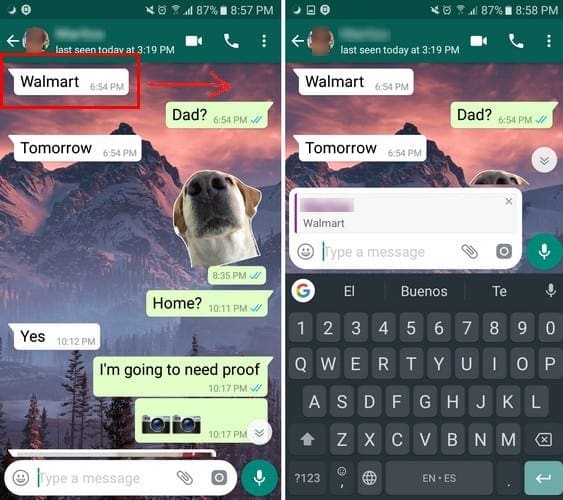
You can add emojis or an attachment to your specific message just as you normally would to any other message. If you change your mind and don’t want to respond to a particular message, tap on the X in the upper right-hand corner of the highlighted message.
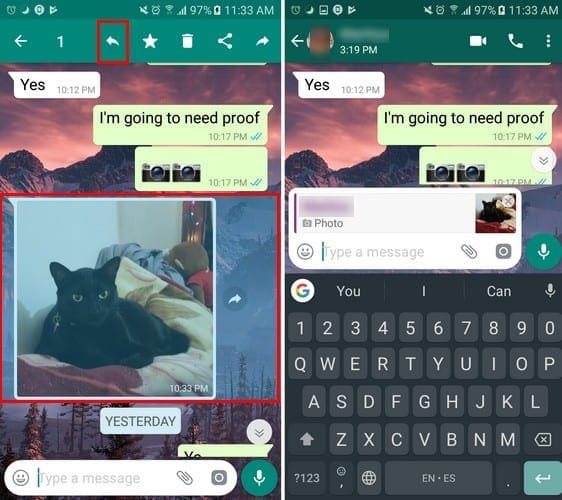
Another way you can respond to explicit Whatsapp messages is by long-pressing on the message, and tapping on the backward pointing arrow. Once again, you’ll get the message box that will be published alongside your new message.
How to Answer Whatsapp Messages from Lock and Home Screen
When you get a message while you’re online can make you feel obligated to answer. If you don’t, you know you’re going to be asked sooner or later why you didn’t answer.
So, for those time when you don’t feel like going online for long periods, but want to answer a message, know that it’s possible to answer messages quickly. You can either respond from your lock screen or from your home screen without going online. The process is the same for both locations.

Without pressing for too long, swipe down on the message until you see the options to either reply or view. Tap on the reply button and a window will appear with the last message that was sent.
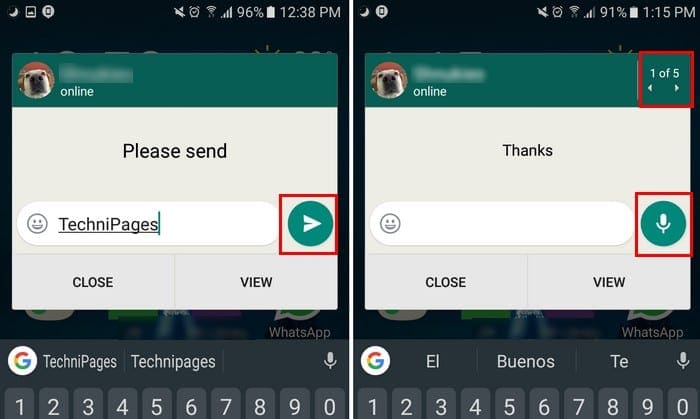
If you want to navigate through various messages, tap on the arrow on the side after tapping on the reply button to respond to a specific WhatsApp message. It’s also possible to reply to a message with audio. Before you start typing, you’ll see the audio icon, but once you type something the icon changes to the send option.
Conclusion
By knowing how to respond to specific WhatsApp messages, you can avoid a lot of misunderstandings. Don’t forget to tell us any funny misunderstanding stories you have in the comments below.



Afraid not…..type the reply message then what? Whats the send button or what all? Not sure what all the hieroglyphs represent.. Thks……