

If Trello plays a very important role in your team’s collaboration plan helping you to get work tasks done faster, you need to make sure the notification system is working properly.
If you don’t get any Trello notifications, or you’re not getting them when you expect to, this guide is for you.
Troubleshooting Trello Notification Issues on PC
Check your notification settings
If there’s a delay in receiving Trello notifications, check your email notification settings. If your notifications are not set to Instant, don’t be surprised if there’s a slight delay between the moment you get the notification in Trello and the moment you receive the email.
Click on the notification bell and select Change email notification frequency.

Then select the Instant option to get notifications as soon as possible. If you don’t want to get too many notifications, select the Periodically option and you’ll get notifications once an hour.
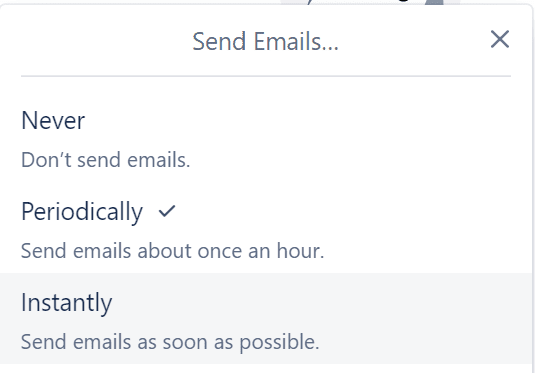
Note: Trello won’t send you any email notifications if you already read the respective notification in the app.
Check if you’re indeed a card or board member
If you’re not getting Due Date notifications, keep in mind that you need to be a member of that card or board to receive them.
Also, notifications are sent 24 hours before the deadline is reached. So maybe there are more than 24 hours before the deadline.
Whitelist Trello in your email settings
If you’re not getting Trello email notifications, they may have landed in your junk folder. Ensure you mark the emails from Trello as not spam.
If the issue persists, add do-not-reply@trello.com and noreply@am.atlassian.com to your contacts list. If you’re using a business email account, ask your admin to check your domain and email settings.
Note: To test if Trello email notifications are working as they should, go to https://trello.com/test_notifications and send a test notification to your inbox.
Enable browser notification permissions
Another reason why you may not be getting Trello notifications in your browser is that you blocked desktop notifications.
Note: You won’t get any desktop notifications unless Trello is open in a browser tab.
To enable Trello desktop notifications, simply click on the lock icon in your browser’s address bar and allow notifications.
If you’re using a Mac computer, click on the Safari browser heading, and go to Preferences → Notifications. Allow trello.com to send you notifications.
Trello Push Notifications Not Working on Mobile
First of all, make sure to turn on push notifications for Trello. Then, select the type of activities that will trigger push notifications.
Trello offers 15 different actions to choose from. If you did not select a particular type of action, don’t be surprised if you don’t get any notifications when something happens.
How to configure Trello push notification in Android
- Tap the Settings icon
- Select the Push notification settings
- Toggle on the switch for each category of actions you want to get notifications for

- Save the changes.

How to configure Trello push notification in iOS
- Tap the Notification tab
- Select the Settings icon
- Select the actions you want to be notified about and apply the changes.

Additional troubleshooting steps on mobile:
If you’re still experiencing notification issues, do the following:
- Clear your cache
- Close all the apps running in the background
- Check if there’s a new Trello app version available and install it on your device.
We hope you were able to solve the Trello notification problem with the help of this guide.


