Skip to content
LogoTechnipages
technipages logo
  • Topics
        • Android
        • Browsers
        • Gaming
        • Hardware
        • Internet
        • iPhone
        • Linux
        • macOS
        • Office
        • Reviews
        • Software
        • Windows
        • Definitions
  • Product Reviews
  • Downloads
  • About

Slack: How To Configure How People Can Join a Workspace

Mel HawthorneFebruary 4, 2021 Comments (0)

Users are the lifeblood of any Slack workspace. Obviously, without any users, there’s no one to post or read any messages. To be able to add people to your workspace you need to invite them. By default, everyone has to either be specifically sent an email invitation to join or have an invitation link shared with them. This means that each user needs to be specifically invited by someone to be able to join the workspace.

For businesses needing to onboard every new employee, it’s not necessarily ideal to require each new employee to be specifically invited to the workspace. Thankfully, Slack offers an alternative method that allows you to add domain names to an allow list. If anyone with an email address from an explicitly allowed domain tries to sign into Slack, they will have the option to connect straight to your workspace, even if they’ve never been individually invited.

To be able to configure this alternative way of allowing people to join the workspace, you need to browse to the workspace settings and permissions page. To get there, you first need to click on the workspace name in the top-right corner. Next, in the dropdown menu, select “Settings & administration”, then “Workspace settings” to open the workspace settings in a new tab.
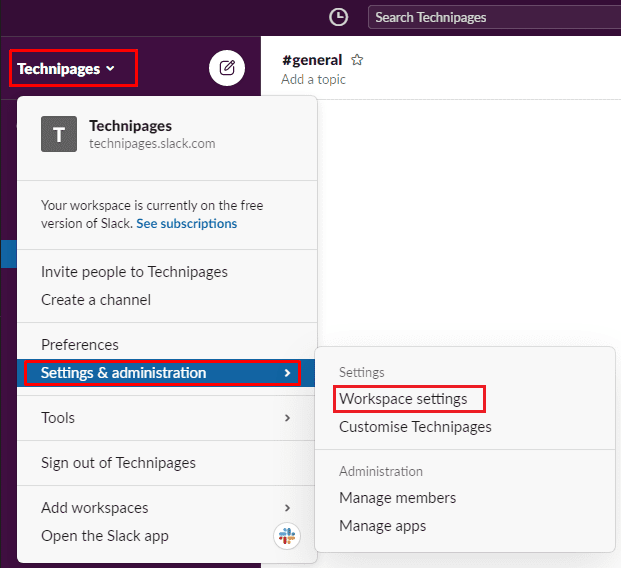
To get to the workspace customisation settings, click on the workspace name in the sidebar, then select “Settings & administration” and “Workspace settings”.

In the default “Settings” tab, click on the “Expand” button for the “Joining this workspace” settings.

Click “Expand” next to “Joining this workspace” in the default “Settings” tab.

To allow users with email addresses from specified domain names to join the workspace without being invited, click the “Allow invitations and approve invitations for any email address from these domains” radio button. Once you’ve selected that option you can enter one or more domain names for which you want users to be automatically accepted. For example, you’d enter the domain “technipages.com” to allow all Technipages email addresses to join. Click “Save” at the bottom-left to apply the change.

Tip: To add multiple domains to the allow list, separate them with commas.

Click the “Allow invitations and approve invitations for any email address from these domains” radio button, then list the domains you want to be automatically approved, separated by commas.

Requiring each user to be explicitly invited to a workspace can be difficult to manage for a company or community workspace. By following the steps in this guide, you can configure your workspace so that anyone with an approved email address domain name can join without needing to be specifically invited.

Categories: Internet | Software

Author Mel Hawthorne

You Might Also Like

  • Zoom: How to Hide Call Participants Who Aren’t Using a Webcam

    Mel HawthorneInternet
  • Google Duo: How To Prevent Other People From Seeing Your Video Before They Pick up Your Call

    Mel HawthorneInternet
  • Dropbox: How to Change Your Language

    Mel HawthorneInternet
  • Bitwarden: How to Check If Your Username Is Part of a Data Breach

    Mel HawthorneInternet

Leave a Reply

Your email address will not be published. Required fields are marked *

This site uses Akismet to reduce spam. Learn how your comment data is processed.

300x600
Turning on Triple Touch Zoom on Android

Turning on Triple Touch Zoom on Android

How to Connect Outlook 2023 to Gmail

How to Connect Outlook 2023 to Gmail

Netflix: Change Password

Netflix: Change Password

Everything You Need to Know About WhatsApp Delete for Me

Step-by-Step Guide: How to Use WhatsApp on Your Computer

Android: Enable or Disable Background Data

Android: Enable or Disable Background Data

300x250
profile pic

The Experts Behind Technipages

My name is Mitch Bartlett. I've been working in technology for over 20 years in a wide range of tech jobs from Tech Support to Software Testing. I started this site as a technical guide for myself and it has grown into what I hope is a useful reference for all.

Learn More

300x250 2
technipages logo white
linkedin icon

Technipages is part of Guiding Tech Media, a leading digital media publisher focused on helping people figure out technology. Visit guidingtechmedia.com to learn more about our mission and team.

© 2026 Guiding Tech Media All Rights Reserved

  • About Us
  • Contact
  • Legal & Privacy

© 2026 Guiding Tech Media All Rights Reserved

Information from your device can be used to personalize your ad experience.
Do not sell my personal information.