Skip to content
LogoTechnipages
technipages logo
  • Topics
        • Android
        • Browsers
        • Gaming
        • Hardware
        • Internet
        • iPhone
        • Linux
        • macOS
        • Office
        • Reviews
        • Software
        • Windows
        • Definitions
  • Product Reviews
  • Downloads
  • About

Slack: How To Change Your Password

Mel HawthorneJanuary 24, 2021 Comments (0)

Your password is the first line of defense in keeping your account secure on any platform. It’s obviously important to use a unique and secure password everywhere. But this is even more important for workplace accounts. If someone were able to guess your password and gain access to your Slack account, not only would they be able to see any private information discussed but would be able to send messages as you too.

How to Reset Your Password on Slack

If you want to change your password in Slack to make it stronger and more difficult to guess, you need to configure your account settings. To get to your account settings, you need to browse to https://slack.com/home. From here, click on “Account settings” at the top of the page.

Browse to https://slack.com/home, then click on “Account settings.”

On the account settings page, click on “Expand” in the “Password” section. This will open the password changing screen.

Note: If you don’t have the option to expand the password section, then your organization is using a Single Sign-On (SSO) solution to authenticate to Slack, such as Okta, OneLogin, or GSuite. If you’re using a third-party SSO identity provider, you’ll need to change your password through their system rather than in Slack.
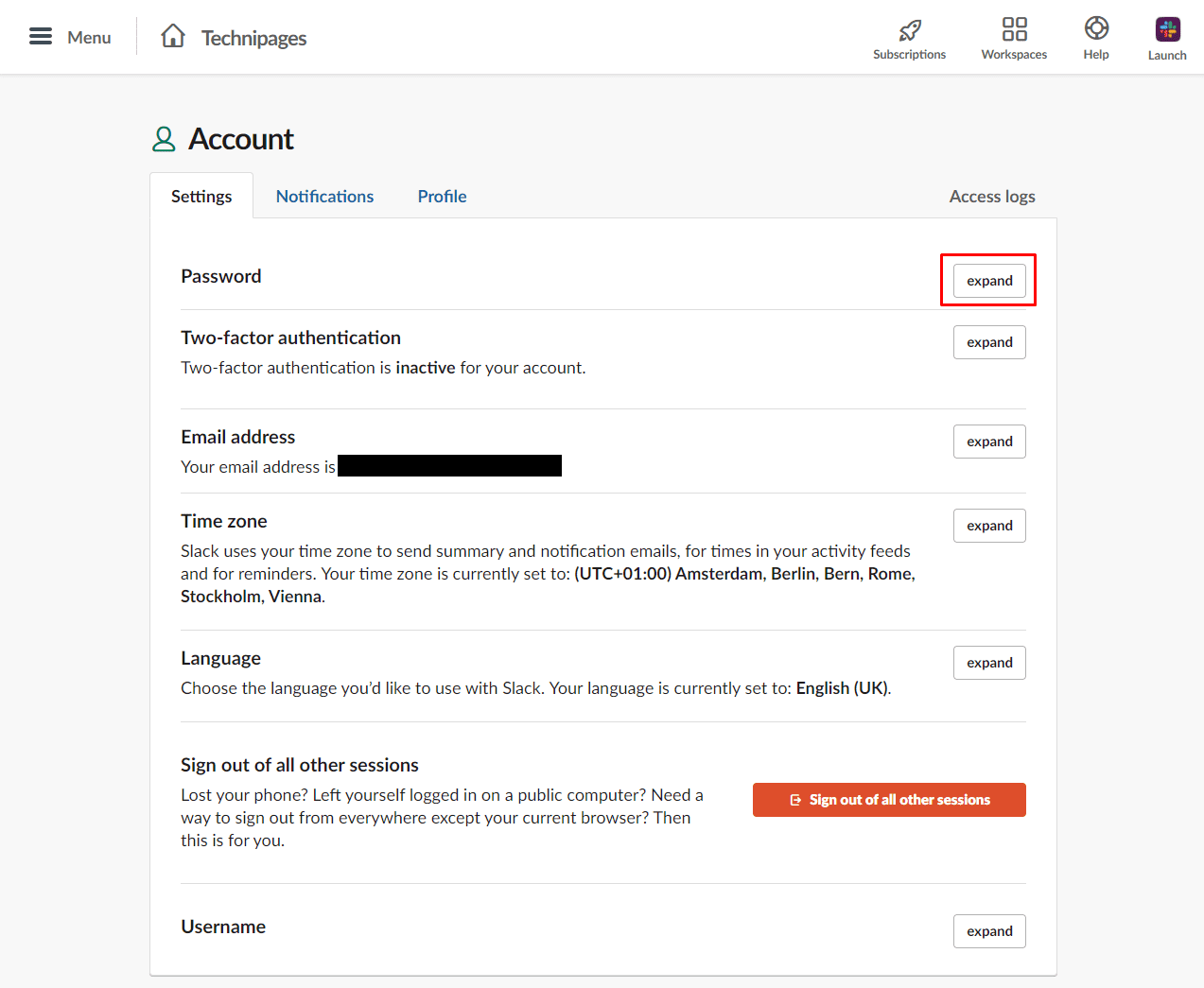
Click on “Expand” in the “Password” section.

In the expanded change password screen, enter your current password in the text box labeled “Current password.” The new password you want to use in the “New password” text box, then click “Save password.”

Tip: Slack requires your password to be a minimum of six characters long and can’t be common passwords such as “123456”, “abcdef,” or “password.” Additionally, if you’re required to change your password by the system administrator, you can’t change your password to be the same as your old password. We recommend that you choose a stronger password than that with a minimum of ten characters, however, as six characters are concise for a password. To read our article on password strength, click here.
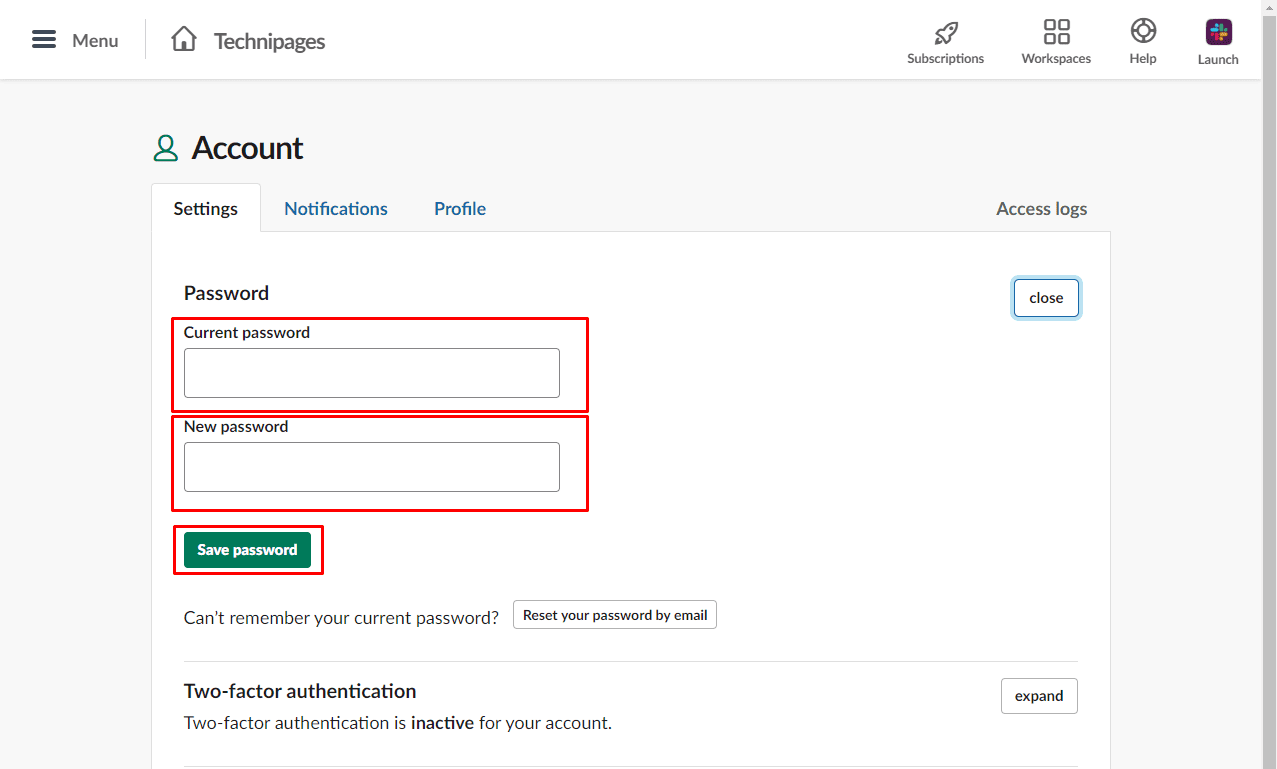
Enter your old password. Then the new password you want to use, then click “Save password.”

Having a strong password is an important part of keeping your account secure. By following the instructions in this guide, you’ll be able to change your password to something more secure. Do you feel safe with your new password? Share your thoughts below!

Categories: Software

Author Mel Hawthorne

You Might Also Like

  • troubleshoot discord error 1006

    Discord Error 1006: What it Means and How to Fix it

    Madalina DinitaSoftware
  • Fix Google Maps Not Auto Rotating

    Madalina DinitaSoftware
  • Discord: How to Configure Streamer Mode

    Mel HawthorneSoftware
  • Linux Mint: How to Disable Minor Animations for Improved Performance

    Mel HawthorneSoftware

Leave a Reply

Your email address will not be published. Required fields are marked *

This site uses Akismet to reduce spam. Learn how your comment data is processed.

300x600
Turning on Triple Touch Zoom on Android

Turning on Triple Touch Zoom on Android

How to Connect Outlook 2023 to Gmail

How to Connect Outlook 2023 to Gmail

Netflix: Change Password

Netflix: Change Password

Everything You Need to Know About WhatsApp Delete for Me

Step-by-Step Guide: How to Use WhatsApp on Your Computer

Android: Enable or Disable Background Data

Android: Enable or Disable Background Data

300x250
profile pic

The Experts Behind Technipages

My name is Mitch Bartlett. I've been working in technology for over 20 years in a wide range of tech jobs from Tech Support to Software Testing. I started this site as a technical guide for myself and it has grown into what I hope is a useful reference for all.

Learn More

300x250 2
technipages logo white
linkedin icon

Technipages is part of Guiding Tech Media, a leading digital media publisher focused on helping people figure out technology. Visit guidingtechmedia.com to learn more about our mission and team.

© 2026 Guiding Tech Media All Rights Reserved

  • About Us
  • Contact
  • Legal & Privacy

© 2026 Guiding Tech Media All Rights Reserved

Information from your device can be used to personalize your ad experience.
Do not sell my personal information.