Skip to content
LogoTechnipages
technipages logo
  • Topics
        • Android
        • Browsers
        • Gaming
        • Hardware
        • Internet
        • iPhone
        • Linux
        • macOS
        • Office
        • Reviews
        • Software
        • Windows
        • Definitions
  • Product Reviews
  • Downloads
  • About

Discord: How to Configure Streamer Mode

Mel HawthorneNovember 27, 2020 Comments (0)

If you stream your gameplay or other pursuits online, you are sharing the information that’s on your screen. Generally, this is fine, but occasionally when you’re live, things go wrong, and you can show details that you didn’t mean to. In some cases, this can be easily remedied; for example, if you showed the password to a private game lobby, you could just remake the lobby. In other cases, the information can’t be easily changed, such as your email address.

Being aware of the potential risk of information disclosure while streaming, Discord’s developers have included a “Streamer Mode” in Discord that is designed to hide information that could be sensitive along with other potential annoyances.

To configure Streamer Mode, open Discord’s user settings by clicking on the cogwheel icon in the bottom-left corner, then switch to the “Streamer Mode” tab. The first option “Enable Streamer Mode” is a toggle to enable or disable the Streamer Mode feature. “Automatically Enable/Disable” can automatically detect if the streaming apps OBS or XSplit are running and toggle Streamer Mode on.

“Hide Personal Information” is used to hide personal and account information such as your email address, connected accounts, user notes, and account number tags.
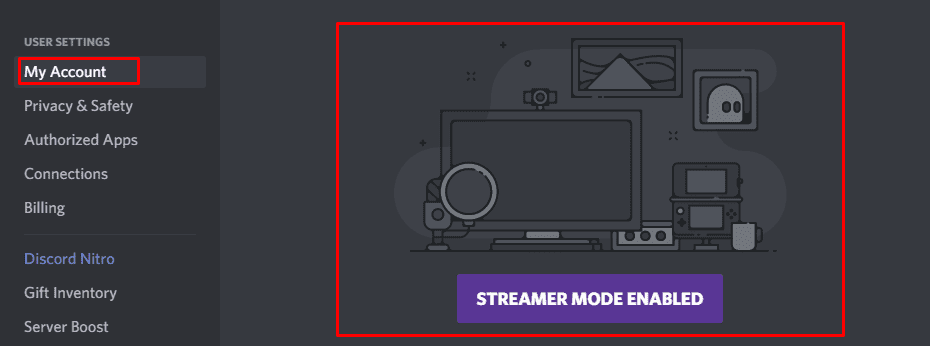
Streamer Mode can hide your personal information.

“Hide Invite Links” hides the URL of invite links, however, it only does so when they’re generated, they’ll still be visible when you paste them anywhere, even in Discord.

“Disable Sounds” turns off sound effects such as notifications of people joining or leaving a voice channel, or the mute microphone sound. “Disable Notifications” prevents any desktop notifications, such as notifications about being mentioned in a post.
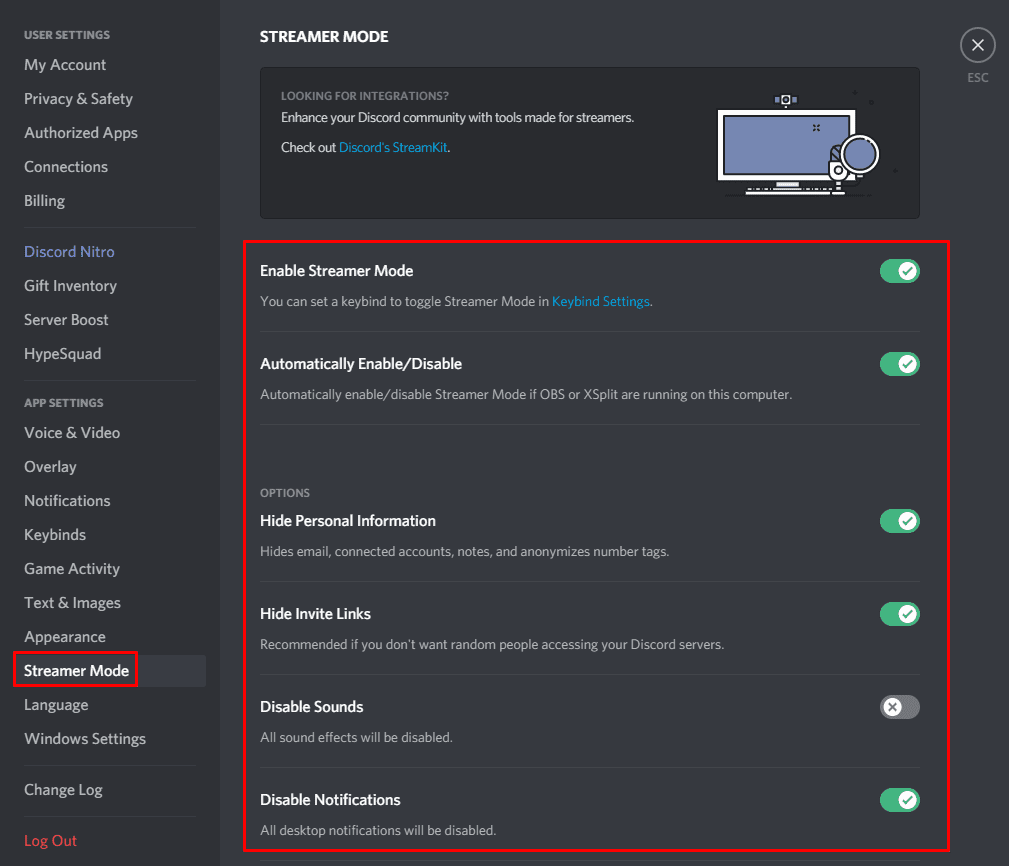
You can configure Streamer Mode so sounds and notifications are disabled.

As mentioned in the description of “Enable Streamer Mode” you can configure a keyboard shortcut to toggle Streamer Mode on or off in the “Keybinds” settings tab. To do so, click “Add a Keybind” in the top-right, then select the action “Toggle Streamer Mode” and configure which key or key combination you want to use.
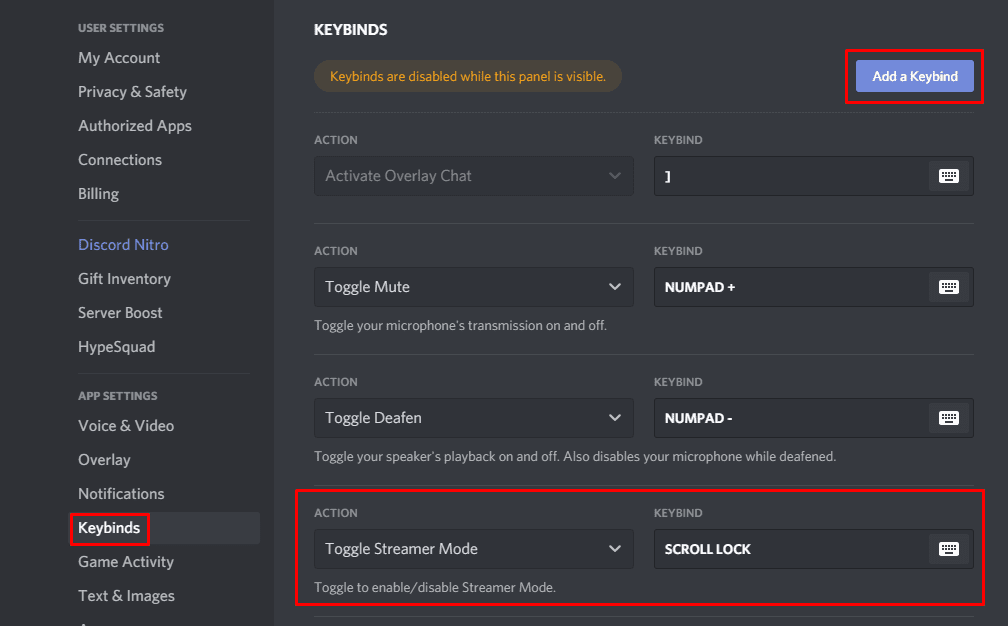
You can configure a keyboard shortcut to toggle Streamer Mode on and off.

Categories: Software

Author Mel Hawthorne

You Might Also Like

  • skype recording error 0xc00d36c4

    How to Fix Skype Recording Error 0xc00d36c4

    Madalina DinitaSoftware
  • Slack: How To Configure How People Can Join a Workspace

    Mel HawthorneInternet
  • microsoft teams export list of team members

    Microsoft Teams: Export the List of Team Members

    Madalina DinitaSoftware
  • Slack: How to Review Pending Invitations to Your Workspace

    Mel HawthorneSoftware

Leave a Reply

Your email address will not be published. Required fields are marked *

This site uses Akismet to reduce spam. Learn how your comment data is processed.

300x600
Turning on Triple Touch Zoom on Android

Turning on Triple Touch Zoom on Android

How to Connect Outlook 2023 to Gmail

How to Connect Outlook 2023 to Gmail

Netflix: Change Password

Netflix: Change Password

Everything You Need to Know About WhatsApp Delete for Me

Step-by-Step Guide: How to Use WhatsApp on Your Computer

Android: Enable or Disable Background Data

Android: Enable or Disable Background Data

300x250
profile pic

The Experts Behind Technipages

My name is Mitch Bartlett. I've been working in technology for over 20 years in a wide range of tech jobs from Tech Support to Software Testing. I started this site as a technical guide for myself and it has grown into what I hope is a useful reference for all.

Learn More

300x250 2
technipages logo white
linkedin icon

Technipages is part of Guiding Tech Media, a leading digital media publisher focused on helping people figure out technology. Visit guidingtechmedia.com to learn more about our mission and team.

© 2026 Guiding Tech Media All Rights Reserved

  • About Us
  • Contact
  • Legal & Privacy

© 2026 Guiding Tech Media All Rights Reserved

Information from your device can be used to personalize your ad experience.
Do not sell my personal information.