

When you click on a hyperlink in Outlook, a strange alert may sometimes pop up informing you that “Your organization’s policies are preventing us from completing this action for you. For more info, please contact your help desk.”
The most confusing part is that this alert may sometimes appear on computers that are not part of a domain. Obviously, there’s no help desk you can contact to help you solve the problem. If you’re getting these messages on the stand-alone Outlook app, switch to the web app and check if the issue persists or the other way around. Then, follow the troubleshooting steps below.
Fix: Your Organization’s Policies Are Preventing Us from Completing This Action
Set Edge as Your Default Browser
Try setting Edge as your default browser, and check if you’re still getting the same message.
- Launch the Control Panel.
- Go to Programs.
- Select Default Programs.
- Click on Set your default programs.

- Navigate to Web browser, and set Microsoft Edge as your default browser.

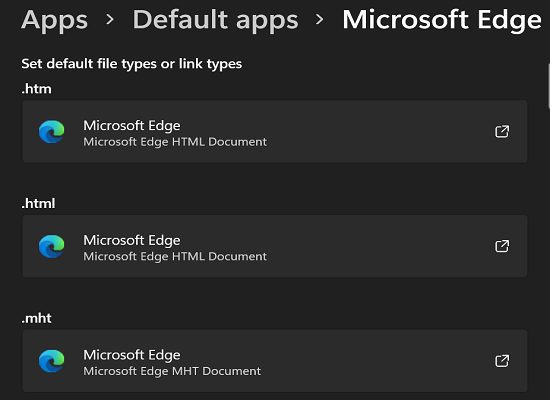
If you’re using Windows 11, you can navigate straight to Settings → Apps → Default Apps → Microsoft Edge. Then, select the file types or link types that you want Edge to open by default.
Tweak the HKEY CLASSES ROOT.html Entry
If the HTML subkey of the HKEY CLASSES ROOT entry is not set to htmlfile, Outlook may have trouble opening hyperlinks. To fix the issue, tweak your Registry and set htmlfile as the default string value.
- Click on the Search icon and type “registry.”
- Double-click on the Registry Editor app to launch it.
- Then, navigate to HKEY_CLASSES_ROOT \.html
- Make sure the value of the Default entry is set to htmlfile.
In other words, you should have the following HKEY_CLASSES_ROOT\.html
configuration:
- Default=htmlfile
- Content Type=text/html
- PerceivedType=text
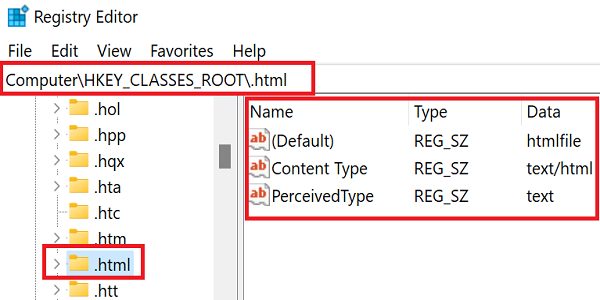
Sometimes, instead of “htmlfile,” you may have “FirefoxHTML” or other incorrect entries. Edit the wrong entry and replace it with “htmlfile.”
Import the HTMLFile Key From Another Computer
Before operating any Registry changes, make sure to back up your computer. Should anything unexpected occur, you’ll be able to restore your data using the backup folder.
Ask a friend or colleague whose Outlook account works properly to send you a copy of their HTMLFile folder to use this troubleshooting method. Here’s what they need to do to export the folder:
- Launch the Registry Editor with admin rights.
- Then, navigate to
HKEY_LOCAL_MACHINE\Software\Classes\htmlfile\shell\open\command
- Click on the File menu, and select Export.
- Name the new file “HTMLExport” and hit Save.
- Close the Registry Editor.

Once you receive the file, save it to your desktop. Then, double-click on it to add the information it contains to your computer’s Registry. Check if Outlook can open hyperlinks now.
Conclusion
If your organization’s policies prevent Outlook from completing the action, set Edge as your default browser. Then, open the Registry Editor, and set the value of the HKEY_CLASSES_ROOT.html entry to htmlfile. If the issue persists, import the HTMLFile folder from another computer.
We’re really curious to learn which solution worked for you. Share your feedback in the comments below.




I still use W10. I was advised to uninstall IE11 because it was no longer supported, but doing gave this error. After reinstalling IE11 the linking worked again. (I use Firefox and Edge as browsers)
No, problem persists.
It works for me, thanks a lot, I did it with Google Chrome, I only set the Default Key Value to the path where Chrome is installed.
Axis M.
while using Win11 – Deleting a third party browser before setting default browser to MS Edge.can cause this error. while using Outlook. Reinstalled third party browser as default browser, then set apps default browser to MS Edge, and then uninstall third party browser. all good now.
Firefox took over one of my user’s computer changing the Default key to “Firefox HTML” …changing it back did that. Fixed the issue in minutes after finding your site in seconds. I came out looking like a genius hero, but you’re mine for creating this. Thank you!
yes the last export part worked. after hours spent
Yes it did help but what I imported was the first value in “.html” (“dothtml”) key, i.e. “htmlfile”. I had been using another browser for testing purposes, which it had changed. I got that message in Word when I tried to Ctrl-Click on a link..
Thanks.
R. McK.