Backing up your PC data is very important. We have so many documents, files, and images that we store on our computers, but many people file to backup PC data. This is a major risk because computers are prone to so many technical issues. Anything from a software crash to a malware attack to hardware damage can cost you everything that you have stored on your PC.
Backing up your data in Windows 10 is essential, but the process is not as simple as backing up your cellphone data. On the other hand, it’s also not that much more difficult than doing so.
Here’s how you make a full backup of your Windows 10.
Backup in Windows 10 PC
You can make an external backup of your Windows data. It’s simple. You have to copy and save your data on an external source of storage.
You can also make an internal backup of your Windows 10 PC. You can use a Windows tool to create the backup of our data. Windows Backup tool from a replica of the whole of the system. It copies everything so that you can retrieve it. You do not need an extra tool if you use a Windows tool for backup.
Here are the steps for using a Windows tool to create a backup:
1. Go to the Control Panel. Control Panel has the settings to manage most of the computer functions.
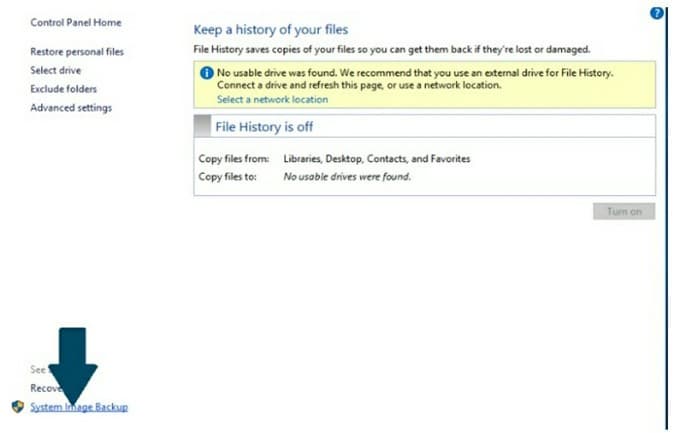
2. Here open the System and Security dialogue box.
3. Tap on the Backup and Restore
4. Here you will see Create a System Image. You have to tap on it.
5. Now you will have to choose the location of your backup data. You can save your backup on a hard disk or external source.

6. Press the Next To start the backup process, tap on the Start Backup button.

Your system image has been created. You can also create an extra System Image on a USB or DVD/CD.
It’s important to note: Microsoft has announced that it will remove the backup tool soon. It is suggested you save your backup with an extra image on any of the external storage devices. This way, when Microsoft removes the backup tool, you can restore your data from external storage devices.
Restoration of Backup
Restoration of backup data is very easy. You can execute the System Image with these steps:
1. Go to the Settings app and open it.
2. You have to click on the Update and Security
3. Tap on the Recovery
4. Advance Startup will give you the option to restart your PC. Click on the Restart Now
5. Your PC will restart. From the Troubleshoot menu, you have to click on the System Image. Follow this path. Troubleshoot > Advanced Options > System Image Recovery.
You can also restore a single file or app from the systems image. You do not need to restore whole backup data.
Pros & Cons of Using Windows 10
MS Windows is still the most common operating system on the Planet. Advantages of using Windows were once measured against using rivaling desktop operating systems, such as MacOS or Linux, but is currently more in danger of being surpassed by Android.
– Versatile
– Productive
– Secure
– Good Native Apps
– Bulky
– Resource Heavy
– Developed for keyboard & mouse
You can buy a USB drive with Microsoft Windows 10 Home Edition and join millions of users worldwide on a platform that is considered the industry standard.