Your Windows computer may sometimes crash unexpectedly to a blue screen. If you’re also getting the Video Memory Management Internal error, you’ve come to the right place. In this quick guide, we’ll list four handy solutions that you can use to get rid of this annoying issue.
How Do I Fix Video Memory Management Internal BSoD?
Install the Latest Graphics Driver Updates
The VIDEO_MEMORY_MANAGEMENT_INTERNAL error indicates the video memory manager has stopped working. Installing the latest driver updates should help you fix the problem.
Go to your video card manufacturer’s website and manually download the latest driver version for the best possible results. Alternatively, use the Device Manager to install the newest driver updates.
- Open the Device Manager.
- Go to Display Adapters.
- Use the drop-down arrow to expand the list of display adapters.
- Right-click on your graphics driver.
- Select Update device.

- Wait until your computer updates the graphics driver.

Don’t forget to check for Windows updates as well. Update your OS to the latest version, restart your computer, and check if you notice any difference.
Disable Overclocking Software
If you’re using an overclocking program to boost your system’s performance, try lowering your GPU overclocking settings and voltage. If the issue persists, turn off overclocking entirely and check if you notice any improvements.
Additionally, force-stop all the programs running in the background. Some of them might be using too much GPU power.
Repair System Files
Corrupted or missing system files may cause all sorts of Blue Screen errors. Use SFC and DISM to automatically detect and repair faulty system files.
- Launch Command Prompt as an admin.
- Run the following DISM commands one by one:
DISM /Online /Cleanup-Image /CheckHealthDISM /Online /Cleanup-Image /ScanHealthDISM /Online /Cleanup-Image /RestoreHealth
- Then, run the sfc /scannow command.
- You can also run the chkdsk /f /r command to check your disk.
- Restart your computer and check if the error persists.
Run Programs in Compatibility Mode
If you notice that a specific app or program often triggers VIDEO MEMORY MANAGEMENT INTERNAL errors, run it in compatibility mode. To do this, right-click on the program shortcut and select Properties. Then, select the Compatibility tab and tick the checkbox that says Run this program in compatibility mode for Windows 7 or Windows 8.1.
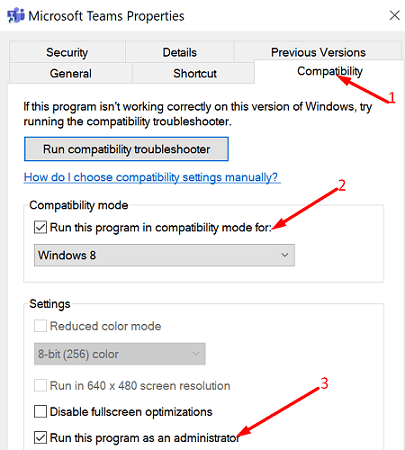
You can also run the program as an administrator to ensure there are no permission issues.
Conclusion
To fix VIDEO MEMORY MANAGEMENT INTERNAL errors on Windows, first, update your graphics driver to the latest version, and install the latest OS updates. Then, disable overclocking and force-stop background programs. Additionally, run SFC and DISM to repair corrupted system files. You can also run the problematic program in compatibility mode.
Did you manage to solve the problem? Which solution worked for you? Let us know in the comments below.