
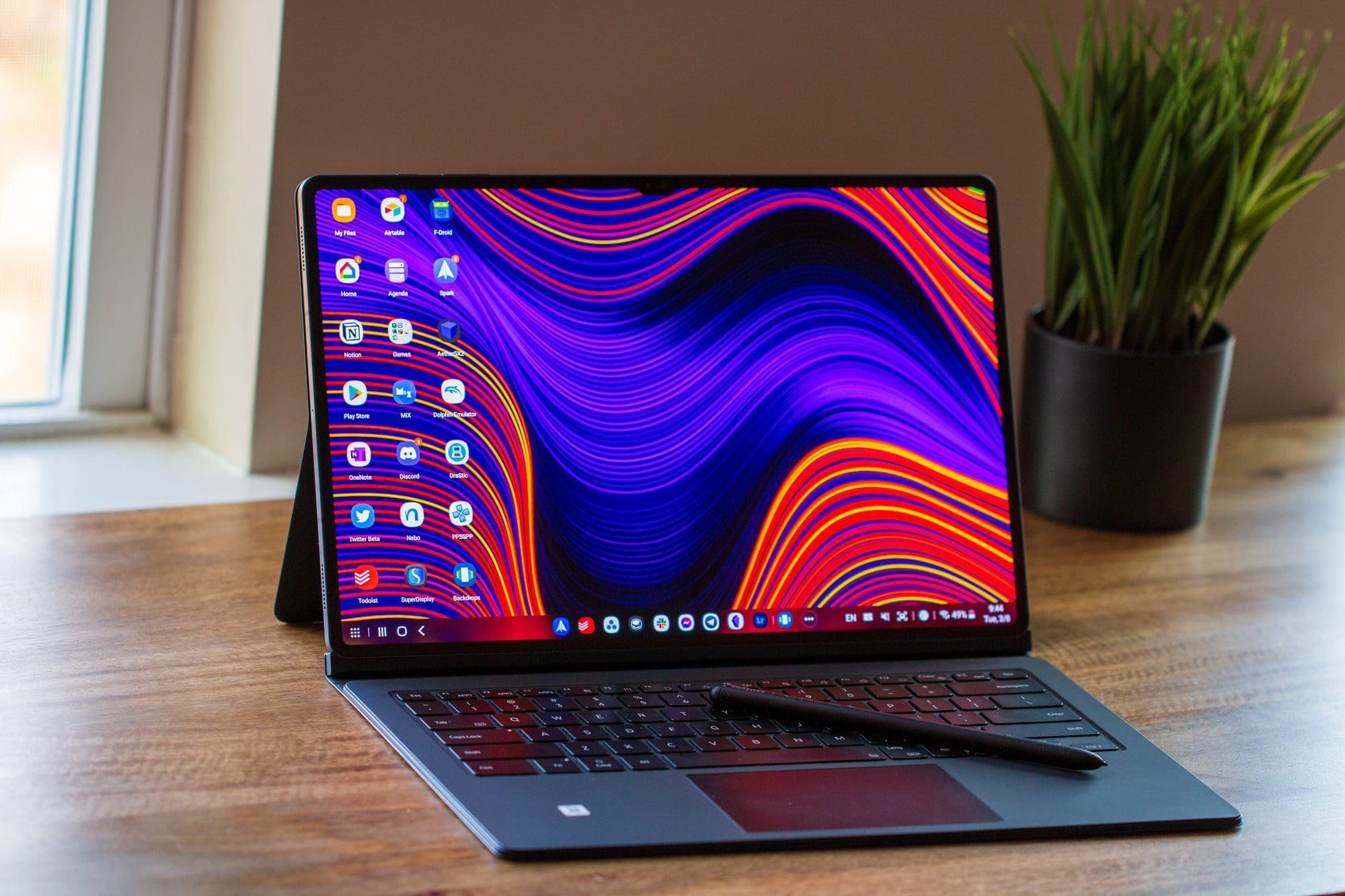
There are few companies out there that can truly rival Apple in terms of its ecosystem. However, the company that is getting the closest is Samsung, as there are so many different devices and products in Samsung’s lineup. The company has even gone so far as to partner with Microsoft to bring unique features to Samsung Galaxy phone users who rely on Windows.
One of the best features for iPhone users that also own an iPad (or Mac) is to send or reply to texts from their iPhone or iPad. Samsung has implemented the same functionality on their Galaxy phones and tablets, including the all-new Galaxy S22 and Galaxy Tab S8.
How To Send Texts From Galaxy Tab S8
Getting Everything Set Up
The first thing that you’ll have to do if you want to send texts from Galaxy Tab S8 is to make sure that you are using the same Samsung account. When you first go through the setup process, you are required to add a Samsung account before you can use the various built-in apps.
However, if you need to double-check, here’s how you can do so:
- Open the Settings app on your Samsung phone and Galaxy Tab S8.
- Tap [your name] at the top of the page.
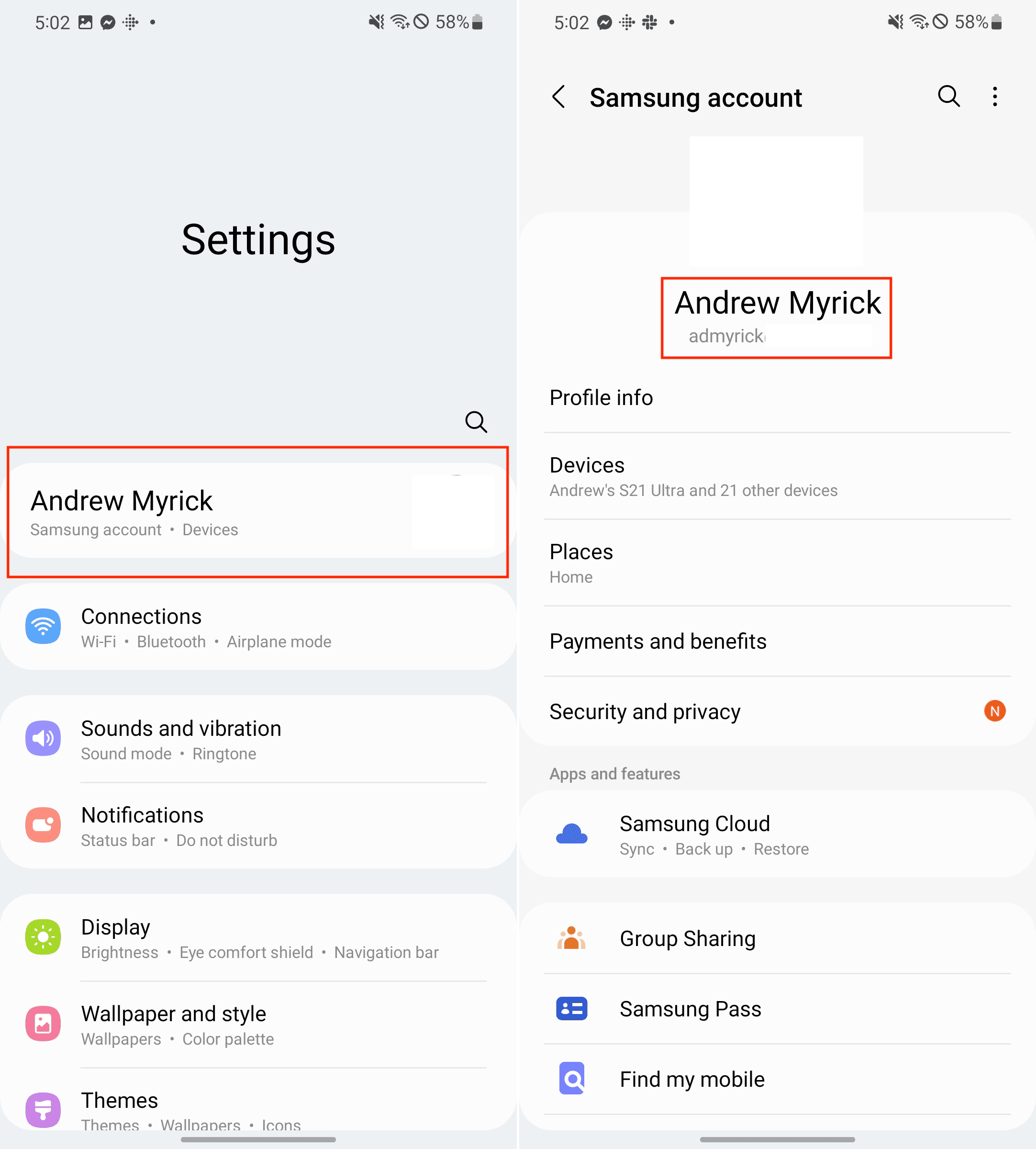
After your Samsung account settings are loaded, you’ll be able to see the email address being used right below your profile image and name.
Provided that you are already signed into the same Samsung account, here’s how you can send texts from Galaxy Tab S8:
- Swipe down from the top of your Samsung Galaxy phone.
- Swipe down again to reveal the full Quick Settings panel.
- Tap the Call & text on other devices button.
- Repeat these steps on your Galaxy Tab S8.
In the event that you don’t see the Call & text on other devices toggle, here’s how you can add it to Quick Settings:

- Swipe down from the top of your Samsung Galaxy phone or tablet.
- Swipe down again to reveal the full Quick Settings panel.
- Scroll to the right to reach the next panel of toggles.
- Tap the + icon.
- Swipe through the options until you find the Call & text on other devices toggle.
- Drag and drop the toggle into the Quick Settings panel.
- Tap Done.
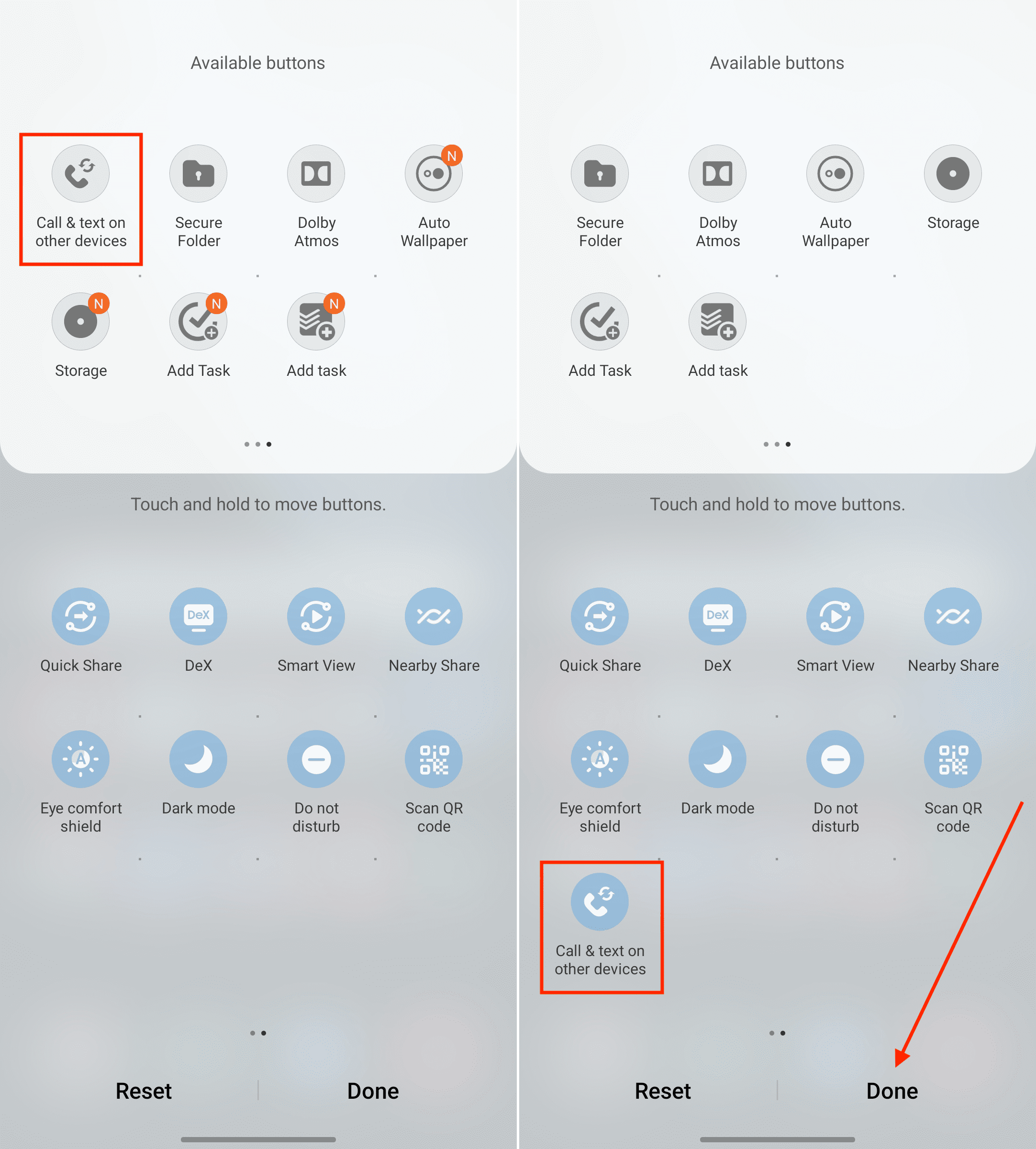
Now that the toggle has been added, you can enable it, allowing you to answer phone calls and send text from Galaxy Tab S8.
Device Requirements

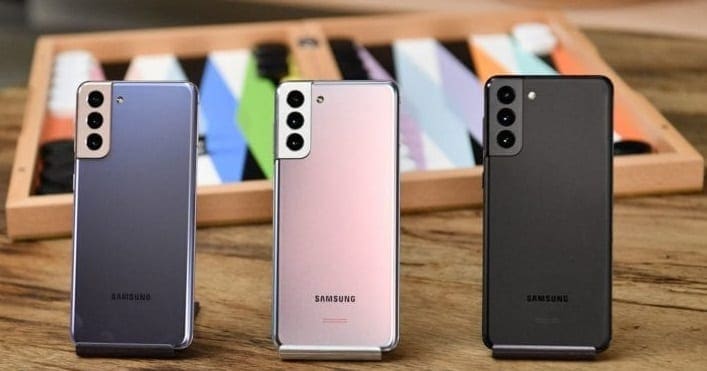
There are a few caveats to be aware of, though, as this feature is not available on all Galaxy phones. For example, we could not enable (or find) the option on our Galaxy Z Fold 3, but it was available on the Galaxy S22 Ultra. Samsung offers a list of devices that include compatibility with these features:
- S22, S22+, and S22 Ultra
- S21, S21+, S21 FE and S21 Ultra
- S20 FE, S20 5G, S20+ 5G, and S20 Ultra 5G
- S10e, S10, S10+, S10 5G, S9, and S9+
It’s also available on budget and mid-range phones, along with older phones like the Galaxy Note 20 and all the way back to the Galaxy Note 9. So just double check the model of your phone if you want to send texts from Galaxy Tab S8.



I just found out call and text on other devices is NOT available on the new S23 Ultra phone.
VERY disappointed–and I wish I’d known that before buying the S23.
On the Galaxy S8 phone, one may find the option to allow ‘Call and Text On Other Devices’ in the Settings < Advanced Features <Call & Text On Other Devices, instead of the Quick Setting Panel..
(Android 9, OneUI version 1.)