Changing your phone number on WhatsApp is nothing out of the ordinary. Maybe you want to start fresh and make sure that only certain people have your phone number. Whatever the reason is, the good news is that the steps to add a new number to WhatsApp is easy.
WhatsApp: What Happens When You Change Your Number
It’s always a good idea to know what happens when you change your number on WhatsApp to see if it’s worth it after all. In regards to your profile information and your settings, that won’t go anywhere. You won’t be removed from any groups you’re in, and you’ll still be able to recover your chats on your new account. What will disappear will be your old account.
How to Change Your WhatsApp Phone Number
When you change your phone number, you’ll change it on the same phone or a new one. Let’s take a look at the process if you’re only going to make the change on the same phone.
Using Another Phone Number for WhatsApp on the Same Phone
To change your number, open WhatsApp and tap on the dots at the top right. Go to Settings, followed by Account.
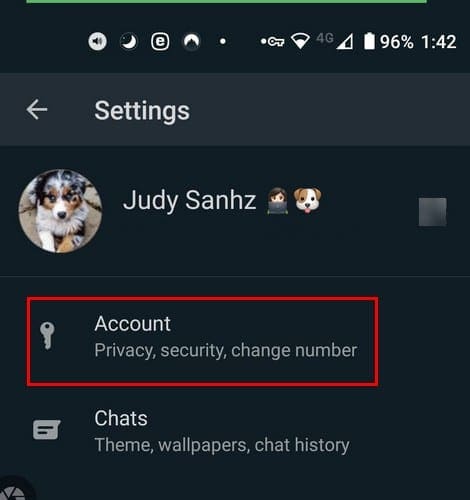
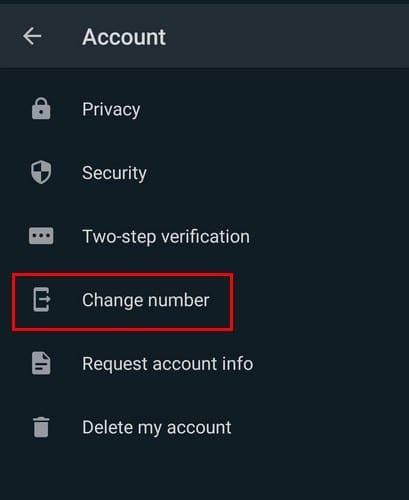
Look for and tap on the Change Number option and make sure to read what you see on your display; if you’re ok with what you’ve read, tap on the Next button.
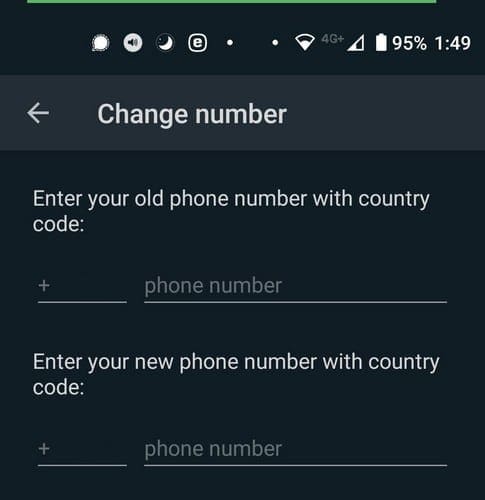
You should see the areas where you’ll need to enter your old and new phone numbers.
Make sure you’ve enabled the option to let your contacts know you have a new number. You’ll also see an option to choose who you want to notify. This is a great option just in case there’s someone you wish never got their hand son your number. Once you’ve made the necessary changes, don’t forget to tap on the Done button at the bottom.
New phone numbers are hard to remember at first. So, if you need to see what your new number is, go to Settings, followed by Profile. You’ll see your new number at the bottom.
How to Change WhatsApp Phone Number on a New Phone
Note: To use WhatsApp with your new phone number and not lose any information in the process, you’ll need to make an iCloud or a Google Drive backup on your previous phone. Also, make sure that your new phone is active and can receive calls and text messages.
How to Backup Your WhatsApp Chats to Google Drive
If you want to know how to create a backup before you continue, these are the steps to follow. Make sure you have added a Google account to your phone and that you’ve already installed Google Play services.
To create your backups:
- Tap on the dots at the top right
- Settings
- Chats
- Chat Backup
- Backup to Google Drive
- Choose the frequency of the backup.


If you have more than one Google account, choose the one you want to add the backup. Not to worry, if you forgot to add an account, you should see an option to add an account. You can choose the network you want to do the transfer, but it’s always best to choose WiFi. But, if you ever change your mind about the network, you chose you can always change it by going to Settings > Chats > Chat Backup > Back up over.
Once you’ve completed the steps, you don’t have to worry about if you backed up your conversations or not. You can also manually back up your chats. Maybe the time for your next backup isn’t set up for any time soon, and you want to play it safe. To manually back up your WhatsApp conversations, you can go to:
- Settings
- Chats
- Chat backup
- Back up
Now that you’ve made your backup and want to continue with the process, these are the steps when moving to a new phone.
- Tap on the dots at the top right
- Go to Settings
- Account
- Change number – Don’t forget to use this feature on your old device to transfer your account to the new one before you migrate.
Once you start using your new phone, install WhatsApp, and go through the necessary steps to verify your new phone number. You’ll be able to recover your chat history thanks to the backup you made. If the change your making is from an iPhone to an Android phone, there is no way you can save your chat history.
If there is important information in a chat, you can try taking screenshots o copying and pasting elsewhere. Don’t forget that if you change the Google account you send the backups to, you can’t access the chats you saved on that account.
Final Thoughts
Getting a new number can bring benefits such as not getting calls from people you would rather forget. But, you do have to deal with the whole moving your WhatsApp account ordeal. The good news is that you only have to do it once, and if you have a new phone, you won’t mind having to do this since it involves playing with your new toy.