Skip to content
LogoTechnipages
technipages logo
  • Topics
        • Android
        • Browsers
        • Gaming
        • Hardware
        • Internet
        • iPhone
        • Linux
        • macOS
        • Office
        • Reviews
        • Software
        • Windows
        • Definitions
  • Product Reviews
  • Downloads
  • About

How to Save Locations in Google Maps for Android

Kat ArmstrongMarch 18, 2019 Comments (3)
Google Maps Header

Learn how to save locations within the Google Maps Android app with this tutorial.

Saving a Location

This process is quick and simple, and much the same as downloading a map. Find your location first, of course. Once you have it pulled up on Maps, tap on the name of the place.
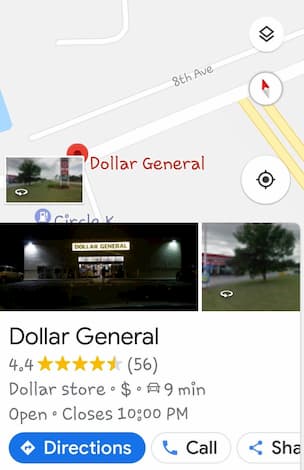
Scroll down slightly and you can choose to get directions, call the business, share the place or save it to your preferences. Select “Save“.
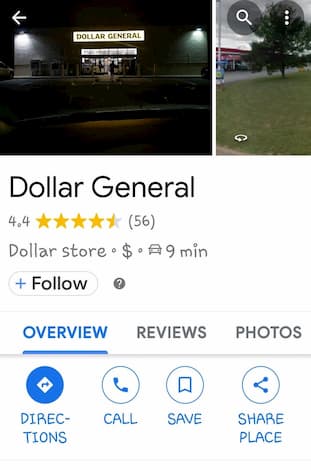
Now, just choose where you wish to save the destination. There are three preset lists available: Favorites, Want to go and Starred Places. You can also create lists of your own, such as “Shopping,” “Restaurants” or anything that will help you later on.

After tapping on the list you would like to save this location to, you will have the option to add a note if you would like to help you remember any details regarding where you are traveling to, or whatever you may need.

Accessing Downloaded Maps

Now that you have saved a favorite location, how the heck do you find them? Head back to the Google Maps home page, and click those three little lines on the top left of the screen to open up the menu there.


Categories: Android | Internet

Author Kat Armstrong

You Might Also Like

  • How to Stream Disney+ From Your Samsung Tablet

    MonaAndroid
  • Brave

    Brave for Android: Change Home Page

    Mel HawthorneAndroid
  • Ecosia for Android: How to Disable Search Prediction

    Mel HawthorneAndroid
  • Google Docs Header

    How to Use Pageless Format in Google Docs

    Judy SanhzAndroid

Comments

  1. Elvia Villa says:
    March 18, 2020 at 6:11 am

    How to file Android internet on my phone window 7.1

  2. Elvia Villa says:
    March 18, 2020 at 6:05 am

    Yes this was very helpful to me. How do I file on Android infertnet

  3. Paul Atkin says:
    July 27, 2019 at 4:58 am

    Yes…and once you’ve saved a place, how do you get directions to it? I can’t find a way of doing this.

    And if you can’t, what’s the point?

Leave a Reply

Your email address will not be published. Required fields are marked *

This site uses Akismet to reduce spam. Learn how your comment data is processed.

300x600
Turning on Triple Touch Zoom on Android

Turning on Triple Touch Zoom on Android

How to Connect Outlook 2023 to Gmail

How to Connect Outlook 2023 to Gmail

Netflix: Change Password

Netflix: Change Password

Everything You Need to Know About WhatsApp Delete for Me

Step-by-Step Guide: How to Use WhatsApp on Your Computer

Android: Enable or Disable Background Data

Android: Enable or Disable Background Data

300x250
profile pic

The Experts Behind Technipages

My name is Mitch Bartlett. I've been working in technology for over 20 years in a wide range of tech jobs from Tech Support to Software Testing. I started this site as a technical guide for myself and it has grown into what I hope is a useful reference for all.

Learn More

300x250 2
technipages logo white
linkedin icon

Technipages is part of Guiding Tech Media, a leading digital media publisher focused on helping people figure out technology. Visit guidingtechmedia.com to learn more about our mission and team.

© 2026 Guiding Tech Media All Rights Reserved

  • About Us
  • Contact
  • Legal & Privacy

© 2026 Guiding Tech Media All Rights Reserved

Information from your device can be used to personalize your ad experience.
Do not sell my personal information.