
You’ve written a lengthy document, only to realize that there are some words you need to replace. The idea of having to re-read everything gives you a headache. The good news is that you won’t have to do that since there is an easier way to find that text that needs to be replaced.
How to Access Find and Replace
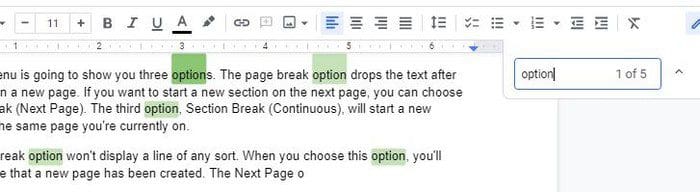
When you only need to replace one word, you can always use the search option if it’s that simple. If you’re on Windows, press Ctrl + F, and the search option will appear. If you’re on Mac, you can use Command + F. When you enter the word you’re looking for; it’ll be highlighted in the document. The words that are currently selected will be highlighted in dark green. You can click the up and down arrow to move from word to word.
It may seem a little more complicated when you need to replace the word you found. To access the Find and Replace option, click on the Edit tab at the top and click on the Find and Replace option.

When the Find and Replace window opens, you’ll see two boxes needing your attention. At the top will be the Find box. Here you type the word you want to replace. Below that box, add the new word you want to add. You’ll also see a button to replace all the words, the one currently selected or the next button to skip a word.

The three options you see below will help you narrow your search.
- Match Case – With this option, you’ll need to double-check to see if even the first letter is lower or upper case. By selecting this option, Google Docs will ignore any words that don’t match exactly. For example, if you enter Cat, it won’t pick up on cat.
- Ignore Latin Diacritics – This option is useful since you only need to type the word and not have to worry about any Latin diacritics. You’ll see some examples in the parenthesis.
- Math Using Regular Expression – This will also tell Google Docs it can look in RegEx.
How to Use Find and Replace on Google Docs for Android
Using the Find and Replace feature on your Android device is also possible. Once the Google Docs file is open, tap on the three dots at the top right and choose the Find and Replace option.

When you select the option, type the word you’re looking for and press the loop icon on your keyboard (bottom right-hand corner). The words that Google Docs find will be highlighted. You can use the arrows on the side to move from one word to another. Once the right word is chosen, tap on the dots to reveal the Replace and Replace All options. If you can use the Find and Replace feature on your computer, it is best since you have access to more options.
Conclusion
The Find and Replace option is handy and can save you lots of time. Thanks to it, you can replace any word in your file without manually searching for it. You can use the feature on your computer or on your Android device. The app may not have the same options as the web version, but it’s still useful. How often do you think you’ll use the feature? Share your thoughts in the comments below, and don’t forget to share the article with others on social media.