Skip to content
LogoTechnipages
technipages logo
  • Topics
        • Android
        • Browsers
        • Gaming
        • Hardware
        • Internet
        • iPhone
        • Linux
        • macOS
        • Office
        • Reviews
        • Software
        • Windows
        • Definitions
  • Product Reviews
  • Downloads
  • About

Zoom: How to Use the Space Key to Unmute Your Microphone

Mel HawthorneJanuary 8, 2021 Comments (1)

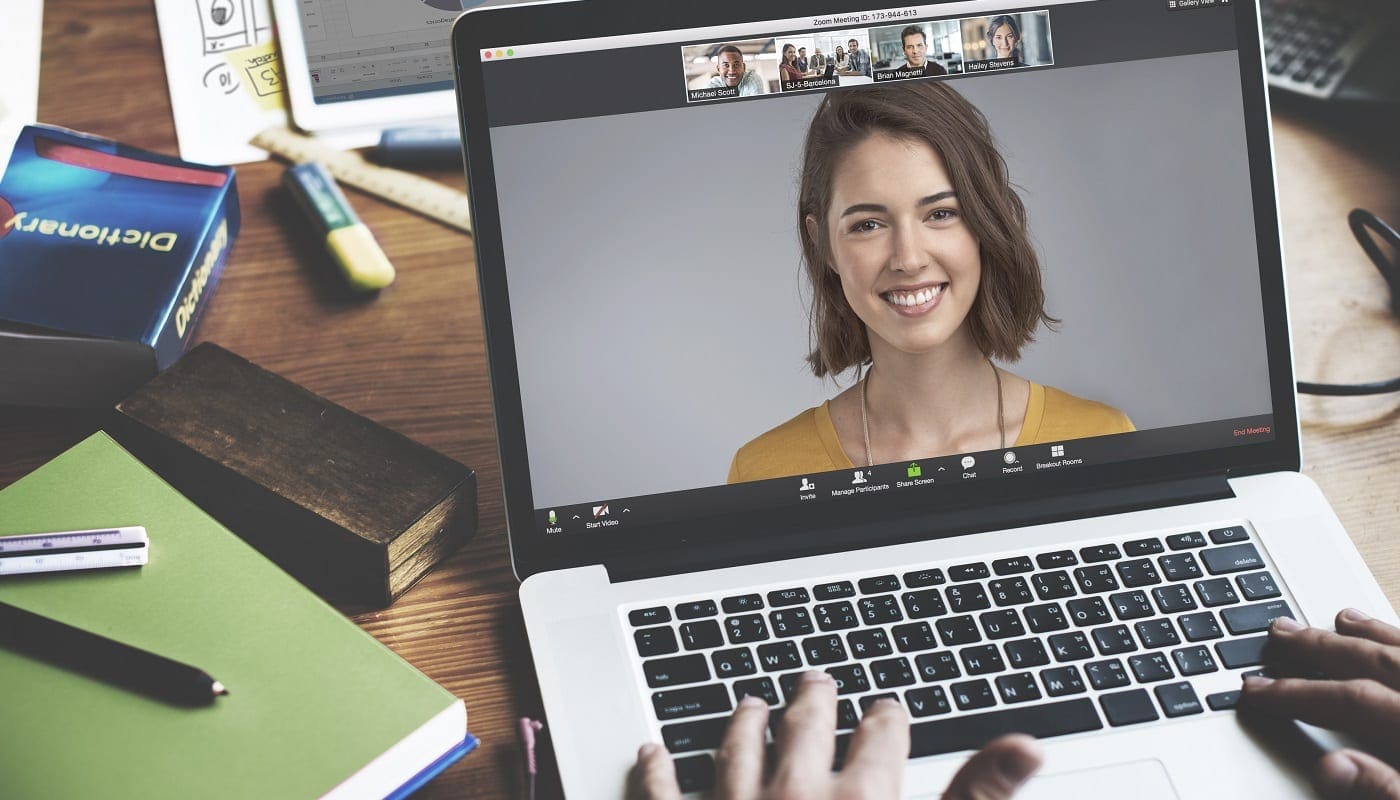
One of the more annoying things that you will come across in many Zoom meetings is background noise. While it’s understandable that there will always be some, especially when a person is talking, many people’s microphone constantly broadcasts loud annoying background noise. One way this issue can be prevented is for them to mute their microphone whenever they’re not actively trying to talk.

How to Quickly Mute Yourself in Zoom Meetings

If you’ve muted your microphone, you obviously have to unmute yourself again when you want to speak. The easiest way to do this is to use the built-in keyboard shortcut of pressing and holding the spacebar. If you press and hold the spacebar while your microphone is muted, it will act as a push-to-talk button, activating your microphone for the duration of the time you hold down the key.

The spacebar shortcut only works if the Zoom call window has the current focus. This means that you will need to quickly switch back to the Zoom call window to unmute your microphone if you’re multitasking while on a Zoom call, for example, taking notes or googling something for later.

The shortcut to press and hold the spacebar as a push-to-talk button is enabled by default. It can be a good idea to check that the setting will work before you try to use it, though, or you may end up assuming you can be heard when you can’t.

If you want to check if the push-to-talk spacebar shortcut is enabled, you need to open Zoom’s settings. To access the settings, click on your user icon in the top-right corner, then click on “Settings.”

To access Zoom’s settings, click on your user icon, then on “Settings” in the dropdown menu.

Once in the settings, switch to the “Audio” tab, then scroll down to the page’s bottom. You need to ensure that the second to last checkbox, labeled “Press and hold SPACE key to temporarily unmute yourself,” is ticked.

Ensure that the second to last checkbox labeled “Press and hold SPACE key to temporarily unmute yourself” is ticked.

Categories: Internet

Author Mel Hawthorne

You Might Also Like

  • How to Scan Udp Ports With Nmap

    Mel HawthorneInternet
  • Gmail: How to Enable Right-to-Left Text

    Mel HawthorneInternet
  • thunderbird not receiving sending emails

    Fix Thunderbird Not Receiving or Sending Emails

    Madalina DinitaInternet
  • Zoom: How to Hide Call Participants Who Aren’t Using a Webcam

    Mel HawthorneInternet

Comments

  1. Beth says:
    January 17, 2022 at 9:54 pm

    My default spacebar unmute has been verified and yet I find that I still cannot use the feature at times. I think I have figured that if the host mutes me, the option doesn’t work.
    I hope this gets fixed so I can contribute easier.

Leave a Reply

Your email address will not be published. Required fields are marked *

This site uses Akismet to reduce spam. Learn how your comment data is processed.

300x600
Turning on Triple Touch Zoom on Android

Turning on Triple Touch Zoom on Android

How to Connect Outlook 2023 to Gmail

How to Connect Outlook 2023 to Gmail

Netflix: Change Password

Netflix: Change Password

Everything You Need to Know About WhatsApp Delete for Me

Step-by-Step Guide: How to Use WhatsApp on Your Computer

Android: Enable or Disable Background Data

Android: Enable or Disable Background Data

300x250
profile pic

The Experts Behind Technipages

My name is Mitch Bartlett. I've been working in technology for over 20 years in a wide range of tech jobs from Tech Support to Software Testing. I started this site as a technical guide for myself and it has grown into what I hope is a useful reference for all.

Learn More

300x250 2
technipages logo white
linkedin icon

Technipages is part of Guiding Tech Media, a leading digital media publisher focused on helping people figure out technology. Visit guidingtechmedia.com to learn more about our mission and team.

© 2026 Guiding Tech Media All Rights Reserved

  • About Us
  • Contact
  • Legal & Privacy

© 2026 Guiding Tech Media All Rights Reserved

Information from your device can be used to personalize your ad experience.
Do not sell my personal information.