When working on a file on Google Docs, there are various features you can use. For example, you can end a section by using Page Breaks and find words you want to replace with ease. But, when you’re working on a file with others, leaving comments will be a big help. That way you can receive suggestions on what would be good to change to improve the file.
How to Add Comments in Google Docs
Once your Google Docs file is open, highlight the word(s) where you want to insert your comment. Click on the comment icon on the top.

A small window with your Google profile will appear as soon as you click on the icon. Enter your comment and click on the Comment button to publish. To the right of the file you’ll see your comments and the time and date as well.

Once the comment is added, you’ll also see three dots to the right. If you ever need to erase the comment, here’s where you’ll find the option.
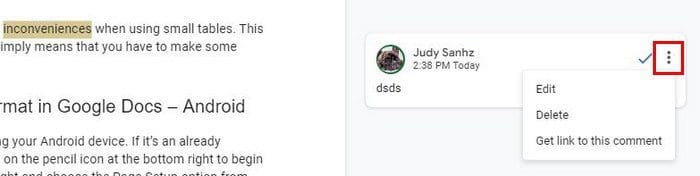
As long as you’re here you can also do things such as get a link to this comment, or edit it. So if there was a mistake with comment, you can edit it instead of erasing it. The areas where you put the comment will be highlighted. Also, the comments will be threaded. So, if you want to reply to a comment, add your comment and click on the reply button to publish your comment. You can also add emojis if you’d like.

When you reply the other person will get a notification letting them know about your comment and an email.
Hide the Comments
Not happy with how your file looks with all those comments. You can make the comments go away by changing the mode. You’re currently in editing mode, and that’s why you see the comments, but if you switch to Viewing mode, the comments will go away.
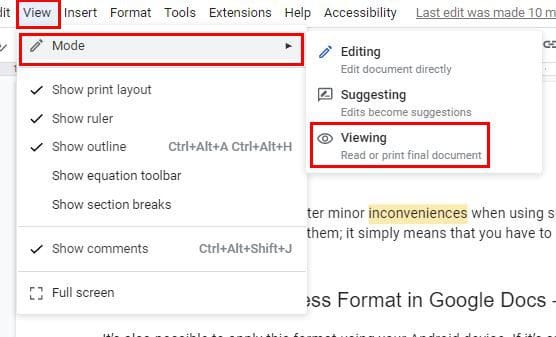
In viewing mode you won’t be able to make any changes. If you see that you need to make some changes, you’ll need to switch to Editing Mode again. You can also make the comment go away by resolving them. Let’s say you suggested something in a comment. You’re going to see a check mark to the side of your comment or an X. By clicking on the check mark you’re resolving the comment. If you want to erase it, you’ll need to click on the dots and choose that optoin. When you resolve the comment it goes away.

You can also suggest an edit. Let’s say that you’re both editor in this file. But, if you’re the owner, you’ll need to highlight what you think needs needs editing and click on the comment icon at the top. If you’re not the owner of the file, but an editor, the comment icon will be to your right. You’ll also see an emoji icon so you can respond that way if you’d like.

Review Suggested Edits
If you need to review the suggested edits, you can do this by clicking on the Tools tab at the top and choosing the Review suggested edits option.

You’ll see the option to reject them all or accept.
Conclusion
By seeing what the other person suggest, you can see what ideas will help improve the file. You’ll never miss out on a comment since you’ll be notified by email or on your notification bar. Are there any features you would add to make suggesting edits better? Let me know in the comments below and don’t forget to share the article with others on social media.