

Zoom lets you record your meetings in case you want to review what has been discussed later on. After you hit the End meeting button, Zoom automatically starts converting your recording. But this process may sometimes fail to complete due to various errors, an invalid file path, or corrupted recordings.
Let’s see what you can do if Zoom says it failed to convert your recording.
Why Is My Zoom Recording Not Converting?
Zoom won’t be able to convert your recording if you change the name or location of the double_click_to_convert.zoom file during the conversion process. The same is valid if you shut down your computer before the conversion completes.
Additionally, if your Internet connection is not stable, Zoom may have trouble converting your recording. There are also the so-called ‘internal errors’ that you can’t control. They include invalid logic issues, incorrect commands, data stream problems, and so on.
What to Do if Zoom Could Not Convert Your Recording
Manually Convert the Recording
Try to manually launch the conversion process. To do this, log in to your Zoom desktop app if you’re not already signed in. Then go to the Meeting tab click on the Recorded tab.

Select the recording you want to convert the click on the Convert option.
Run zTscoder.exe
zTscoder is an executable file that’s part of the Zoom file package. You can use this tool to force the recording conversion process. You basically need to run the start zTscoder.exe “C:\Users\UserName\Documents\Zoom\VideoFilePath” command in Command Prompt to launch the manual video conversion process.
We already described this method in detail in our guide on How to Fix Zoom Error Code 614. Use this solution and check if the problem has been solved.
But if you’re not comfortable using Command Prompt, you can use the method below.4
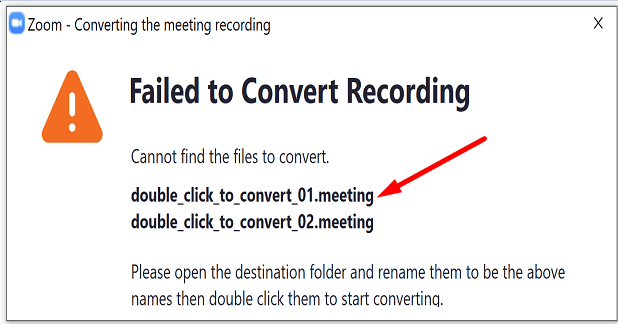
- On your ‘Failed to Convert Recording‘ Zoom error window, double-click on the ‘double_click_to_convert‘ file.

- Then select Open with and click More apps.
- Select Look for another app on this PC.
- Navigate to C:\Users\UserName\AppData\Roaming\Zoom\bin.
- Locate the zTscoder.exe file in this folder and double-click on it to open it.

- Then return to the error window and double-click on the ‘double_click_to_convert’ file. Your recording should start converting now.

Conclusion
If Zoom initially fails to convert your meeting recordings, you can force the conversion process with the help of the zTscoder file. Go to C:\Users\UserName\AppData\Roaming\Zoom\bin and double-click on the zTscoder executable file. Then double-click on the file you want to convert. That’s it.
Let us know if you managed to convert your Zoom meeting recordings. Share your thoughts in the comments below.



Hello ! I need help with this. My zoom meeting starts to convert and makes it to 35% and then the window just closes. Meeting doesn’t end up converting and no matter how many times I’ve tried to trouble shoot and follow these steps it continues to suddenly drop after 35% please help!!
Thanks JimmyB <3
Unfortunately, it didn’t work for me. Zoom crashes and unexpectedly quit.
Thank god I read Faiz’s comment and moved the converted files from the stuck folder elsewhere, now my unconverted files are working finally. Cos nothing else worked, no ztscoder… nothing????thank you
Technically, what Jimmy recommended really worked well. For me, read the comments first and execute what Jimmy said instead of doing the instructions above.
JimmyB suggestion FINALLY works for me.
if you have converted zoom files before this on the same folder, move the converted files elsewhere first.
then, you can double click that new .zoom file to convert.
thank god i read the comments.
Jimmy B’s suggestion worked perfectly for me. Move the multiple files already saved, and leave just the double_click_to_convert files. It should work perfectly when this is done.
HI
Thank you for your fixes but none of them worked for me, I still have the same message that the file cannot be converted.
Hey here’s a quick fix suggestion for those with multiple recordings in the same file. If you have two recordings and have already converted one having the “Zoom_0” converted file in the same domain will not allow you to convert another file so you will either need to relocate it or delete it to convert a new file. This fixed the issue for me – hope it helps someone else!
Same here.. I even checked in Task Manager, and nothing was running after I doube-clicked the zTscoder..exe, then the .zoom file: . : double_click_to_convert_01.zoom.
I would hope that those of us who commented with this result can get some response. This seemed like such an easy solution. Thank you in advance for any additional guidance you can post for us.
Nope. double clicked on zTscoder that did nothing, then double-clicked zoom file, nothing happened.
Thank you very much for your help.
Unfortunately, it doesn’t work for my problem.
Whenever I double click the “double_click_to_convert.zoom” file, I get a video very much shorter than the recorded meeting. For a 70 minutes long meeting, I get a 27 minutes long file, more than 40 minutes of recording lost.
Hello! Thanks for your article! It didn`t quite work for me though… as I click on the zTscoder.exe, nothing happens… How else can I try and solve this conversion problem? The .zoom file of the recording is also not opening when I double-click.
Any help appreciated!