
Recording a Zoom meeting can be very useful, especially when you’ll need the recording for future reference. Zoom calls this feature Local Recording, and it’s available for paid and free users.
For safekeeping, you can upload those recording to cloud services such as Google Drive or Dropbox. You also have the option of adding those recordings to streaming services such as Vimeo or YouTube.
How to Record a Zoom Meeting – Windows
Note: The recording feature is not available on Android and iOS if you’re not the host. On the mobile app, you’ll also need a paid account to record meetings.
Once you’ve started your Zoom meeting, you’re going to see the Record option to the left of Reactions.
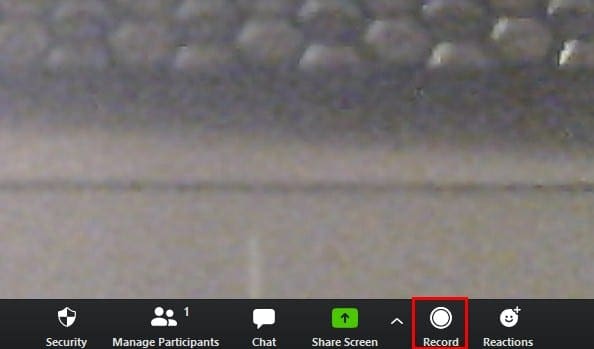
If you haven’t joined the meeting with audio, you’ll see a pop-up window asking you if you continue without sound or not. Once Zoom starts recording, you’ll see a flashing red dot in the upper left-hand corner.
When you’re ready to pause or stop the recording, you can place the cursor near the flashing red dot at the top left of your display; you’ll see the stop and pause buttons.
If you move the cursor to where the record button used to be, you’ll also see another pair of pause and stop buttons. As soon as you stop recording, the file is converted to an MP4 file, and it’s saved.
Participants can also record the meeting, but you’ll need to give them permission to do that. To provide user recording permission, go to:
- Manage Participants
- Place the cursor over the name of the person you want to allow recording permission.
- Click on the More button.
- Click on the Allow Record option.
How to View Recorded Zoom Meetings
To view your Zoom meetings go to the Meetings option on the app’s main page.

In the new window that appears, tap on the Recorded tab. The left pane is going to show you all the meetings you’ve ever recorded. Click on the one you want to see and choose the Open or Play button you’ll see to the right.
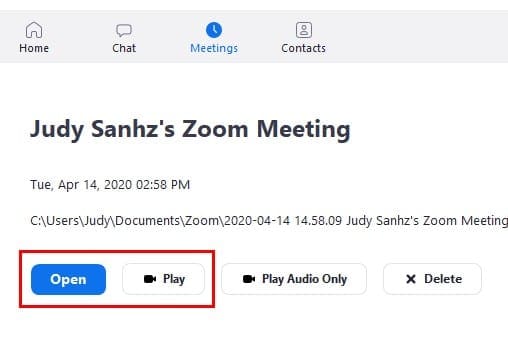
By clicking on the play option, Zoom will choose a compatible app on your device to play the meeting. With the Open option, Zoom will open your files app, and you need to click on the meeting you want to see.
How to Record Zoom Meetings on iOS and Android
Note: Only paid accounts can record meetings
The only accounts that can record meetings are:
- Enterprise
- Business
- Pro
Don’t worry about the recordings taking up your device’s memory since they won’t be saved there; all of your Zoom meetings will be saved to an online folder. The steps for Android and iOS are similar.
To record the meetings:
- Join the meeting
- Tap on the three dots at the bottom right
- Choose Record to the Cloud
- To stop or pause recording tap on the Recording option at the top right
Conclusion
The recording option is handy, especially when the information in those meetings needs to be reviewed at a later time. It would be nice that you didn’t have to have a paid account to record, but oh well. Do you think that the recording feature needs to be improved?


I am trying to find the process to find and playback meeting recorded on Zoom that were recorded by someone other than me