

Zoom error code 614 indicates the program failed to convert your recording due to low disk space issues. Simply put, you don’t have enough free space on your disk to save the recording.
The good news is that error 614 is not a common local recording conversion problem. Most users should be able to get rid of it simply by freeing up more space on their computers.
Solutions to Troubleshoot Zoom Error 614
Check Your Disk Space
If you’re running out of disk space, clean up your files and folders to free up some space. Start with the programs and apps you haven’t used in ages.
Open Control Panel and go to Programs and features. Hit the Uninstall button to remove all the programs you no longer need. 
To remove the apps you installed from the Store, go to Settings → Apps → Apps & features. Select the apps you no longer use and select Uninstall.
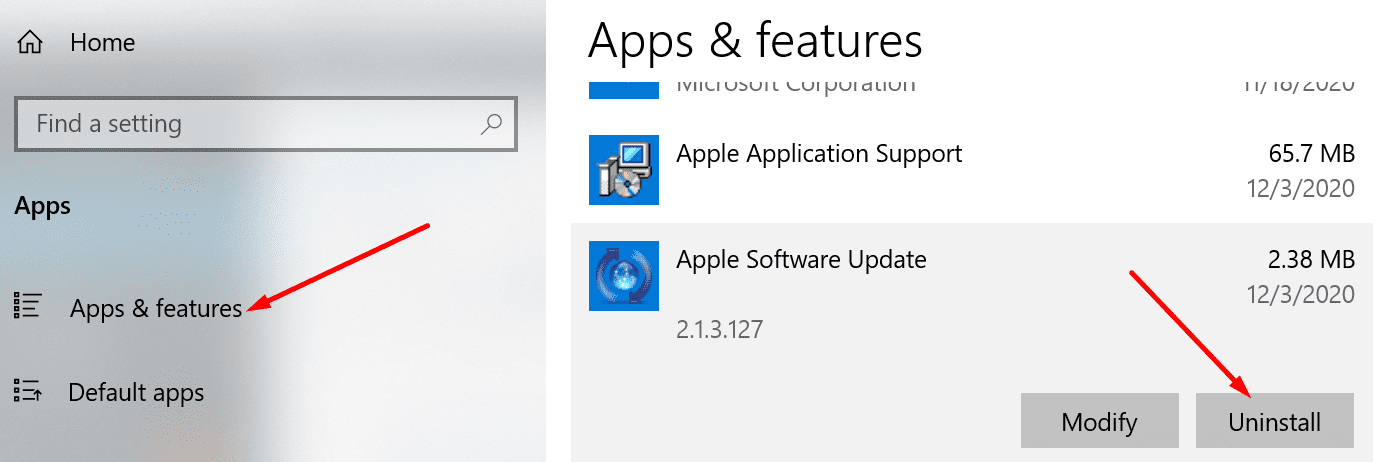
Then, continue with the temporary files, update files, and so on. Launch Disk Cleanup and remove all the unnecessary files. Make sure to remove old OS update files. They may sometimes eat up tens of gigabytes of data.

⇒ Here’s a Useful Tip
Enable Storage Sense and let Windows delete unnecessary files automatically. This feature automatically clears temporary files and empties your Recycle Bin.
- Go to Settings → System → Storage.
- Toggle on Storage Sense.

Needless to say, don’t store videos and photos on your computer. Use an external hard drive for that task. And don’t forget to empty your Recycle Bin.
Manually Convert Your Recording
If Zoom failed to convert your video recording, check if you can convert the file manually.
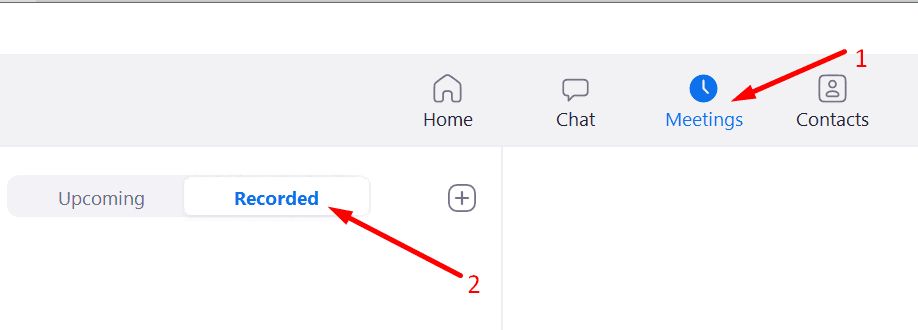
- Launch your Zoom Desktop Client.
- Click on the Meeting tab.
- Then select the Recorded tab.

- Select the local recording and hit the Convert button.
Run zTscoder.exe via CMD
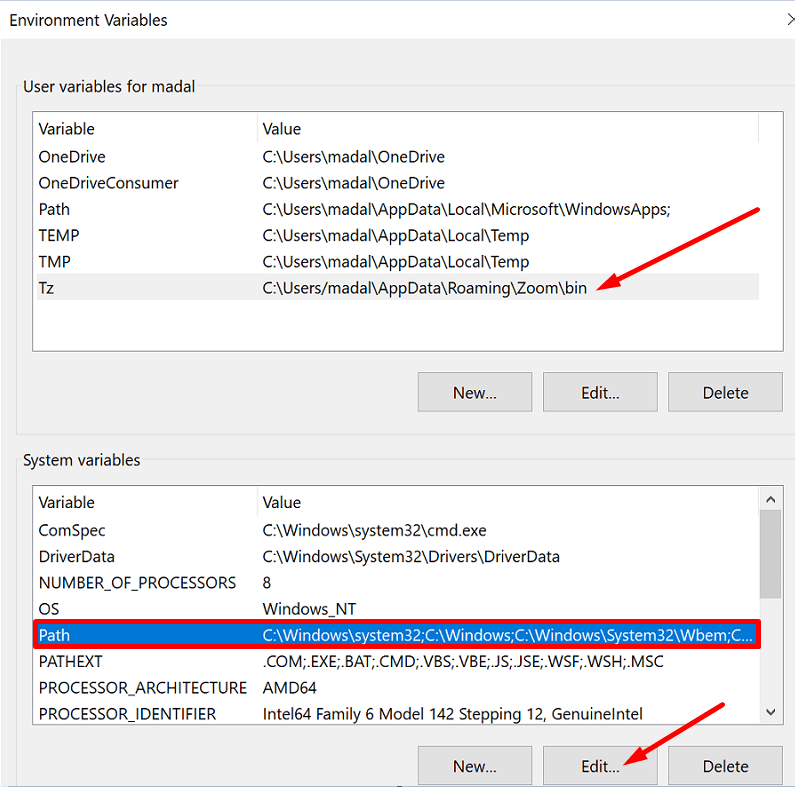
- Launch Control Panel and go to System and Security. Select System.
- Click on Advanced system settings.

- Then click on the Advanced tab → Environment variables.

- In the new window, click on New and add the path that leads to zTscoder.exe. For most users, it should be C:\Users\UserName\AppData\Roaming\Zoom\bin.

- Now, you need to run zTscoder.exe via Command Prompt. Launch Command Prompt as admin and run the following command:
- cd C:\Users\UserName\AppData\Roaming\Zoom\bin
- Don’t forget to replace UserName with your real username.

- Don’t forget to replace UserName with your real username.
- cd C:\Users\UserName\AppData\Roaming\Zoom\bin
- Launch the manual video conversion process by entering this command:
- start zTscoder.exe “C:\Users\UserName\Documents\Zoom\VideoFilePath”
- Don’t forget to replace VideoFilePath with your real username.
- start zTscoder.exe “C:\Users\UserName\Documents\Zoom\VideoFilePath”
- The conversion window should immediately pop on the screen.


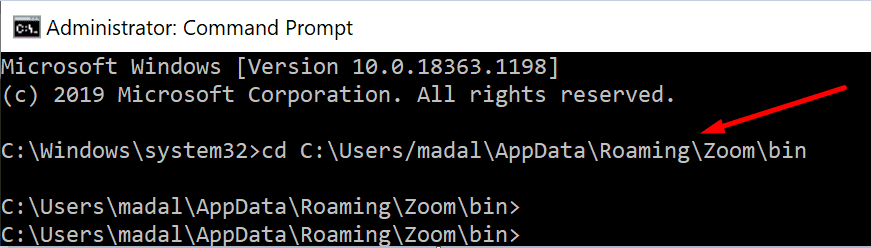
Note: Pay attention to the structure of the command you’re using. Enter start, then add zTscoder.exe, and then add the path to the video you want to convert.
There you go, Zoom error 614 should be history now.




This worked well! Despite a couple typos, this instructional was clearly written and Saved My Bacon! Took me awhile but this really worked. This zoom software is truly amazing. Thank-you for your time & providing this well-written tutorial to clueless netizens (like me!) to figure out.