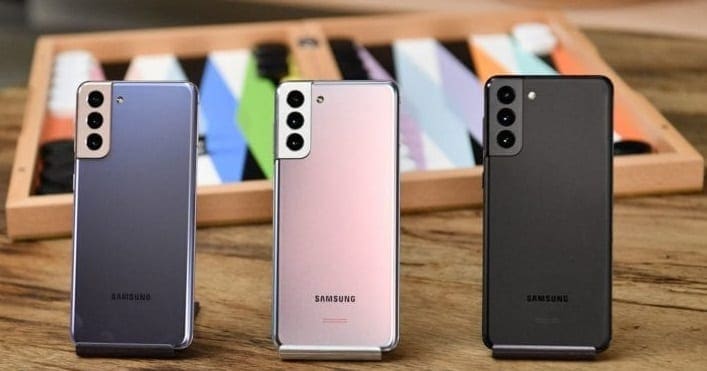
If you own a Samsung smartphone, you may occasionally get the “Something went wrong” error. This error message sometimes pops on the screen when you log in, indicating that your device did not recognize your passcode. But it can also occur when you’re launching your favorite apps. Let’s explore how you can quickly fix this error.
How to Fix “Something Went Wrong” Error on Samsung Phones
Something Went Wrong When Attempting to Login
If you’re getting this error while trying to log in, and your Samsung phone won’t accept your passcode or pattern, use this guide to fix it. Basically, you need to restart your phone or use your Google credentials to unlock the phone. If the issue persists, factory reset your phone from Recovery Mode.
Something Went Wrong When Opening Apps
Restart Your Phone
If the “Something went wrong” error prevents you from launching your Android apps, restart your terminal. You may need to do that several times. Several users confirmed the issue usually goes away after restarting the device two or three times in a row.
Update Your Apps
Make sure you’re running the latest app versions available for your device. Launch the Google Play Store app, tap your profile picture, and select Manage apps and device. Hit the Update All button to update all of your apps. Check if the error persists.

Remove Your SIM
Turn off your terminal and remove the SIM card. Turn on the device and wait for two minutes. Then turn it off again, insert the SIM card, start your device and check if the error goes away.
Enter Safe Mode
Put your Samsung phone in Safe mode to check if third-party apps interfere with the app you’re trying to launch.
- Hold the Power key to turn off your phone. Tap the Power off option when it pops on the screen.

- Then hold the Power and Volume Down buttons simultaneously to turn your phone on.
- The “Safe Mode” notification should now be visible in the left-hand corner of the screen.
- Launch the app that triggered the “Something went wrong” error and check if it persists. If it doesn’t, this indicates that one of your apps is the culprit.
- To exit Safe Mode, hold the Power and Volume Down buttons again for about five seconds.
- Then tap the Restart option.

If the “Something went wrong” error did not occur in Safe Mode, uninstall the apps that you no longer use, one by one, and check the results. In this manner, you’ll be able to identify the culprit.
Conclusion
If your Samsung phone says that something went wrong and you couldn’t launch your apps, restart your device. Then make sure to update your apps, and remove the SIM card. If the issue persists after reinserting the SIM card, uninstall the apps that you no longer use. Did these tips help you troubleshoot the problem? Let us know in the comments below.