

While using Excel is undeniably useful, both in the working environment and for home needs, most people just use it when they need to and regard it as something related to the dread of data entry. In reality, by using important shortcut keys in Microsoft Excel, you can do most tasks faster and easier, thus improving your experience.
Microsoft Excel is one of the great applications offered in Microsoft Office. You can perform mathematical calculations in Excel with its built-in formula calculator. It will also let you insert pie charts and graphs into your spreadsheet.
Many companies use Excel to track account records and calculations. You can become more proficient by learning Excel shortcuts which will speed up your completion of tasks. There are more than 100 Microsoft Excel shortcuts.
Pros & Cons of Using Excel Shortcuts
Generally speaking, there are no downsides to knowing all of the Excel shortcuts, but using them at all times might infringe on other skills and options. Having options is the best thing here, as you should know both the short way and the long way, as well as all the features that come with both.
– Fast
– Easy
– Intuitive
– Increase Productivity
– Needs a Full Keyboard
– Might Over-click
– Doesn’t show extended options
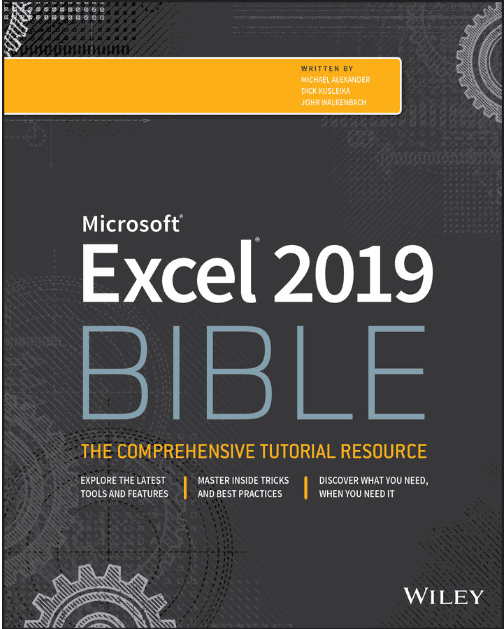
Also, you can buy the Excel 2019 Bible from Amazon and learn even more features that are possible with this MS Office program.
Workbook Shortcuts
Ctrl + N – Opens a new workbook
Ctrl + O –Open a pre-existing workbook
Ctrl + S –Save your workbook
Ctrl + W –Closes an active workbook
Ctrl + X – Cuts the content of the highlighted area in your workbook (cells). A cell is the smallest unit of area in an Excel spreadsheet
Ctrl + V –Copies the content of the selected cells on to the clipboard
Ctrl + Z- Undoes typing errors
Ctrl + P –Opens the print dialogue box
Text Formatting Shortcuts
Ctrl + 1 –Opens the format dialogue box for the cells of your workbook
Ctrl + T –Chose your cells and press Ctrl + T. The selected cells will become a table
Shortcut for Formulas
Ctrl + `- Lets you toggle between formulas and cell values
Ctrl + ‘-Applies the formula of a selected cell to another cell
Tab –Is used for V. lookup.
F4 –Will show you the reference value of a cell
Navigational Shortcuts
Ctrl + F –Opens the Find dialogue box
Ctrl + G – Opens the GoTo dialogue box
Ctrl + Tab –Allows you to move between different workbooks
Ctrl + End –Moves you to the last cell of your current workbook
Ctrl + Home- Moves you to the first cell of your active workbook
Ctrl + PgUp and Ctrl + PgDn – These shortcut keys help you navigate between different pages of a workbook. Ctrl + PgUp takes you to the next sheet of your current page. Similarly, Ctrl+ Pgdn takes to the previous sheet of your current page.
Shortcuts for Data Selection
Ctrl + A – Selects the whole text of your workbook
Ctrl + Space – Selects the whole column. Place your pointer on any cell of the required column and type Ctrl + Space. The whole column will be selected.
Shift + Space –Selects the complete row. Place your pointer on your required row and type Shift + Space. The whole row will be selected.
Shortcut for Data Entering
F2 –Enables you to edit selected cells
Alt + Enter – You can enter a new line in a cell while editing it
Ctrl + D –You can copy the format of the cells and apply this formatting to a selected range of cells.
Ctrl +; –Insert the current date and time in your selected cell
These short cut keys should help you use Excel in a more efficient manner, making your work easier and help cut time off your Excel workload.


