Skip to content
LogoTechnipages
technipages logo
  • Topics
        • Android
        • Browsers
        • Gaming
        • Hardware
        • Internet
        • iPhone
        • Linux
        • macOS
        • Office
        • Reviews
        • Software
        • Windows
        • Definitions
  • Product Reviews
  • Downloads
  • About

How to Send Vote Email from Outlook

Mitch BartlettDecember 19, 2022 Comments (1)
Outlook Logo Header

You can send out an email to allow recipients to cast a vote from the message in Microsoft Outlook 365.

Note: The steps presented work for the Microsoft Outlook 365 desktop client and web-based version.

  1. Start a new message and select “Options“.
  2. Select “Use Voting Buttons“.
  3. Select the voting buttons you wish to use. Use “Custom…” if you wish to write your own options.
    Use Voting Buttons Option4. If you have selected the “Custom…” option, the “Message Options” dialog will appear. Type the options you would like in the “Use voting buttons” field. Separate your options with a semicolon (;). Select “Close” when done.
    Outlook Message Options dialog

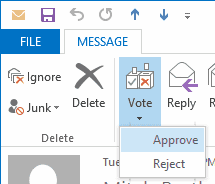
Now you’re ready to type and send the email. When the recipient opens the message in Microsoft Outlook, it will show a “Vote” button on the top ribbon bar.Outlook Vote Button

FAQ

How do I view the voting results?

Select the Sent folder, then open the message, then select Tracking.

Categories: Office

Author Mitch Bartlett

My name is Mitch Bartlett. I've been working in technology for over 20 years in a wide range of tech jobs from Tech Support to Software Testing. I started this site as a technical guide for myself and it has grown into what I hope is a useful reference for all. Mitch's Favorite Gear ATX Graphics Card CanaKit Raspberry Pi 3

You Might Also Like

  • Text Getting Overwritten in Word featured image

    Why is Text Getting Overwritten in Word?

    Mitch BartlettOffice
  • Outlook Logo Header

    How to Recall Email Message in Outlook 365

    Mitch BartlettOffice
  • fix-transcribe-option-not-working-word

    Fix: Transcribe Option Missing or Not Working in Word

    Madalina DinitaOffice
  • turn-off-junk-email-filter-outlook

    How to Turn Off Outlook’s Junk Email Filter

    Madalina DinitaOffice

Comments

  1. Kathy Watchorn says:
    September 20, 2016 at 10:11 am

    I have Outlook 2016. I added the voting buttons “Yes;No” and sent the email to 12 people who also have Outlook (may or may not be Outlook 2016).

    When I check the email that I sent, and go to the “Tracking” button, it shows that 8 of 12 voted and the response.

    However, 4 people that show as not voting in my Tracking check, say that they DID vote and the sent me the email to prove it.

    Why do they not show up in my Tracking button in my original sent email?

Leave a Reply

Your email address will not be published. Required fields are marked *

This site uses Akismet to reduce spam. Learn how your comment data is processed.

300x600
Turning on Triple Touch Zoom on Android

Turning on Triple Touch Zoom on Android

How to Connect Outlook 2023 to Gmail

How to Connect Outlook 2023 to Gmail

Netflix: Change Password

Netflix: Change Password

Everything You Need to Know About WhatsApp Delete for Me

Step-by-Step Guide: How to Use WhatsApp on Your Computer

Android: Enable or Disable Background Data

Android: Enable or Disable Background Data

300x250
profile pic

The Experts Behind Technipages

My name is Mitch Bartlett. I've been working in technology for over 20 years in a wide range of tech jobs from Tech Support to Software Testing. I started this site as a technical guide for myself and it has grown into what I hope is a useful reference for all.

Learn More

300x250 2
technipages logo white
linkedin icon

Technipages is part of Guiding Tech Media, a leading digital media publisher focused on helping people figure out technology. Visit guidingtechmedia.com to learn more about our mission and team.

© 2026 Guiding Tech Media All Rights Reserved

  • About Us
  • Contact
  • Legal & Privacy

© 2026 Guiding Tech Media All Rights Reserved

Information from your device can be used to personalize your ad experience.
Do not sell my personal information.