Skip to content
LogoTechnipages
technipages logo
  • Topics
        • Android
        • Browsers
        • Gaming
        • Hardware
        • Internet
        • iPhone
        • Linux
        • macOS
        • Office
        • Reviews
        • Software
        • Windows
        • Definitions
  • Product Reviews
  • Downloads
  • About

Outlook 2019/365: Show BCC Field

Mitch BartlettMay 1, 2019 Comments (4)

Show the BCC (Blind Carbon Copy) field when sending an email from Microsoft Outlook 2019 (Office 365) to send a blind carbon copy to recipients. This field allows you to copy other recipients in on the message without other recipients knowing all the recipients it was sent to. Here’s how to turn on the field.

Outlook Client

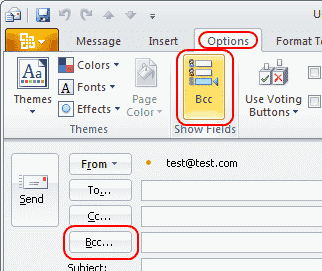
  1. Start your new email message or reply by selecting “New Email“.
  2. Select the “Options” tab.
  3. Select  “Bcc“.

Outlook 2010: BCC field enable setting

The field is now turned on and ready to use to blind carbon copy recipients.


Outlook Web Access

If you’re using Outlook Web Access instead of the Outlook client, you also have an option for revealing the BCC field with these steps.

  1. Select “New mail” to start composing your message.
  2. Select the three dots (…) located toward the middle to upper-right portion of the message screen.
  3. Choose “Show Bcc“.

FAQ

I can’t find the BCC button under Options. What do I do?

Your copy of Outlook may have been customized. You can bring the BCC option back by selecting the “Customize Quick Access” arrow at the upper-left portion of the window, then selecting “More commands…”. From there select “Quick Access Toolbar” to modify the options available. If you want to take the easy way, just select the “Reset” button. to modify the options available.

In some environments, it is possible that your IT administrator turned this feature off.

How can I tell who was sent a BCC on an email message?

A blind carbon copy is intended to be “blind”. You cannot see a record of who was sent a BCC within Outlook if you are a recipient. However, if you sent the message, you can open it from your “Sent Items” folder and see who was sent a BCC message.

Categories: Office

Author Mitch Bartlett

My name is Mitch Bartlett. I've been working in technology for over 20 years in a wide range of tech jobs from Tech Support to Software Testing. I started this site as a technical guide for myself and it has grown into what I hope is a useful reference for all. Mitch's Favorite Gear ATX Graphics Card CanaKit Raspberry Pi 3

You Might Also Like

  • Outlook Logo Header

    Export Outlook Calendar to Google

    Mitch BartlettOffice
  • Outlook Logo Header

    How to Turn Outlook 365 Plugins On or Off

    Mitch BartlettOffice
  • fix office 365 unable to associate your purchase

    Office 365: Unable to Associate Your Purchase

    Madalina DinitaOffice
  • How to Fix Outlook Rules Are Not Supported for This Account

    How to Fix Outlook Rules Are Not Supported for This Account

    Susan SheffieldOffice

Comments

  1. Lorraine O'Brien says:
    May 28, 2022 at 5:11 am

    NO. I know there is something I can type to bring up Bcc when it is hidden too far to the right. Just can’t remeber what

  2. Sanam says:
    December 17, 2019 at 1:45 am

    It was really helpful but when I send emails on bcc one of them reveals it means that other email addresses realize are not the first one who have received their email. Is there any way to solve this problem? It means I want in the part of To…… remains blank?!!!
    I would appreciate if you help me

  3. Mitch Bartlett says:
    June 18, 2019 at 11:28 am

    Where are you looking? BCC will not show on recipient messages.

  4. Joseph says:
    June 18, 2019 at 10:29 am

    Mitch, I can’t find this on Microsoft help anywhere – my team has sent some emails to groups of recipients in our office Outlook (some of 20-ish people, some of much larger), and those names do not appear in the Bcc field under any circumstances.

    Is there a size limit to how many names will be recorded here? Or is there a setting we’ve missed?

    Any help you can give would be appreciated!

Leave a Reply

Your email address will not be published. Required fields are marked *

This site uses Akismet to reduce spam. Learn how your comment data is processed.

300x600
Turning on Triple Touch Zoom on Android

Turning on Triple Touch Zoom on Android

How to Connect Outlook 2023 to Gmail

How to Connect Outlook 2023 to Gmail

Netflix: Change Password

Netflix: Change Password

Everything You Need to Know About WhatsApp Delete for Me

Step-by-Step Guide: How to Use WhatsApp on Your Computer

Android: Enable or Disable Background Data

Android: Enable or Disable Background Data

300x250
profile pic

The Experts Behind Technipages

My name is Mitch Bartlett. I've been working in technology for over 20 years in a wide range of tech jobs from Tech Support to Software Testing. I started this site as a technical guide for myself and it has grown into what I hope is a useful reference for all.

Learn More

300x250 2
technipages logo white
linkedin icon

Technipages is part of Guiding Tech Media, a leading digital media publisher focused on helping people figure out technology. Visit guidingtechmedia.com to learn more about our mission and team.

© 2026 Guiding Tech Media All Rights Reserved

  • About Us
  • Contact
  • Legal & Privacy

© 2026 Guiding Tech Media All Rights Reserved

Information from your device can be used to personalize your ad experience.
Do not sell my personal information.