

When you first get your Android TV, Storage is one of the last things you worry about. Since you recently got it, it has enough storage (for now) for the apps you want to install. But it’s an excellent idea to check how much storage apps take up on Android TV so you know where the limit is. Keep reading to see the easy steps on your Motorola Android TV to check how much storage the apps use and how you can uninstall the ones that use too much space.
How to Check App Storage Space for Motorola Android TV
Once your Android TV is on, click the Home button on your remote. Use the arrows to select the cogwheel that’ll take you to Settings. In Settings, go to Device Preferences, followed by Storage. The only option there will be Internal share storage; before you select it, it’ll show you the total space the apps have taken up.

By selecting Internal Shared Storage, the storage space will be divided into different sections such as:
- Apps
- Photos and Videos
- Audio
- Downloads
- Cached data
- Misc.
- Available
Click the Apps option to see what apps are taking up that amount of storage. You should see a list of all the installed apps. At first, you’ll only see the first five installed apps, but to view all of them, select the See all apps option.
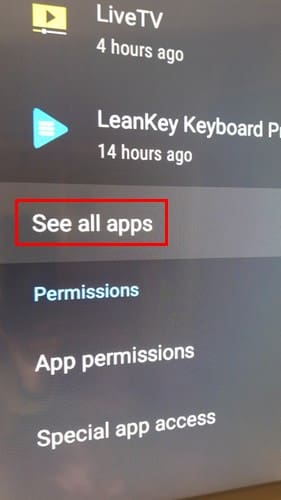
Below the name of the installed app, you’ll see the amount of storage the app is taking up. Now you can browse through the installed apps and review their storage space. If you feel an app uses too much storage space, read the following section to uninstall the app from your Android TV.
How to Uninstall App on Motorola Android TV
Some apps take up too much storage; if you see one using too much space, here is how to remove it. Open Google Play on your Android TV and search for the app your want to uninstall. You can use the on-screen keyboard, but since that takes too long, it’s best to use the voice command to say the app’s name for a faster find. Select the mic icon and say the app’s name to do this. Once you find the app open it and select the uninstall button.
Further Reading
Your Android TV is not the only device where you’ll need to manage the app’s storage. Here is how you can manage your storage space on WhatsApp. Are you a Signal user? If you encounter an app error while saving an attachment to storage, here are some helpful tips to fix the issue. For Telegram users, here is how you can make the app use your SD card for storage to get some of that space back. But sometimes you need to remove games or apps to save storage; if that’s the case on your ASUS ROG Ally, here are the steps to delete those games and apps.
Conclusion
When you know how much storage space the apps on your Android TV are taking up, you can decide if it’s time to uninstall them or not. The steps in this guide will help you find the apps that are taking up the most storage so you can see if they’re worth keeping. Which app takes up the most significant amount of storage on your Android TV? Let me know in the comments below, and don’t forget to share the article with others on social media.


