

Microsoft Teams may sometimes start to flicker and flash heavily for no apparent reason at all. This unusual behavior renders Teams completely unusable. Users cannot read their messages, and they can’t navigate to different app sections or log out. Let’s dive right in and explore how you can troubleshoot this problem.
⇒ Check if This Is a Known Issue
Before you pursue any troubleshooting solutions, check if this is a known bug. Go to the Office Service Status page and check if Microsoft already acknowledged the problem. Check if other users have complained about the same problem lately.
Microsoft Teams Screen Flashes on Android
- Some users managed to solve this problem by installing the beta version of the Authenticator app.
- Other users fixed the issue by switching to cellular data for one or two minutes. Use your phone normally and then switch back to Wi-Fi and check the results. This workaround should fix the problem, but you may need to disable and re-enable Wi-Fi again after a while.
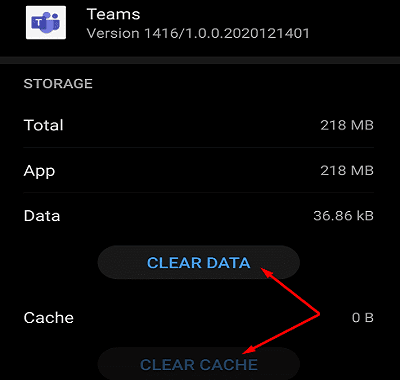
- Clearing the app cache is another potential solution. Go to Settings, tap Apps, select Teams, go to Storage, and then hit the Clear cache button.

- Additionally, you can remove your Office 365 account, restart your device, and add back your account.
- Check if there are any updates available for the Teams app and Android OS. Install them, restart your device, and relaunch Teams.
- Log into your Teams account via your browser and change your password. Save the new settings and check if Teams is working properly now.
- If you also use Skype, navigate to Android settings → Accounts → select Skype and remove the account.
- If the issue persists, try reinstalling the app. First, go to the Play Store, search for Teams, and hit the Uninstall button. Restart your device and reinstall Teams.


Conclusion
If the screen of your Android device flickers uncontrollably when you launch Teams, turn off your Wi-Fi connection. Use cellular data for two minutes, and you can then switch back to Wi-Fi. Additionally, clear the app cache, check for Android OS updates and reinstall Teams. Hit the comments below and let us know if you managed to fix this annoying Teams issue.



Recommendations did not work. Did all of the above.
That’s not a fix , its a workaround and it is temporary.
As soon as I turned off WiFi it worked without issues.
Turned on WiFi again after a few minutes and everything’s normal.
There was nothing waiting in the authenticator app and messages were going through. Between screen flashes I was even able to navigate the Teams app (with major lag). Very annoying bug but delighted it only affects WiFi.
The WiFi suggestion worked for me too, Thanks!
This has been driving me insane for weeks. Turning off wifi did the trick. Thank you soo much!
Works!
Uninstalled app, and still had the problem. But as soon as I diabled WiFi it actually stopped. Now it works with WiFi turned on, too.