

You need to use Telegram to stay in touch with family and friends. But, you don’t want just anyone to find you. You know that there’s a high probability that your contacts might move to Telegram sooner or later, and that includes people you would rather avoid.
As soon as you see that specific contact is on Telegram, you can go ahead and block them. But, decide not to since you think you might have to talk to them, maybe about work-related issues. So, what can you do to prevent someone from finding you on Telegram? Here are some things you can try.
Prevent Other Telegram Users from Finding You
Hide Your Phone Number
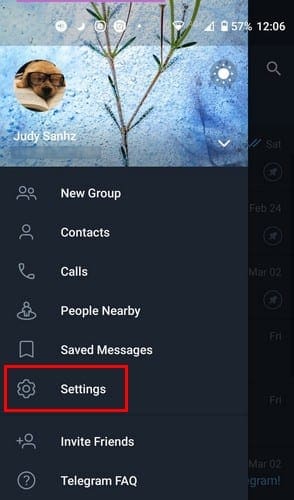
To hide your phone number on Telegram, you’ll need to go into your device’s Settings—open Telegram and tap on the three-line menu option at the top left. When the side menu slides out, tap on the Settings option.
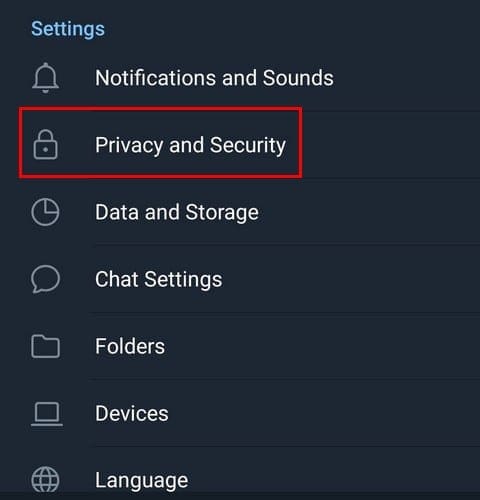
Once you’re in Setting, go to Privacy and Security.
Under the Privacy section, you should see the Phone Number option.
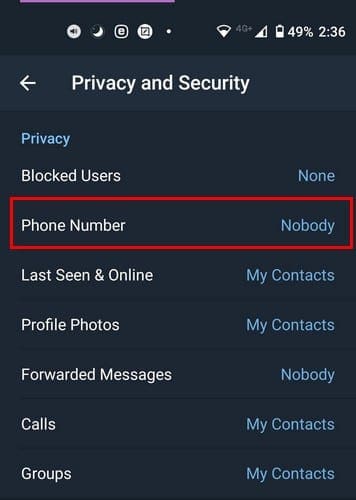
In the Phone Number option, you’ll see all sorts of privacy options you can choose from. You can adjust who can see your phone number; make sure you set it to Nobody. Then, you can set who can find you by using your phone number. In this last option, there’s no option for nobody to find you. Still, setting it to Contacts will limit the number of Telegram users that can contact you.

UnSync Your Telegram Contact Contacts
Not having your Telegram Contacts synched will also help to keep you in the shadows. You can un-synch your contacts by going back to Privacy and Security and swiping down a bit. Under the Contacts section, make sure to Delete Synced Contacts and toggle off the Sync Contacts option.

If you don’t have any problem going to the extreme and are willing to block or erase that user, you can do so by long-pressing on the contact and tapping on the Block User option at the top right. This is if the user is on your recent chat list. The user that’ll be blocked will have a green checkmark.

Conclusion
While some users want just about everyone to find them, that is not always the case with everyone else. You might have to use Telegram because almost all your friends and family members are on it. But, you don’t feel like making Telegram your main messaging app. Will you go to the extreme of directly blocking someone on Telegram? Let me know in the comments below.


When someone masaege you is usialy someone from your contact, even if is not a friend in telegram ,or is a publick profile that anyone in the world can see you? I was asking cues someone massege me out of the blue that I don’t have as friend anywhere. Thanks
I want to make it so that one individual cannot see my account at all, or atleast not be able to see that I changed my name or pfp is that possible