

When it comes to how you view other participants on Zoom, you can choose from different options. You can choose to see 25 or 49 participants per screen in Gallery View. If you want someone to stand out, you can pin or Spotlight them. But, when it comes to seeing all the participants, there are different ways you can see them. The good news is that it’s easy to switch between the different options.
The Different Ways You Can View Participants on Zoom
When you’re in a Zoom meeting, there are various ways you can see other Zoom participants. You’re going to see a view option at the top right. Thanks to this option, you can change the layout of how the participants are displayed.

If you choose Speaker view, the view will change depending on who speaks. The only way your view will stay on one person is if they are pinned or Spotlighted. You can also see yourself on Speaker View if you’re talking. But if you don’t see yourself, you may need to enable the option in Settings. Go to the desktop client and click on the cogwheel.
When the window opens, click on the Video tab to the left. Scroll all the way down and look for the option to see yourself on Speaker View.

With Gallery View, you can see more participants at the same time. Unfortunately, on Android, you can only see four video thumbnails simultaneously. But, if you’re on your Windows computer, you can see 25 or 49 participants. If Zoom doesn’t let you choose 49 participants (it’s greyed out), it’s because your computer doesn’t support it.
You can also change the order of the thumbnails. For example, if you want your close friends’ thumbnails in a certain order, you can drag them and place them in the order you want. You can do this on your computer and your Android device.
How to Only See Zoom Participants with Videos On
Some people may like the layout of only seeing the participants that have their video on. You can do this by clicking on the dots at the top right of a thumbnail and clicking the option that says Hideo non-video participants.

If you ever change your mind, you can do the same and click on the option that will show you all video thumbnails.
Adjusting the Floating Thumbnail on Zoom
Suppose you want to get something done while in a meeting; you can minimize the window. This won’t kick you out of the meeting, but it will limit how much you see. What will happen is that you’ll only see one video thumbnail. You’ll see the person who is speaking at the time. The options to mute yourself or hide your video will still be visible.

You can hide the video by clicking on the arrow pointing up. Click on it again to make the video appear again. You can switch to side-by-side mode to see the shared screen alongside either the speaker or gallery view when viewing a shared screen. Don’t forget you can adjust the separator between the shared screen and video to change the size of each.
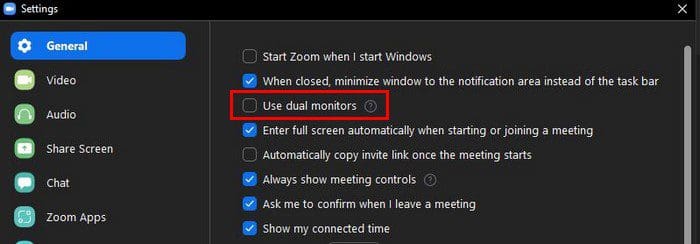
Remember that side-by-side mode will not work if the dual monitor setting is turned on. If you need to turn this option off, you can go to Settings > General. The option will be near the top.
Conclusion
Some people may like to use Speaker View, while others like to see their Zoom meeting in the gallery view. There’s no wrong or right way to view your meetings. Every user uses what worked best for them. If you ever get tired of one view, you can always switch to another. How do you view your Zoom meetings? Share your thoughts in the comments below, and don’t forget to share the article with others on social media.


