

Sometimes, you want everyone to pay attention to what one person says in certain Zoom meetings. Unless you pin or spotlight this person, the largest window in speaker view might not always be this person. Other users may make noise that will draw the attention to them.
Sure, you can always try to communicate with others without saying a word, but there is a better way. To have one person or two appear front and center on everyone’s screen, you can pin them or apply a spotlight. With this option, even if other participants make noise, these people will always be on everyone’s screen. You’ll be in complete control of who gets the attention at the right time.
How to Pin Someone in a Zoom Meeting
To pin anyone in a Zoom meeting, all you have to do is place the cursor over the video thumbnail of that person. Click on the three dots that will appear and choose the Pin option.
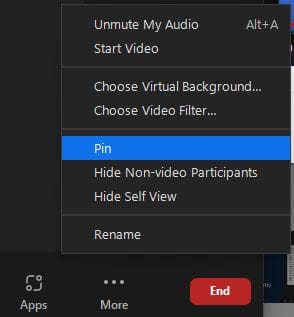
Some things to keep in mind include that pinning does not impact other participants’ views and that the person will remain pinned whether they are speaking or not. Even if others start speaking, that person will remain pinned. Other participants can pin only one person, but the host can pin up a maximum of nine participants. You’ll need to repeat the pinning process for everyone you want to pin.
If you want, you can also allow others to pin various participants. But you’ll need to enable this option. You can do this by clicking on the dots that’ll appear in the video thumbnail when you place the cursor on it. Once you see the options click on the Allow to Multi-pin option.
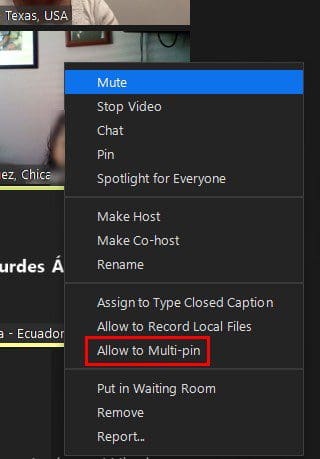
To remove a pinned participant, click on the Remove Pin at the top left of your screen. Also, you won’t be able to pin if the host or co-host already did that with someone.
How to Spotlight a Participant on Zoom
When you Spotlight someone, their video will be the largest in speaker view. To spotlight someone, hover over the person’s video thumbnail, click on the dots, and choose the Spotlight option for everyone.
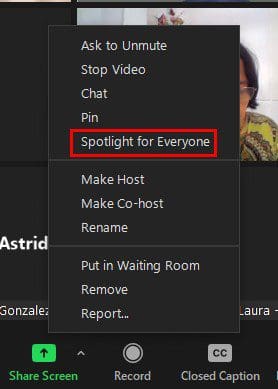
Like with the pinning process, you can Spotlight up to nine participants. Simply repeat the process you followed to pin one person for the nine you want to pin. This option switches participants to speaker view, but they go back to gallery view at any time.
Unlike pinning, when you Spotlight someone, you can only do it if you’re the host or co-host. Pinning does not impact the view of everyone in the meeting, but Spotlight does. If you’re the host and you spotlight someone, while someone else has someone pinned, you will override the pin. With Spotlight, the person will remain on everyone’s screen regardless of whether someone else is talking.
If you have various spotlights, you can remove one by clicking on the pin that’ll appear at the bottom left of the participant’s video thumbnail and choosing the option Remove Spotlight. But, if you only have one Spotlight, you only need to click on the Remove Spotlight option at the top left of your screen. That’s all you have to do when it comes to Spotlight.

Conclusion
When you want everyone to hear what a particular participant has to say, the Pin and Spotlight option is a great tool. You can pin or Spotlight more than one user and easily remove them. Maybe a friend you haven’t seen in a long time joined the meeting, and you want everyone to see that they have joined. How often do you think you’re going to use Pin or Spotlight? Share your thoughts in the comments below, and don’t forget to share the article with others on social media.



Short and sweet. Exactly the kind of ‘how to’ that newcomers need. Thanks!