

Error code 0x800704cf indicates there’s a network problem that’s preventing you from signing in to your Xbox account. The same error may occur when the console can’t launch your favorite games due to network issues.
The error message reads as follows:
‘You’ll need the Internet for this. It doesn’t look like you’re connected to the Internet. Please check your connection and try again. 0x800704cf’.
How to Fix Xbox One Error 0x800704cf
Check the Service Status
Since this error usually appears when there’s a general network problem, start by checking the Xbox Service Status.
If there’s a known issue that could be triggering error 0x800704cf, it should be on the list. If this the case, wait until Microsoft has fixed the problem.
Try Again
The error could also be triggered by temporary server issues caused by an unusually high number of requests. In other words, the Xbox servers are overwhelmed. Wait five or 10 minutes. These issues usually disappear after a few minutes.
Restart or Unplug Your Modem
If the issue persists, it’s time to check your network. Restart your modem and check if this quick workaround did the trick.
Try unplugging the modem if you haven’t done that in weeks. Unplug the power cable and leave your modem unplugged for three minutes. Then power it back up and check if the error code 0x800704cf is still there.
If you suspect the error is caused by low bandwidth problems, disconnect all the other devices using the network.
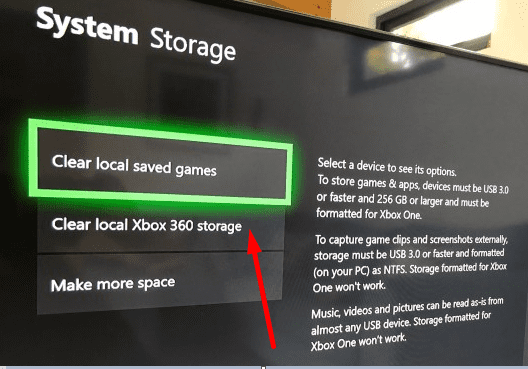
Clear Local Xbox 360 Storage
- Navigate to Settings.
- Select System.
- Go to Storage.
- Then select Clear local Xbox 360 storage.

- Restart your console and check again.
Clear the MAC Address
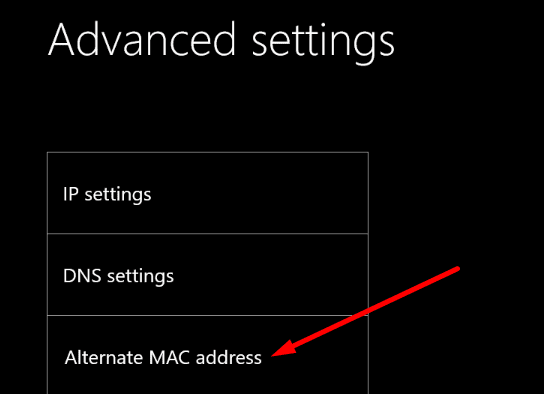
You can also try to change the MAC address of your console.
- Navigate to Settings.
- Go to General settings.
- Select Network Settings.
- Then go to Advanced Settings.
- Locate and select Alternate MAC Address.

- Clear the current MAC Address.
- Restart your console and reconnect to your network. The console should start updating now if there’s a new version available.
Which brings us to the next solution.
Update Your Console
If you’re running an outdated system version, don’t be surprised if your console becomes a bit glitchy.
- Go to Profile & system.
- Select Settings.
- Then go to System.
- Select Updates to check for updates.
Go to the Troubleshooting Screen
If the console is not updating correctly, do this:
- Take out the power cable and leave your Xbox console unplugged for 3 or 4 minutes.
- Then hold the Sync button on the controller and press the Eject button.
- While holding down these buttons, press the ON button on the console.
- Wait until you hear a second ON sound. You can then release the Sync and Eject buttons.
- You should see the troubleshooting screen now.
- Select Continue and update your console.
Launch a Game Without Signing In
Other users suggested this quick workaround worked for them:
- Sign out and reconnect the console to your network.
- Select a random game and launch it.
- You will be prompted to sign in once you reach the game’s login screen.
- Select your profile, and try to sign in. There should be no error this time around.
Reset Your IP and DNS
Refreshing your IP and DNS may help. Here’s what you need to do:
- Navigate to Settings.
- Go to General.
- Select Network Settings.
- Then, go to Advanced Settings.
- Select IP Settings.
- Set the IP settings to Automatic.
- Repeat the same steps for the DNS settings to get a new DNS.
- Check the connection.
Reset Your Console
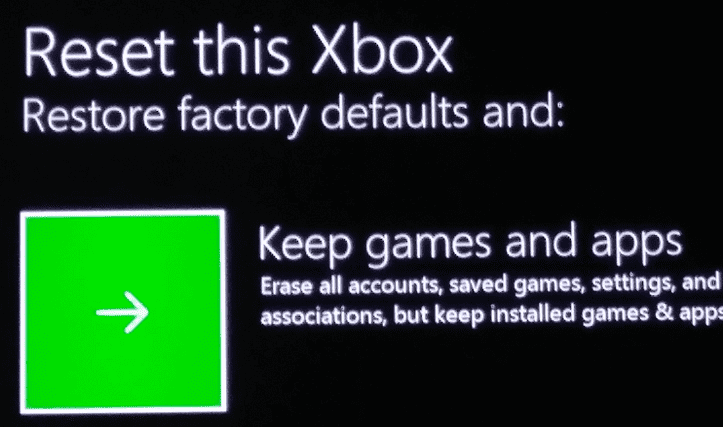
Resetting your console without deleting your games and app may help you to get rid of this error.
- Open the guide and go to System.
- Then select Settings.
- Go to System → Console info.
- Locate the Reset console option.
- Select it and keep your games and apps.

- After the process is complete, you can power cycle your console.
Let us know which solution worked for you.

Last option worked for me