
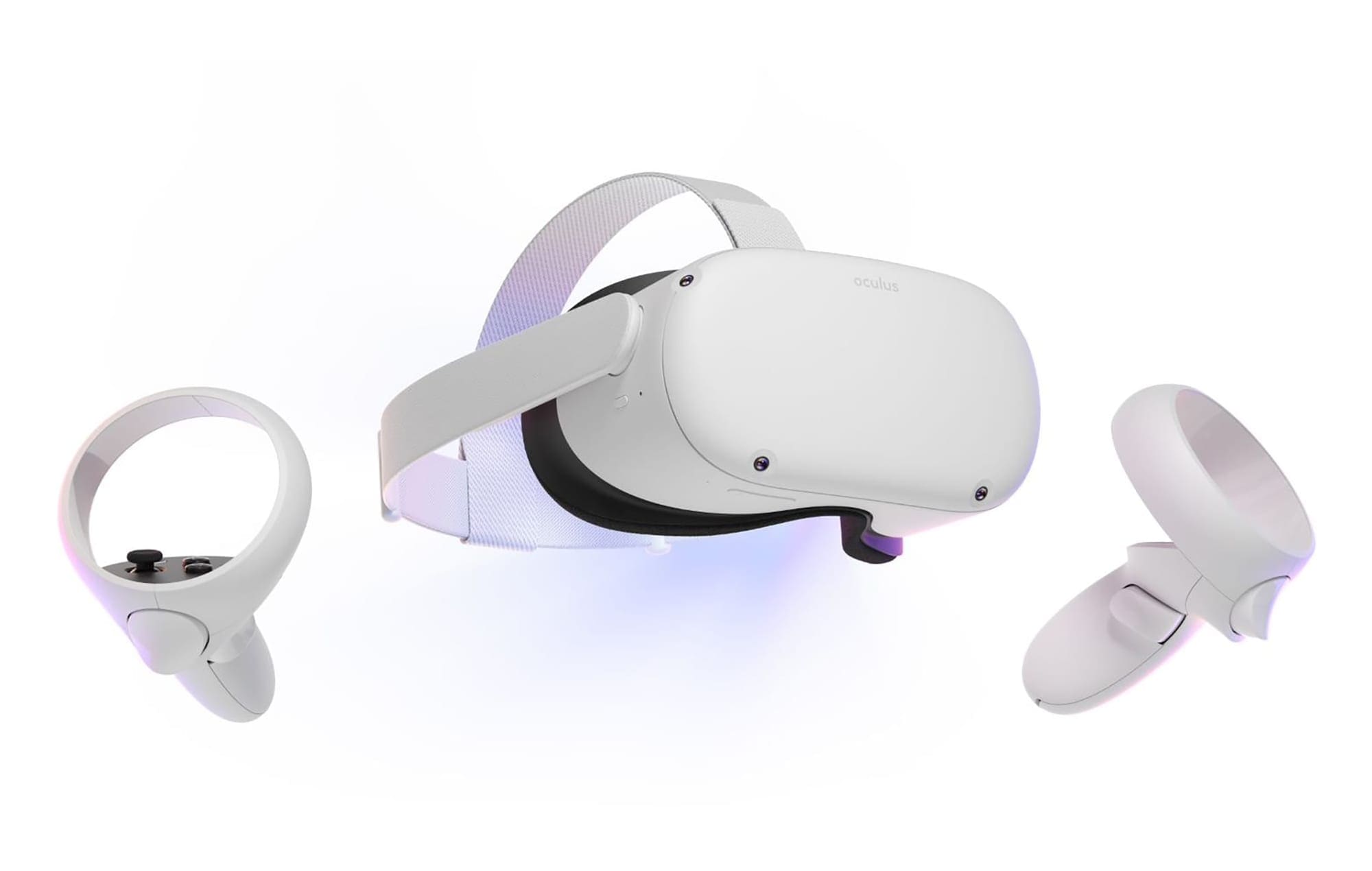
Oculus Link is a good way to play games you can’t find on the Oculus store on your headset. It’s a pretty convenient choice to branch out in your VR game choices. To connect your headset through Link, you’ll first need, well, a link!
In other words, a cable. Oculus sells their own copy of the link cable, but as it’s quite pricy, you don’t need to spend that much. In fact, just any USB 3 USB-C or USB-A/USB-C cable will do. Make sure it’s long enough to reach from your PC’s preferred port to your play space. You’ll want to be able to spin in a circle with it attached!
Making the Connection
The next step after that is to open the Oculus app on your computer. If you don’t have it yet, you can get it here for free. Install the PC version, launch it, and switch on your headset.

Next, go and plug the cable into your PC, then your headset. Put the headset on.
You’ll see a prompt asking you to activate Oculus Link. Click on Enable and wait a few seconds – the Link environment (a small apartment) should load quite quickly.

Tip: Don’t worry if you miss the prompt or click the wrong option. Disconnecting and reconnecting the cable will make it appear again as often as necessary.
Launching from the Menu
Should, for some reason, the prompt to activate Link NOT appear, don’t worry. As long as the cable is plugged in and Oculus is installed and running on your PC, you can always do it manually.
To do this, click the Oculus button on your right controller. With the menu up, go to Settings – you’ll find an option there labeled ‘Oculus Link.’ Click on it anytime, and you’ll be able to enable the connection via the same prompt as above!
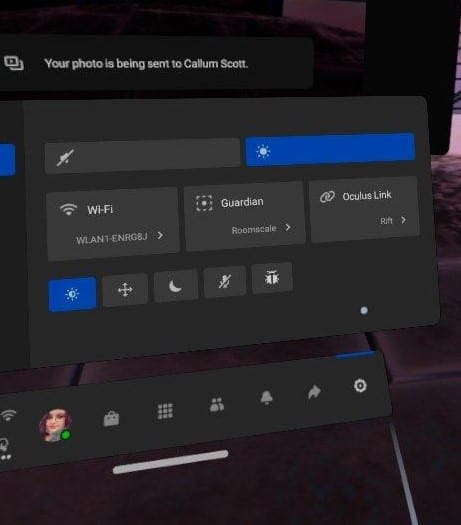
Tip: If you’re in the Link view in your headset and want out, use the Oculus button on your right controller to pull up the menu. It’ll look a bit different, but on the far left, you’ll be able to find the disabled Link option.
You’ll be prompted to confirm. When you’ve disconnected, you can reconnect via the menu as above or unplug and replug your cable. You’ll be asked if you want to relaunch Link automatically that way.
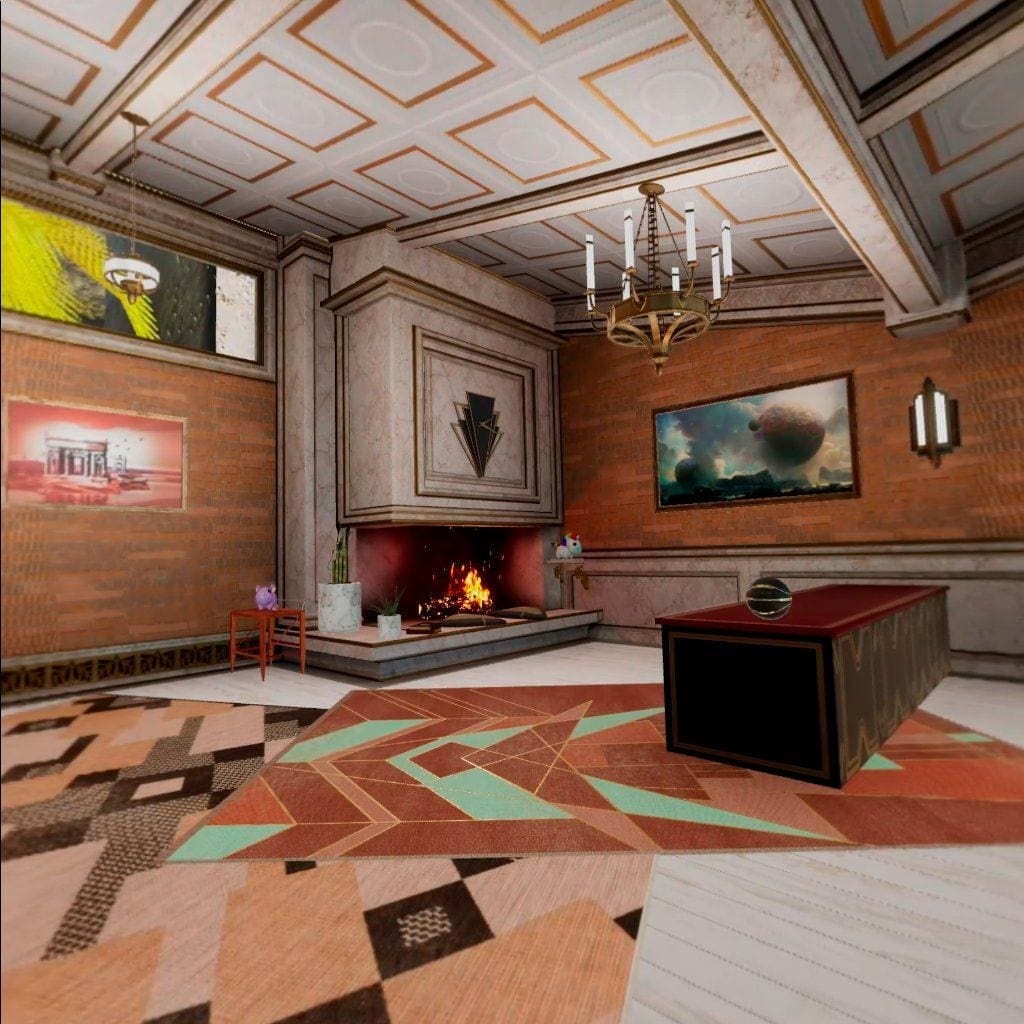
Tip: You can decorate this apartment as you like, with whatever stuff you like. Let us know what sort of a design your little Link room uses!
The Oculus Link is a huge bonus to the default functionality of the Quest 2. Which of its functions is your favourite? We just love the Link apartments!

How do you get it to work if it appears in none of the pages sense for me even tho ive powered off and restarted my oculus 2 there never is a oculus link button anywhere and when i connect the cable to my laptop there never is a prompt to enable it.
Sorry but now this isn’t helpful because it is now wireless and no cord is needed