Using Remote Play on a Steam Deck offers several advantages, making it an appealing option for gamers who seek flexibility, convenience, and an enhanced gaming experience. Remote Play allows you to access and play games from your computer’s Steam library on your Steam Deck, even if the games are not natively supported or installed on the handheld device. This expands your gaming options and enables you to enjoy a wider variety of titles on the go.
What is Steam Remote Play?

Steam Remote Play is a feature offered by the popular gaming platform Steam, which allows users to stream and play their games on devices other than their primary gaming PC. This technology enables gamers to enjoy their favorite titles on various devices, such as laptops, smartphones, tablets, or the Steam Deck without the need to install games locally, taking up precious storage space.
Remote Play also ensures that your game progress is synchronized between your computer and Steam Deck. This allows you to seamlessly switch between devices and continue playing from where you left off, providing a consistent gaming experience.
By leveraging the power of the primary gaming PC to run the game and then streaming the video and audio output to the remote device, Steam Remote Play provides a seamless gaming experience across different platforms. Additionally, the feature supports multiplayer gaming, allowing users to invite friends to join their games remotely, even if they don’t own the game. Overall, Steam Remote Play enhances the flexibility and accessibility of gaming, enabling users to enjoy their games virtually anywhere with a stable internet connection.
How to remote play from your computer to your Steam Deck
The Steam Deck’s portable design enables you to play your favorite games in various settings, such as on the couch, in bed, or while traveling. Remote Play allows you to enjoy the comfort and flexibility of gaming on a handheld device without sacrificing the quality or variety of your computer’s game library.
- Make sure that the Steam app is installed and updated on your computer.
- If necessary, sign into the same Steam account that you plan to use on your Steam Deck.
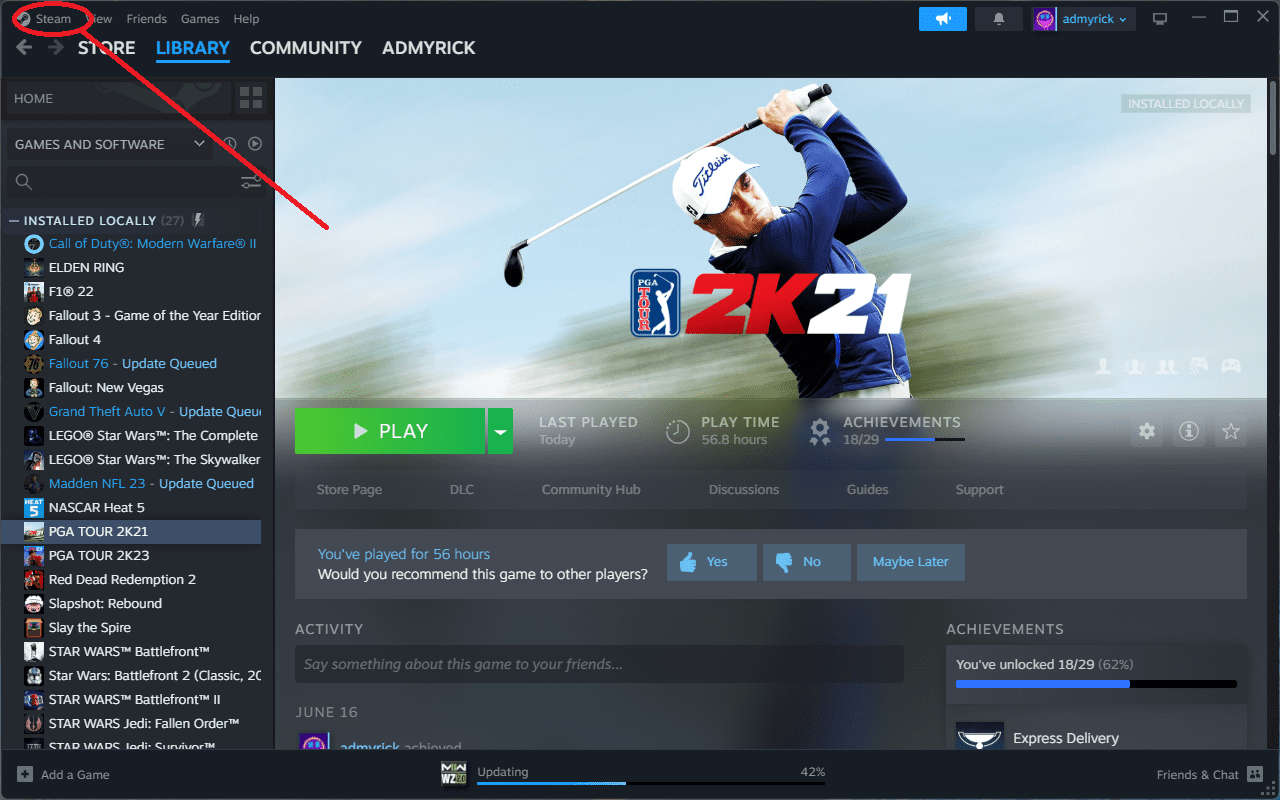
- Once open, click Steam in the top left corner.

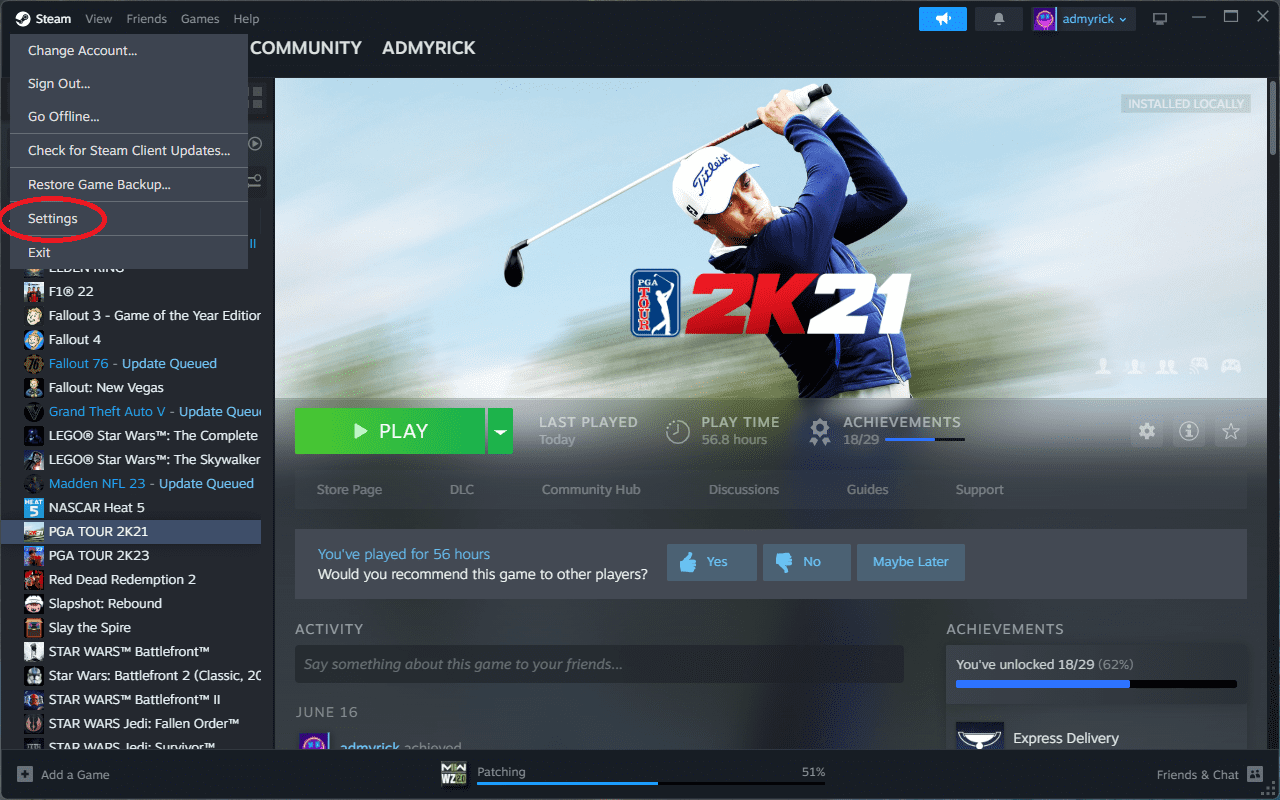
- From the drop-down menu, highlight and select Settings.
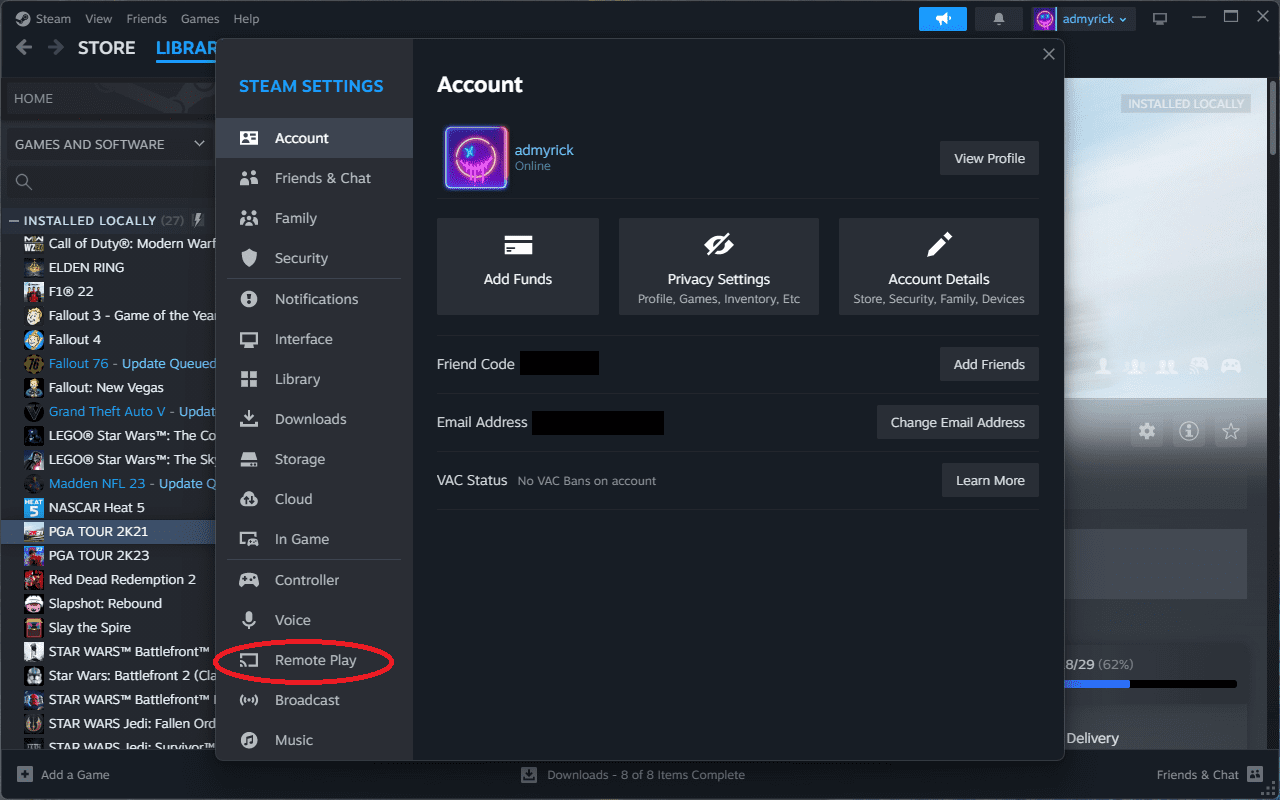
- In the window that appears, click Remote Play in the sidebar.
- Click the toggle next to Enable Remote Play to turn this feature on.
- Turn on your Steam Deck and make sure it appears under the Computers & Devices section.
- Under the Advanced Streaming Options section, click the toggle to Enable Advanced Host Options.
- Make sure that the following options are enabled:
- Change Desktop to match the streaming client
- Prioritize network traffic option
- Click the drop-down menu box next to Number of software encoding threads.
- Select Automatic.


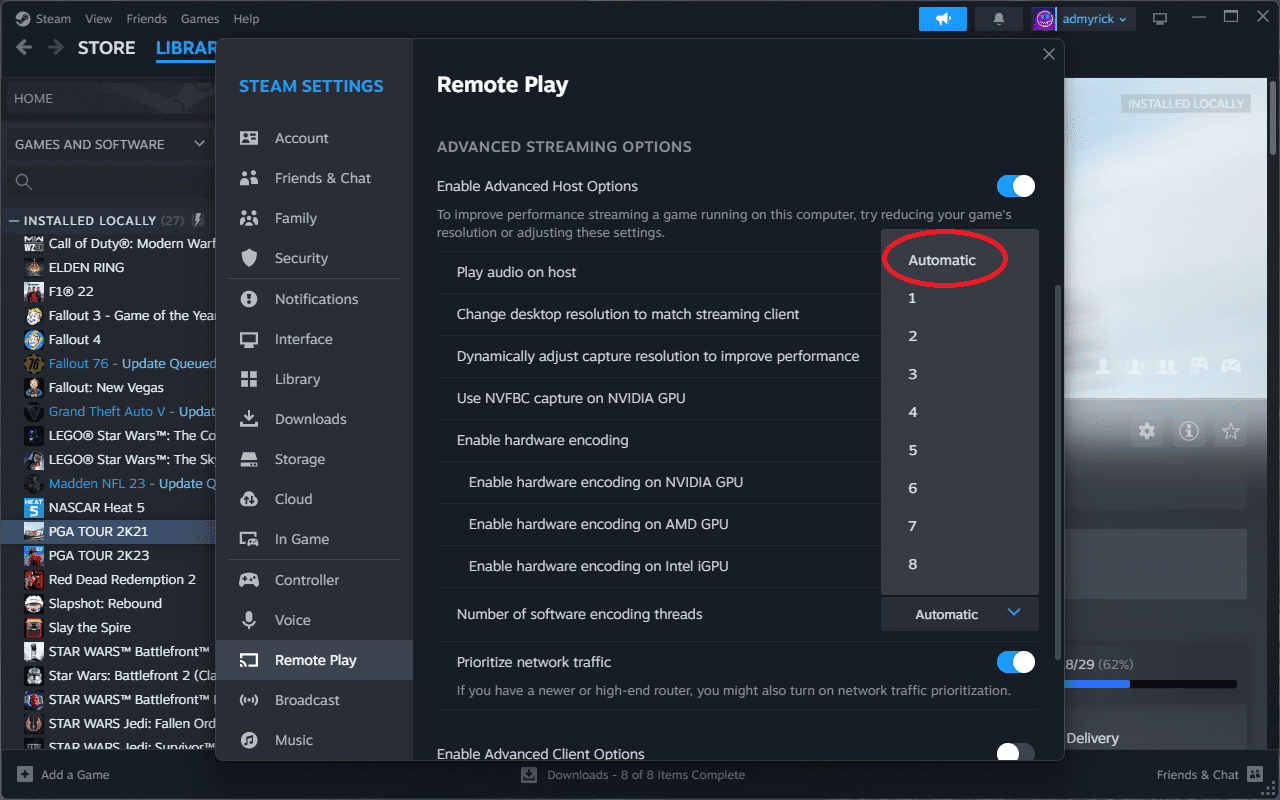
With everything set up on your computer, there are a few more settings to change from your Steam Deck.
- Turn on your Steam Deck.
- Press the Steam button to bring up the side menu.
- Scroll down and select Settings.
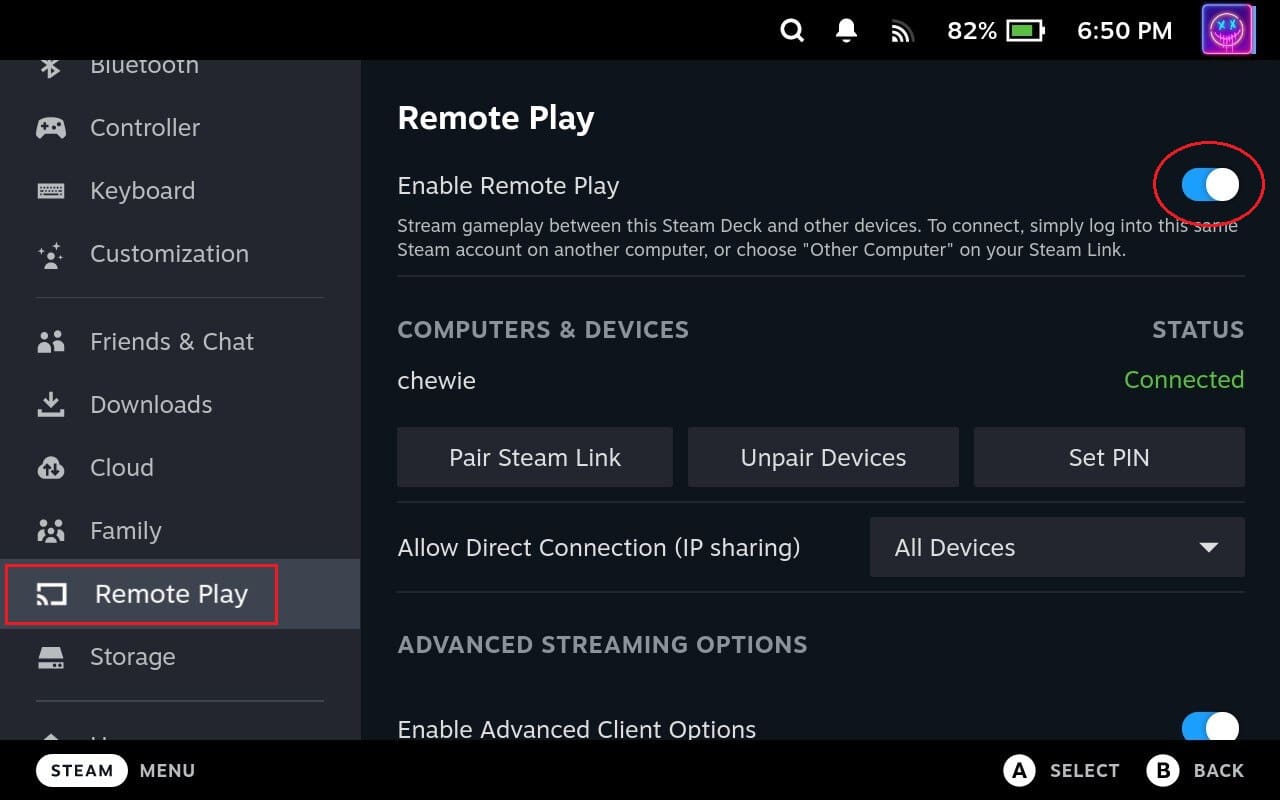
- Scroll down and select Remote Play.
- If necessary, click the checkbox to Enable Remote Play.
- Make sure your computer appears under the Computers & devices section.
- Scroll down and tap the toggle to Enable Advanced Client Options.
- Make sure that Bandwidth Limit and Framerate Limit are both set to Automatic (recommended).

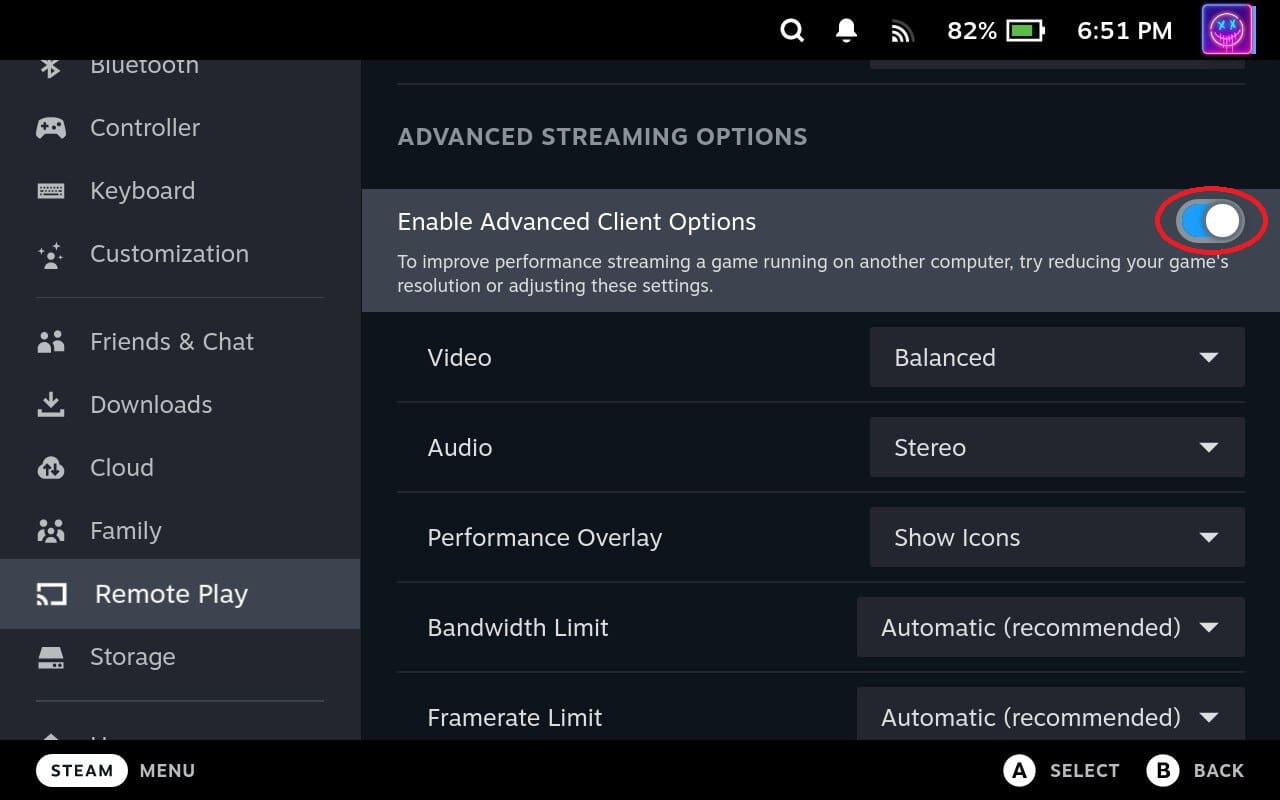
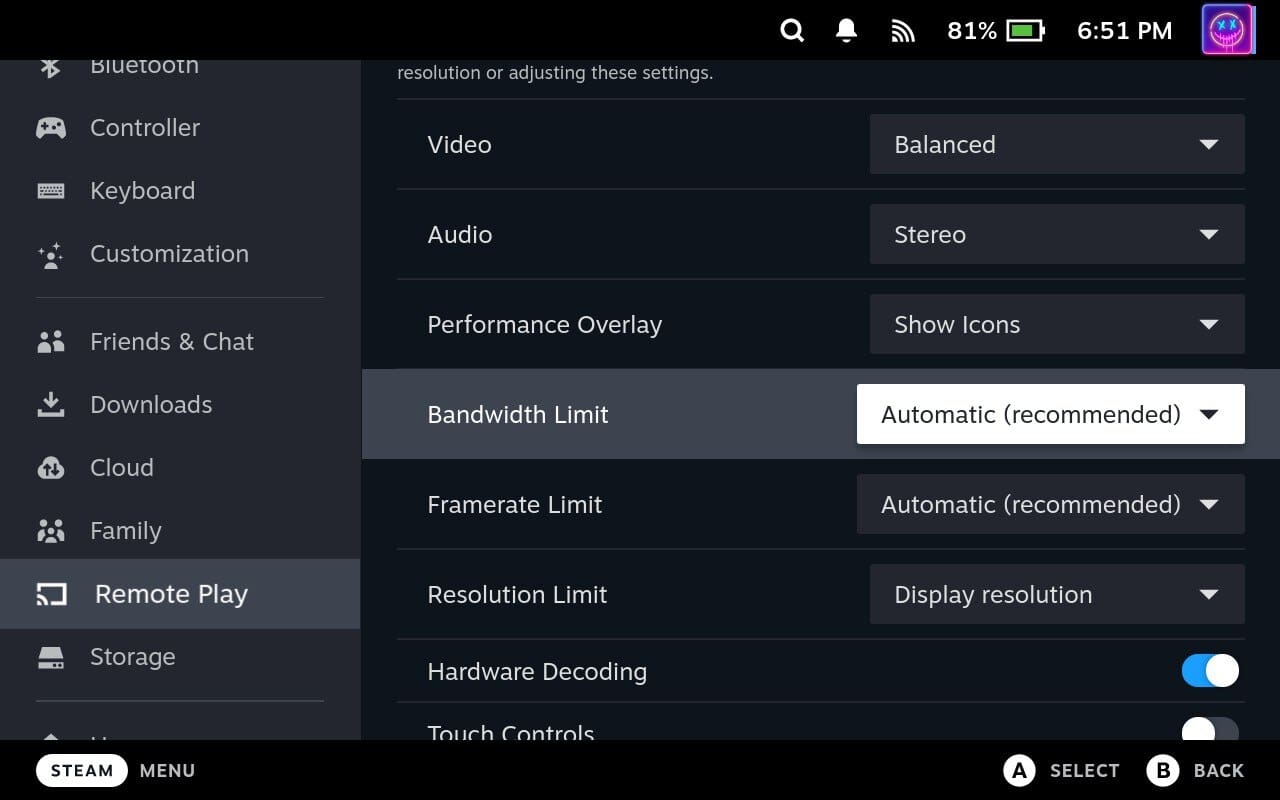
There are a few more things to tinker with if you want to use Remote Play from your Steam Deck. First, under the Advanced Client Options section, you’ll want to click the drop-down menu next to Video. By default, this is set to Balanced, but there are also options for Fast and Beautiful. We recommend trying out the Fast option first to see how well your computer and Steam Deck perform.
Another option that you might want to tinker with is Resolution Limit. By default, there is no setting applied, but you could mess around with different resolutions just to see whether game performance is affected if you try to stream at your device’s native resolution. For reference, the Steam Deck is equipped with a 1280 x 800 resolution, but supports up to 4K (3840 x 2160) when docked.
With all of the fun of setting everything up out of the way, you’re just about ready to remote play from your computer to your Steam Deck. Now all that’s left are a few extra steps:
- Press the Steam button on your Steam Deck.
- Scroll up and select Library.
- Locate and select the game that you want to stream from your computer.
- Click the Drop-down arrow next to the Install button.
- Select your computer from the list.
- Click the Stream button.

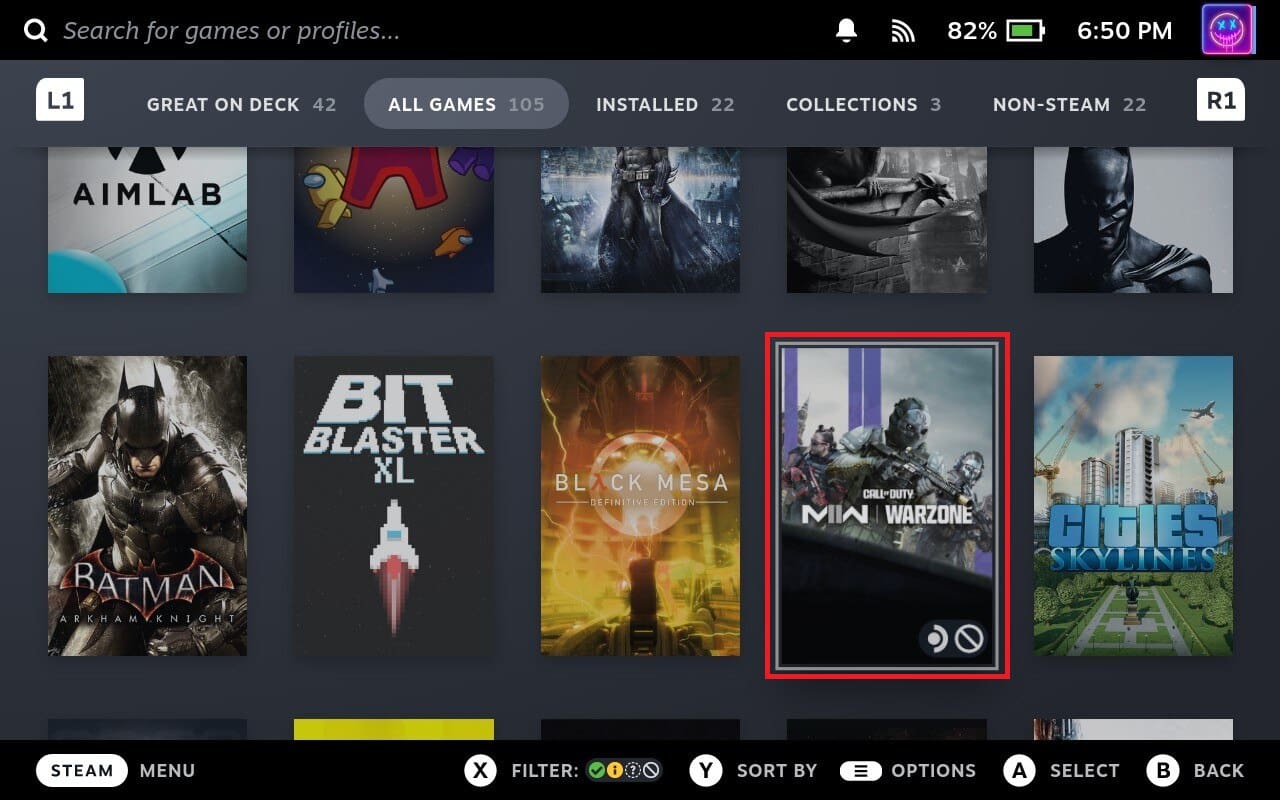

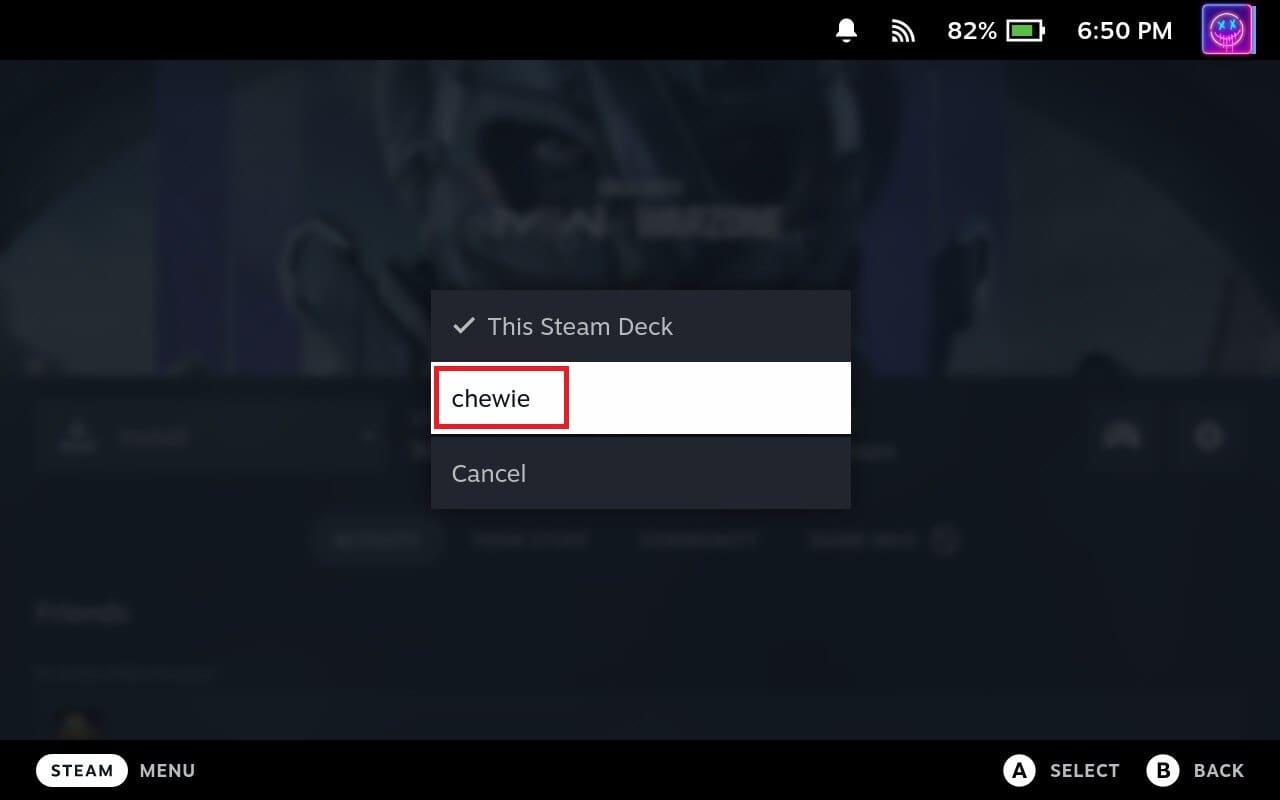

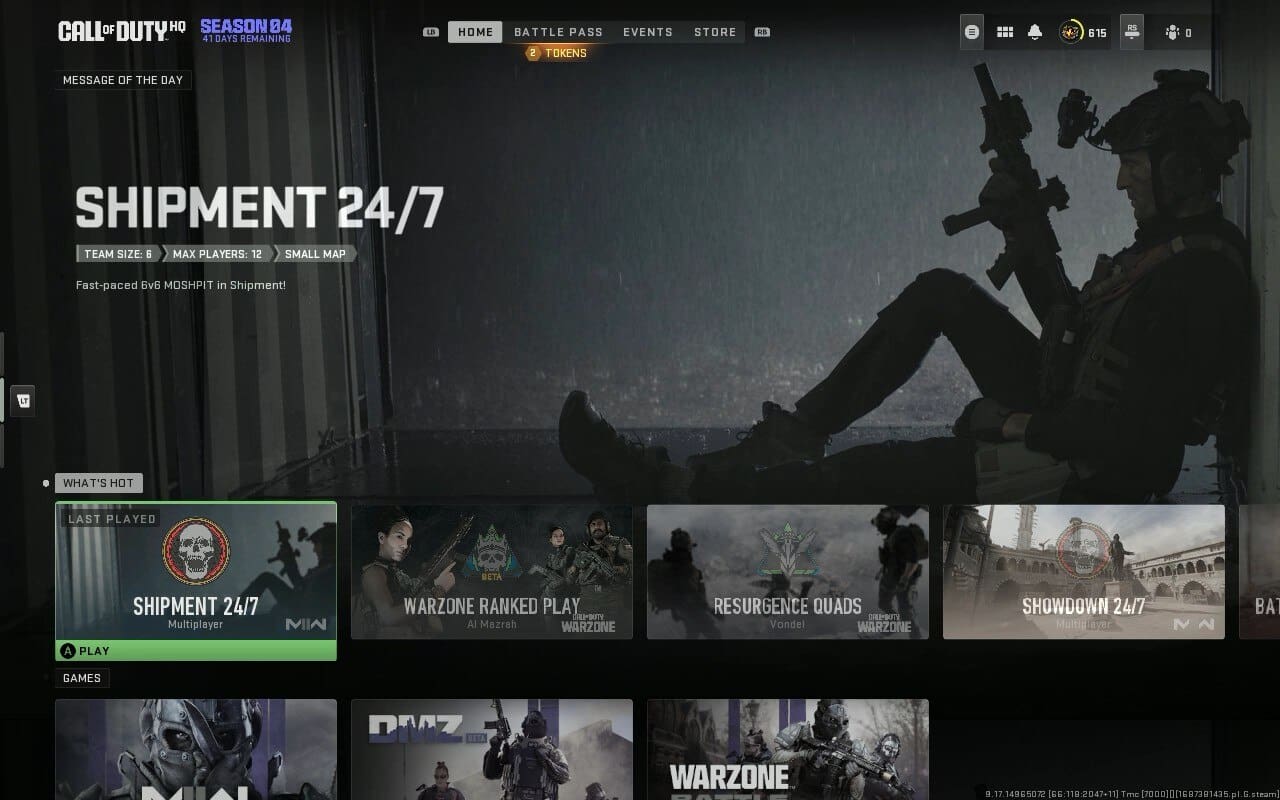
After a few moments, you should see the game begin loading on your Steam Deck. Also, if you look at your computer screen, it’s also pretty likely that you’ll see a much-smaller screen on your computer, which is rather comical if you are using a 4K monitor to stream to the Steam Deck’s 1280 x 800 display.
Conclusion
In summary, using Remote Play on a Steam Deck from your computer enhances the device’s versatility, convenience, and overall gaming experience. By allowing you to access your computer’s game library, play resource-intensive games, and enjoy the comfort of a handheld device, remote play on the Steam Deck can significantly enrich your gaming sessions.